
Reading along
Open the reader at ai1y.co/read and pick a book. Press Read to me and the book reads from where you are. The sentence being read is shaded and the word being said lights up, using the timing recorded for every word, so the highlight is exact.
A chapter’s words show as soon as it opens, before its narration has finished downloading. Press Read to me while the narration is still coming and the button says Getting the voice…, then starts reading once it’s in. The reader downloads narration one chapter at a time, the one you’re on first and then the next, so the chapter you want is ready first.
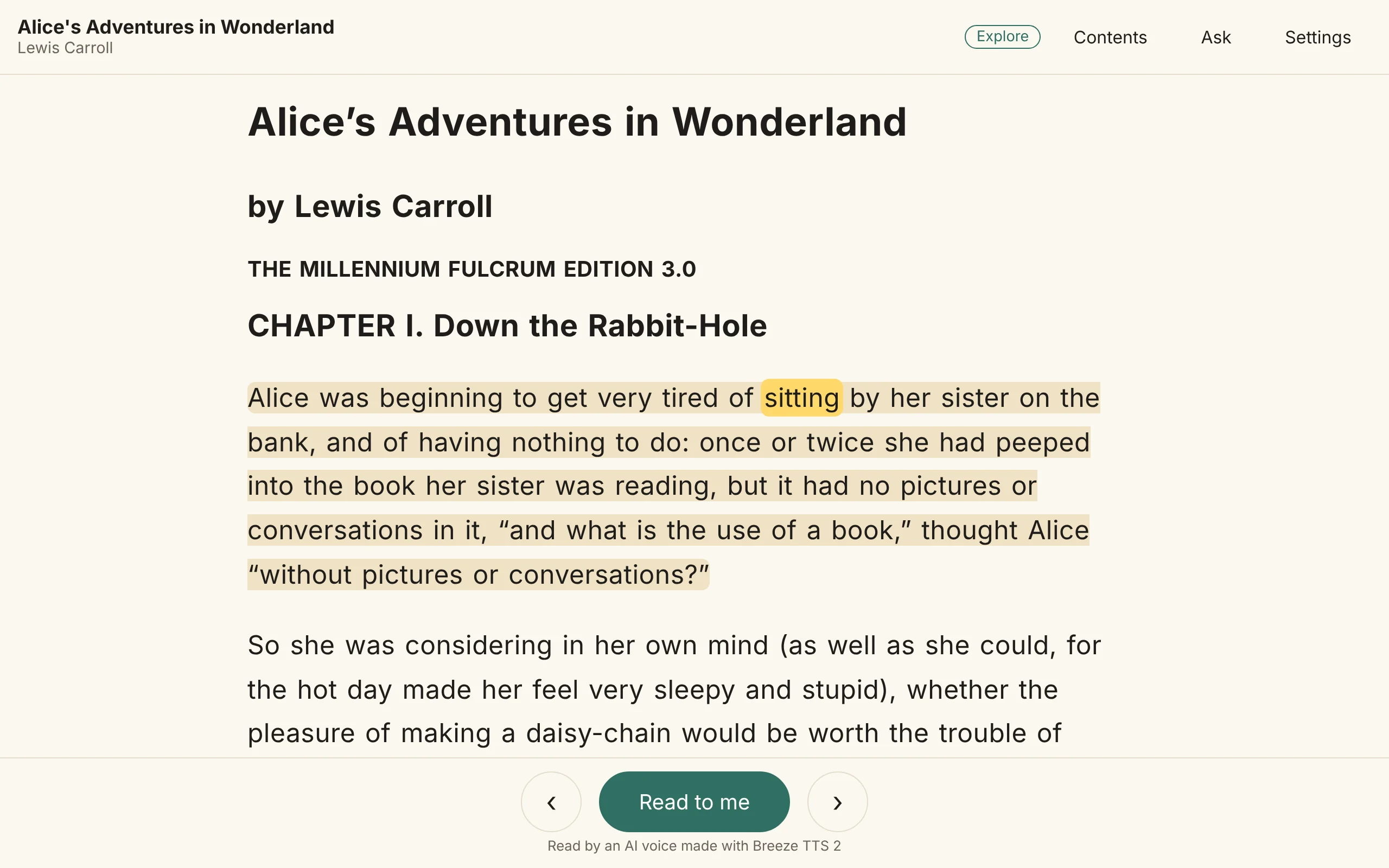
- Tap any word and the book reads on from there. For someone learning to read, Settings can change this to say just the tapped word.
- ‹ and › step back and forward one sentence at a time.
- The line under the play button says the voice is AI and names the model that made it, such as Breeze TTS 2.
- The title page and publisher lines are shown but skipped when reading aloud, unless you ask for them in Settings.
- A book with no narration can still be read aloud by your device’s own voice. How well its words light up depends on the browser.
Pause and time left
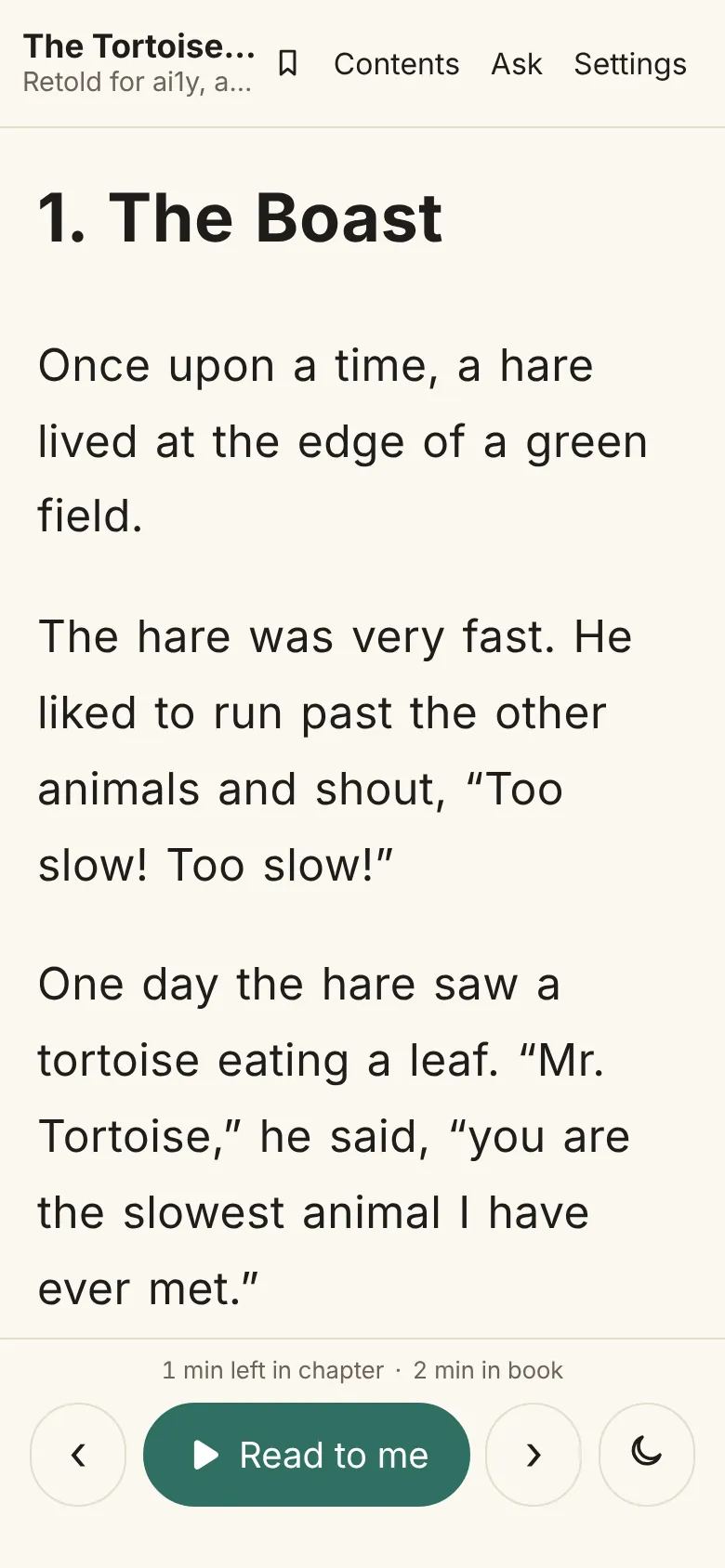
Read to me shows a play symbol. While it reads, the button shows a pause symbol and says Pause; press it to stop, and Read to me carries on from the start of that sentence. Just above the buttons, a small line says how much is left to hear, such as “12 min left in chapter · 2 h 5 min in book”, and a thin line along the top of the controls fills in as the chapter is heard.
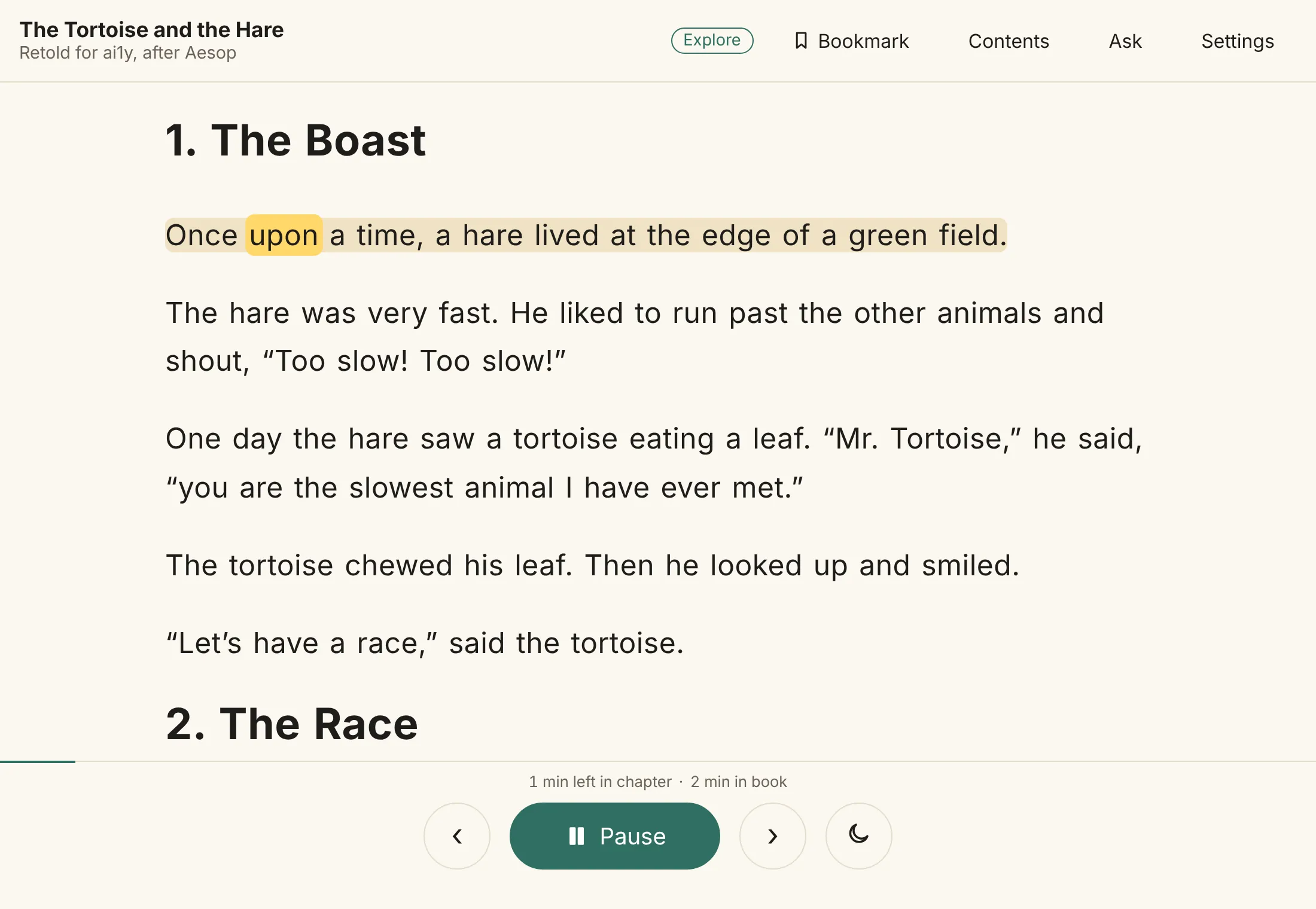
- At your speed. The times count at the speed you picked in Settings, so at 2× they are half, from where Read to me will carry on, leaving out the opening pages and summaries it skips.
- Scroll to start somewhere else. While the book is paused, scroll the lit sentence off the screen and, once you stop, the first sentence showing lights up: Read to me starts there, and the time left counts from there. While it reads, scrolling just lets you look around. See Your place.
- Books you already have show the times without being built again.
- With your device’s own voice, the time left and the line along the controls aren’t shown.
Your place
Each book remembers where you were, with nothing to press. As you go, it keeps the sentence you heard last, or tapped, or stepped to with the arrows. Switch to another app, lock the phone or close the page, and when you open the book again it is back on that sentence, lit, and Read to me carries on from there.
- It keeps up in the background. While the phone shows another app and the book reads on, your place follows along. If something else stops the sound, such as a video or a call, Read to me carries on from where it stopped.
- Scrolling while paused moves it. Scroll the lit sentence off the screen while the book is paused, and your place moves to the first sentence showing once you stop. Scrolling while it reads, or with the lit sentence still on screen, leaves it where it is.
- Chapters still open as asked. Opening a chapter from Contents, or a link to a chapter, opens that chapter.
- When the book changes, say a typo is fixed, a sentence reworded, a passage moved or cut, or the narration made again, the book still opens at your place: it is kept by the words, not the audio, so a new voice, new takes or another speed never move it. If your sentence was cut, it opens at the one that came after it, or, failing that, at the start of its chapter.
- Separate from the bookmark. The bookmark stays where you put it; your place follows your reading.
- Kept in this browser. Like the bookmark and your settings, your place stays in this browser on this device and is never sent anywhere.
Bookmark
Tap Bookmark at the top (just the ribbon on a phone) to keep your place. It goes on the sentence being read, or on the first sentence at the top of the screen, and a small ribbon shows beside that sentence. Each book has one bookmark: tap Bookmark somewhere else and it moves there, or tap it while the bookmarked sentence is on screen to take it away. Each change says so above Read to me, such as “Bookmark set.”, with Undo.
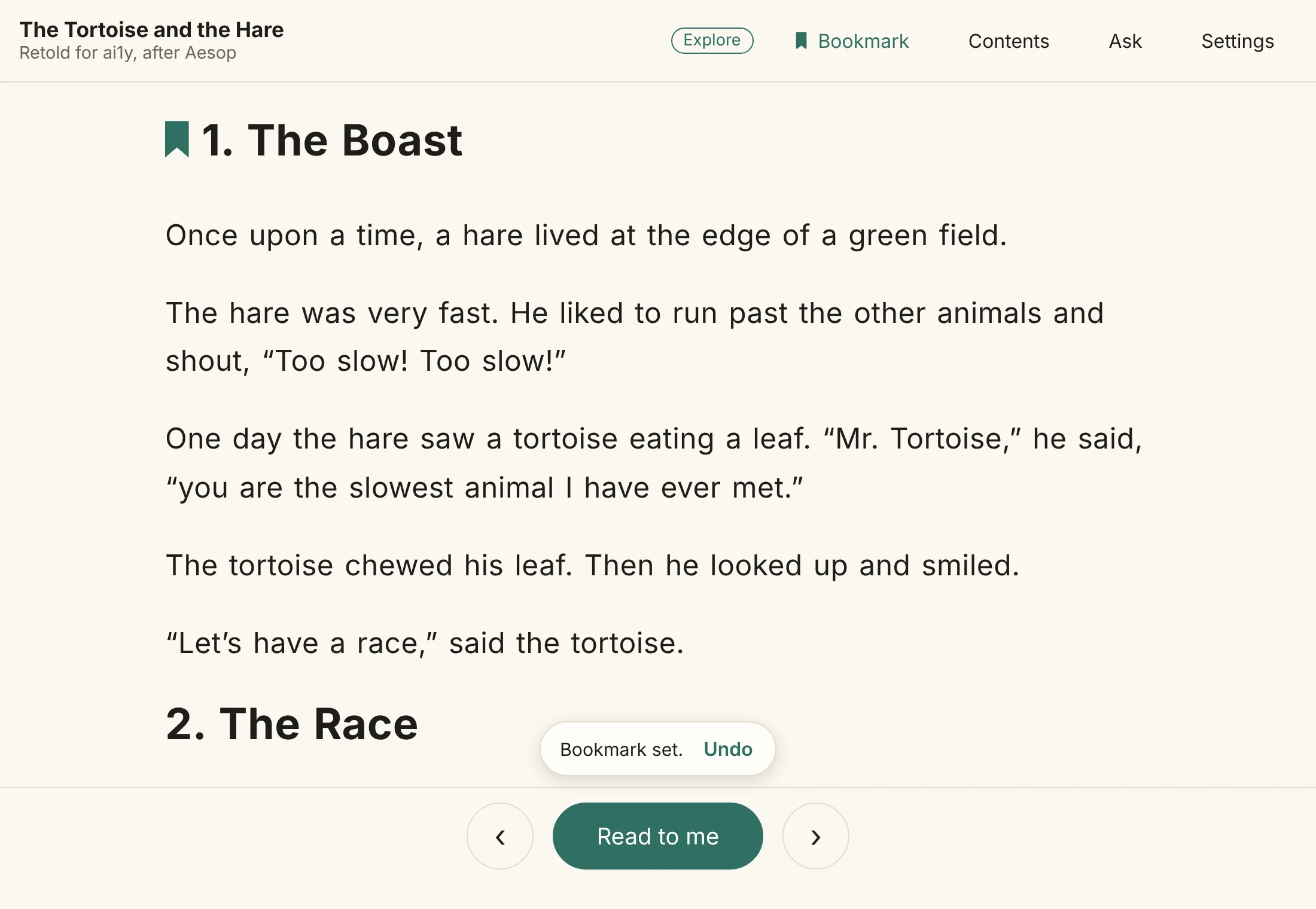
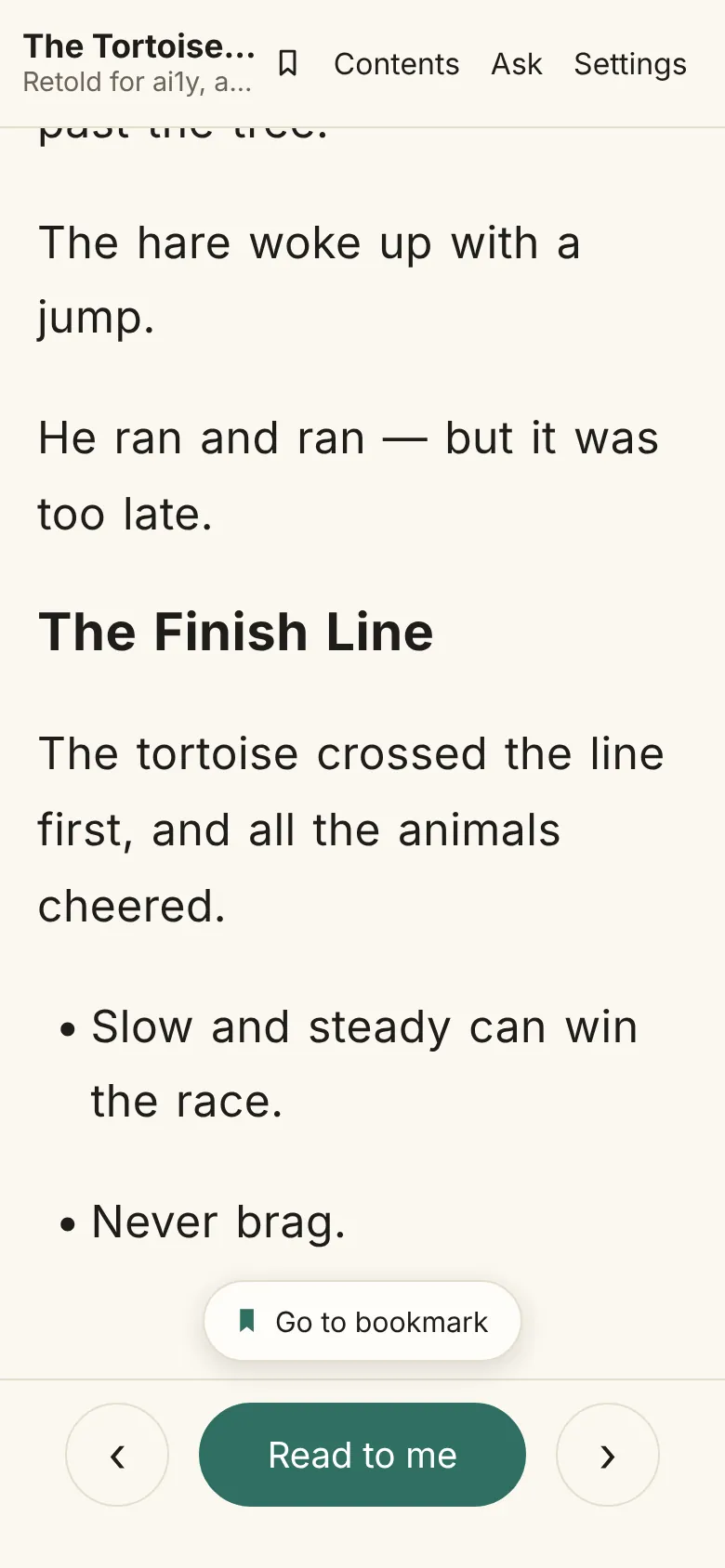
- Go to bookmark shows above Read to me while the bookmark is somewhere else in the book. One tap goes back to it and lights the sentence, so Read to me carries on from there.
- Kept in this browser. The bookmark is saved in this browser on this device, and never sent anywhere. Another device or browser doesn’t have it, and ai1y.co, a reader you run yourself and the studio’s reader each keep their own.
- When the book changes, the bookmark is found again the same way as your place, even if its sentence was reworded, moved or cut.
- The book opens at your place, not at the bookmark; the bookmark is there to go back to.
Sleep timer
To fall asleep to a book, tap the moon beside Read to me and pick 5, 10, 15, 30 or 45 minutes, 1 hour, or End of the chapter. A line above the reading controls shows the time left, such as “Reading stops in 14:32”, with Turn off.
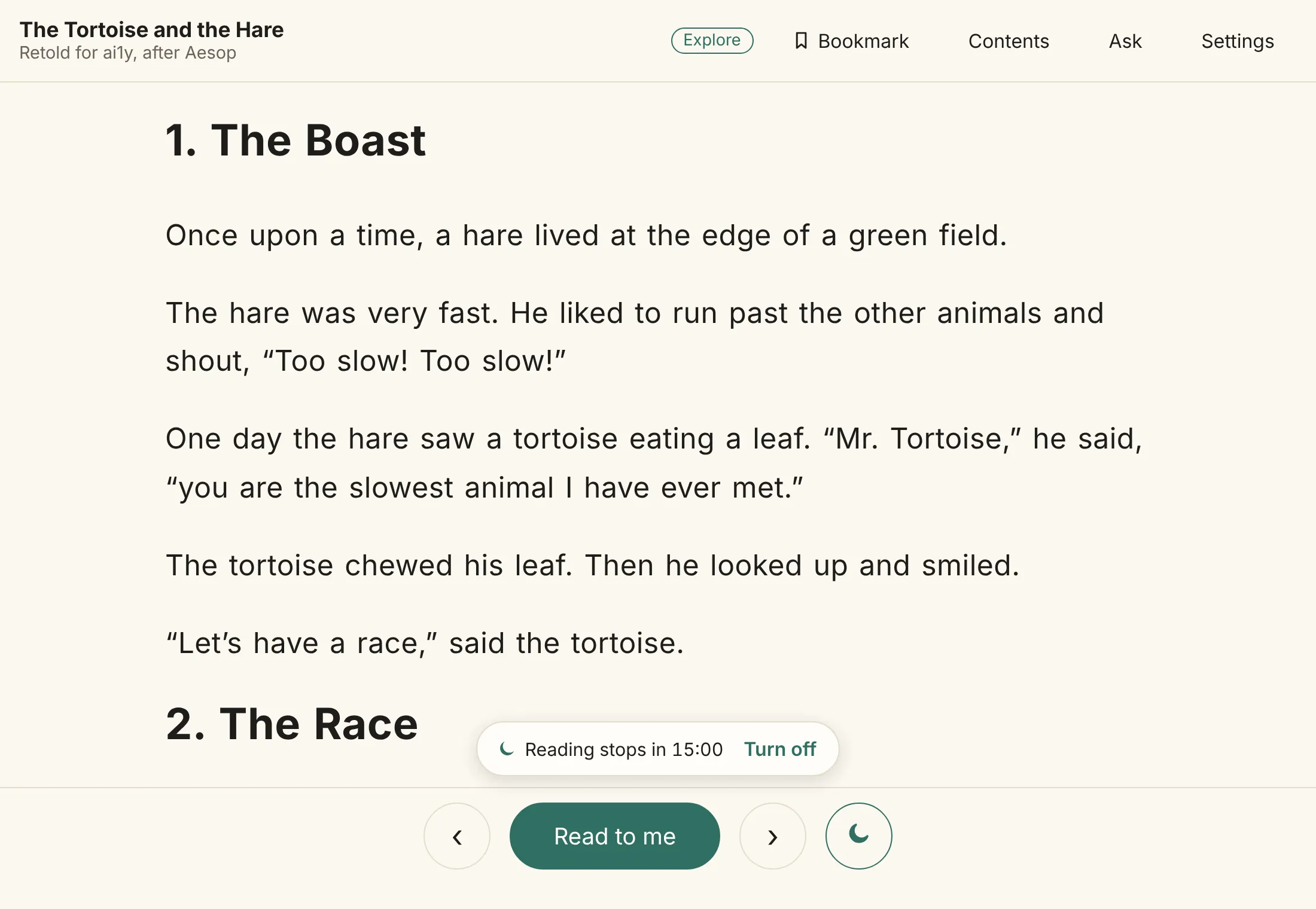
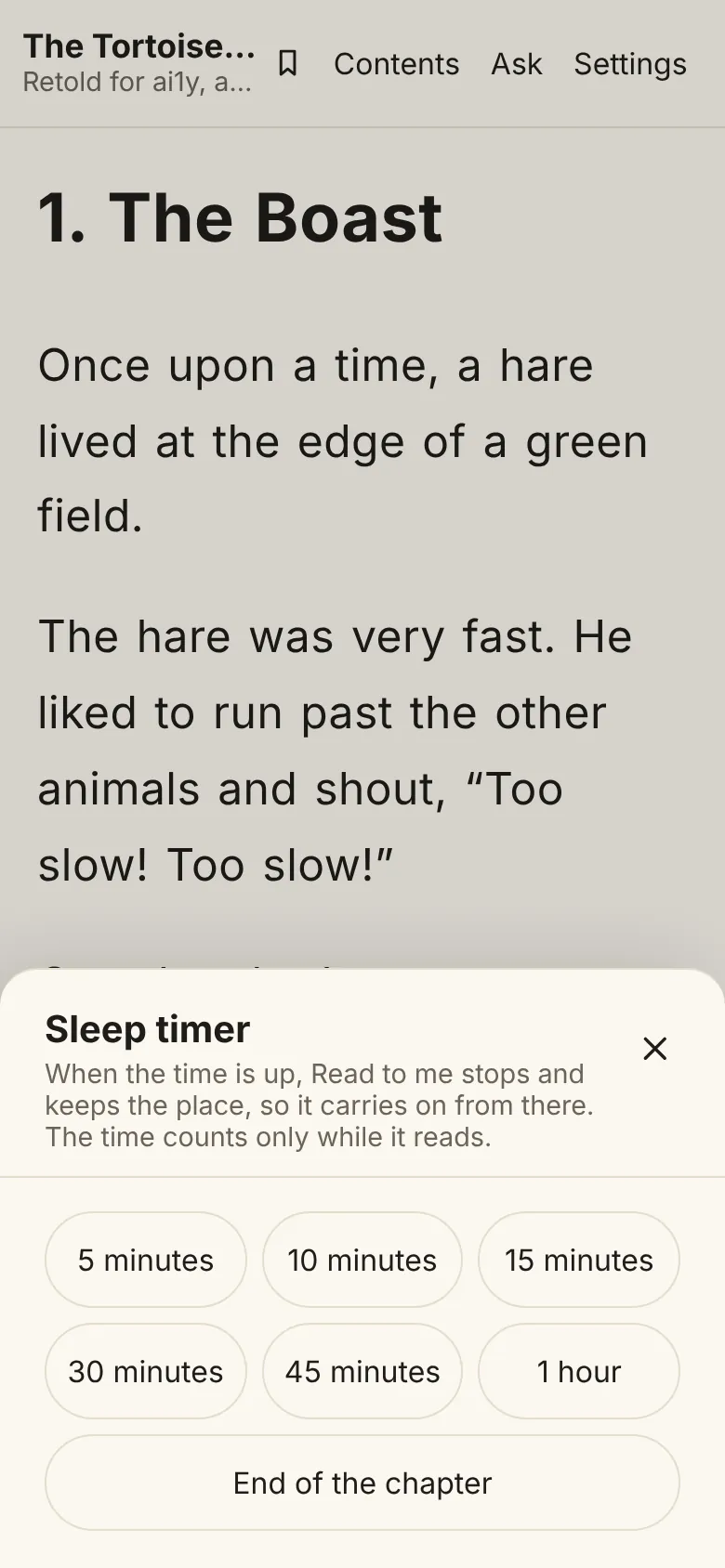
- It counts only while Read to me reads. Pausing holds the time.
- When the time is up, the narration fades out over its last few seconds and stops. The sentence it stopped in stays lit, so Read to me carries on from the start of it.
- End of the chapter stops when the chapter ends, and Read to me then starts the next one.
- Last time marks your last choice the next time you tap the moon. A running timer ends if the page is reloaded or closed.
- On iPhone and iPad, and when a book is read by your device’s own voice, reading stops at the time without fading. With the screen off, some phones may stop a little late.
On a phone
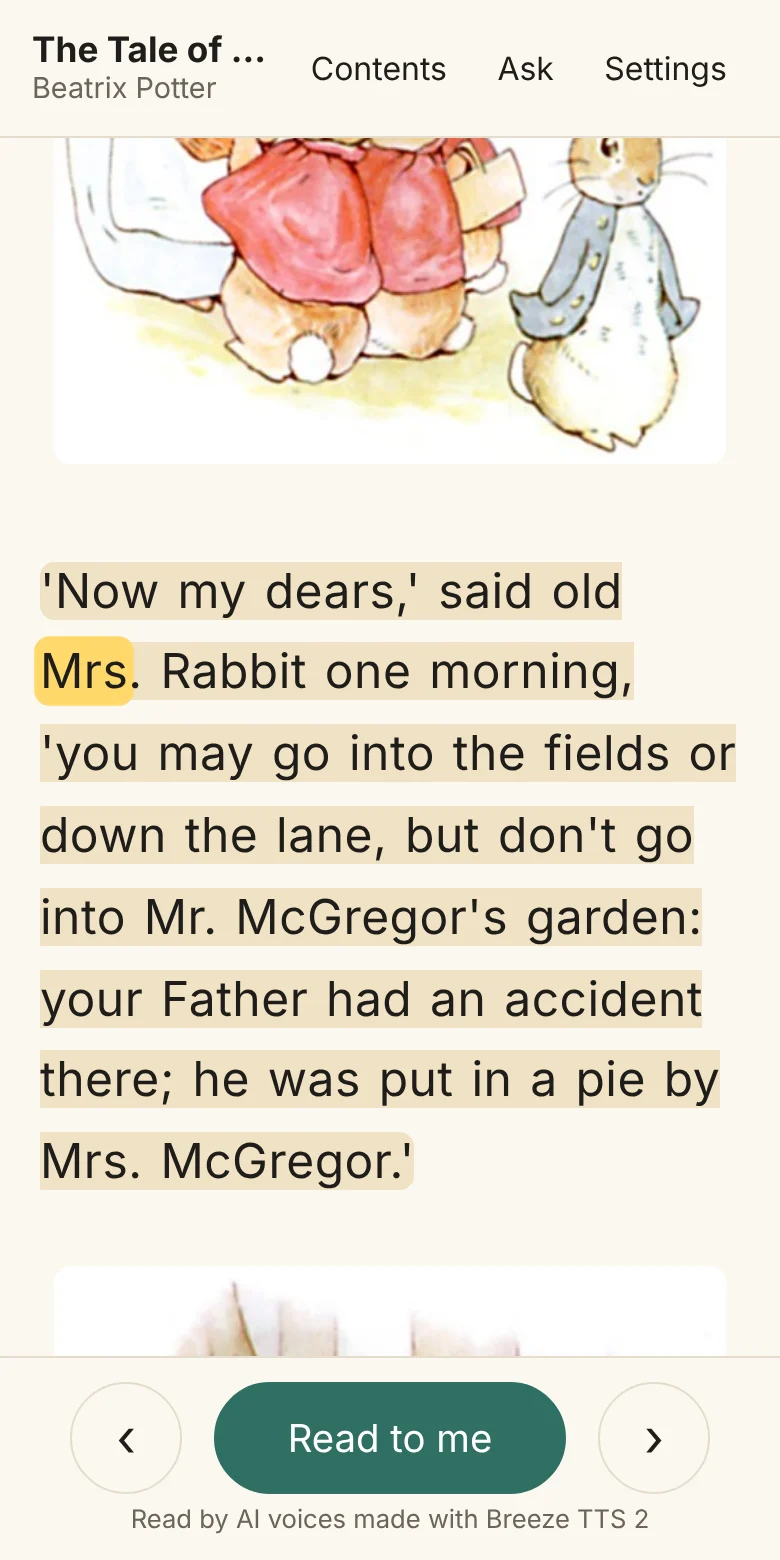
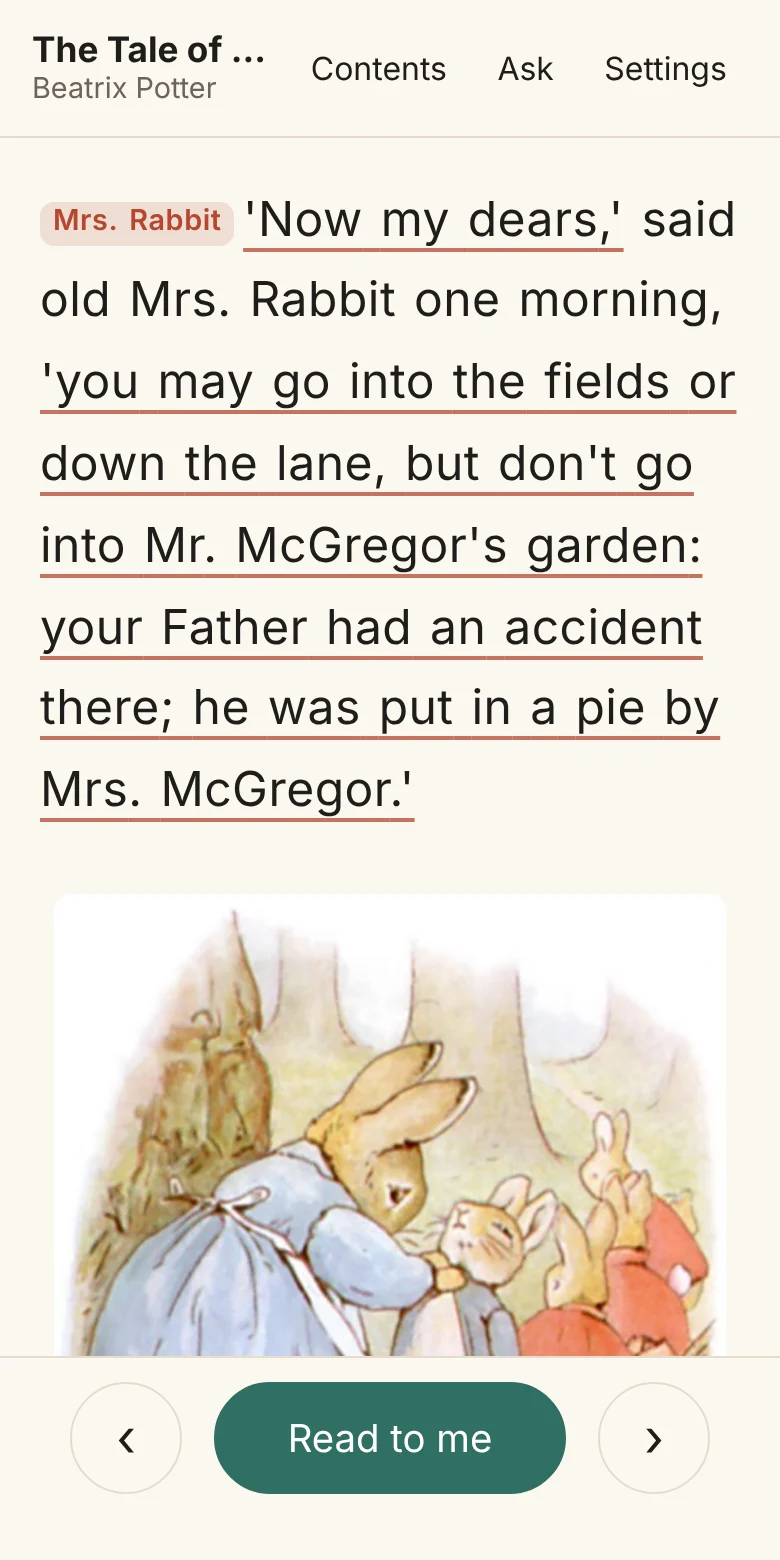
The reader fits any screen, and the controls stay in reach of a thumb. It can be added to a home screen like an app, and a saved book opens with no connection.
Peter Rabbit here is read by a narrator and a voice for each character. When Mrs. Rabbit speaks, you hear Mrs. Rabbit; the words on the page don’t change.
Sound it out
When a word is hard to read, long press it for half a second, with a finger or the mouse, and Sound it out opens. Reading pauses and stays on that word. The panel shows the word’s letters grouped by the sounds they spell, and Hear it plays the word in the book’s own narration, lighting each group as its sound is heard. Close it with × or by tapping outside it, and reading picks up where it was. Sound it out is free, part of the reader itself, and needs no account, key or online service. It is help while reading, and works well with an adult reading alongside.
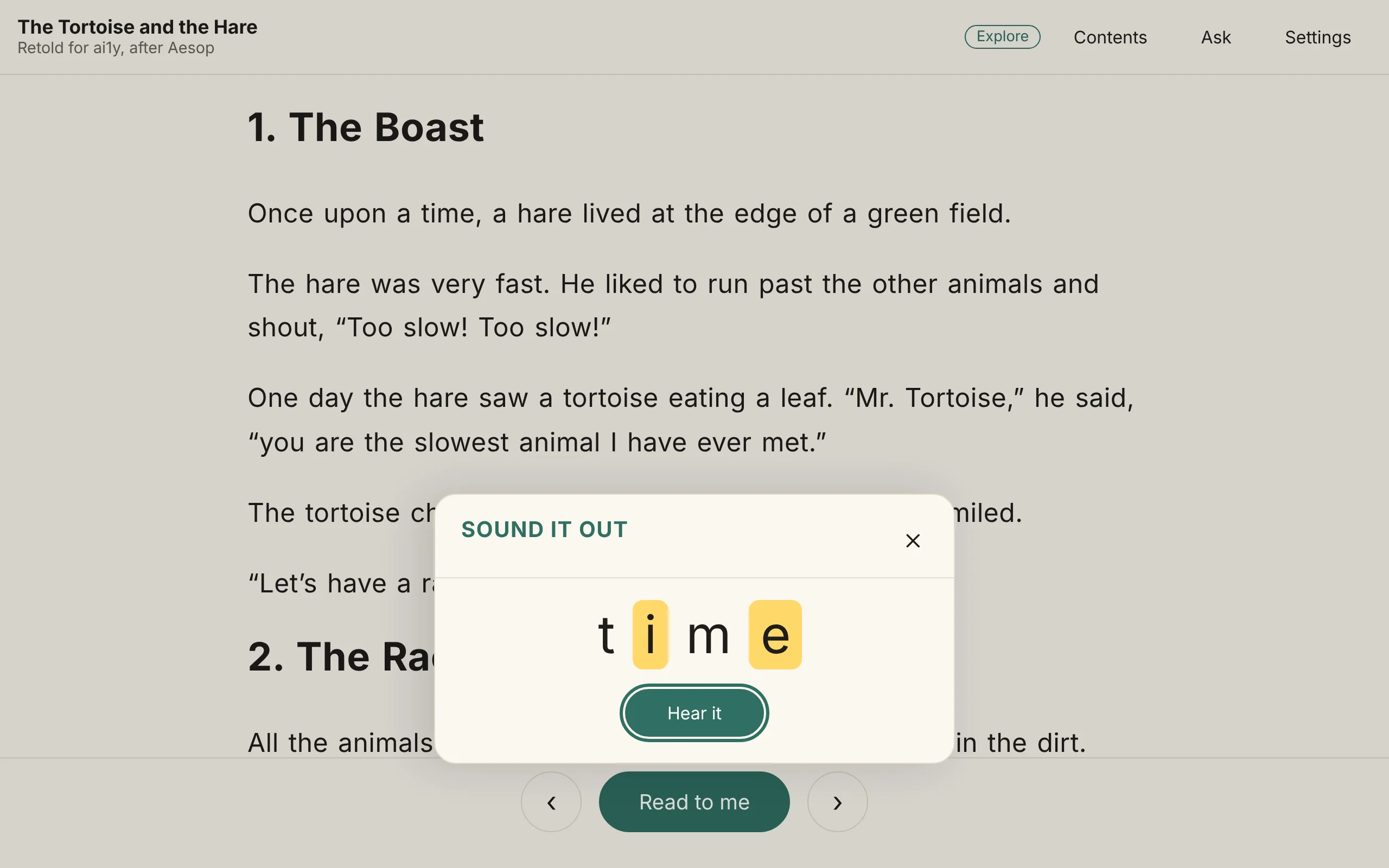
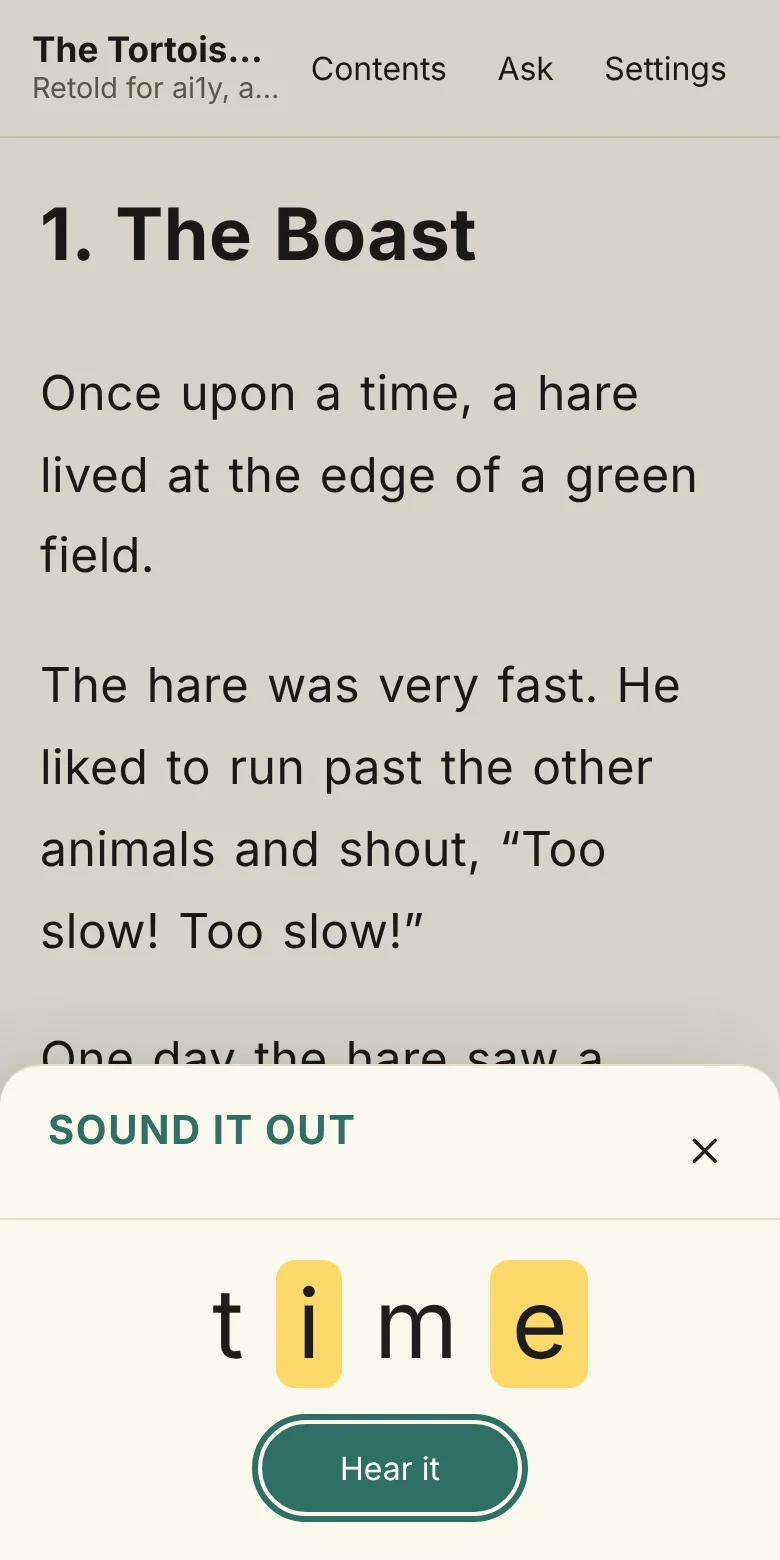
- Letters by sound. Each group of letters that spells one sound is shown together. When a spelling is split around another letter, like the i and e of “time”, both parts light together as one sound. Letters that spell their sound in an unusual way, like the o in “once”, have a dotted underline.
- Tap twice. With Settings → Learning to read set to say just the tapped word, the first tap says the word and a second tap on it opens Sound it out.
- On a phone the panel rises from the bottom, so the page stays in view behind it.
- Slowly appears when the reader has a set of sound clips: it plays each sound on its own with a short pause, lighting each group in turn, then says the whole word. Tap a letter group to hear just its sound. The panel names whose voice the sounds are in. No set of clips comes with ai1y yet, so most readers see only Hear it; you can record a set in your own voice.
- Words with no breakdown. A word the book has no sounds for shows its letters as one group, with Hear it. A book has its words grouped by sound only if it was made with them.
The library
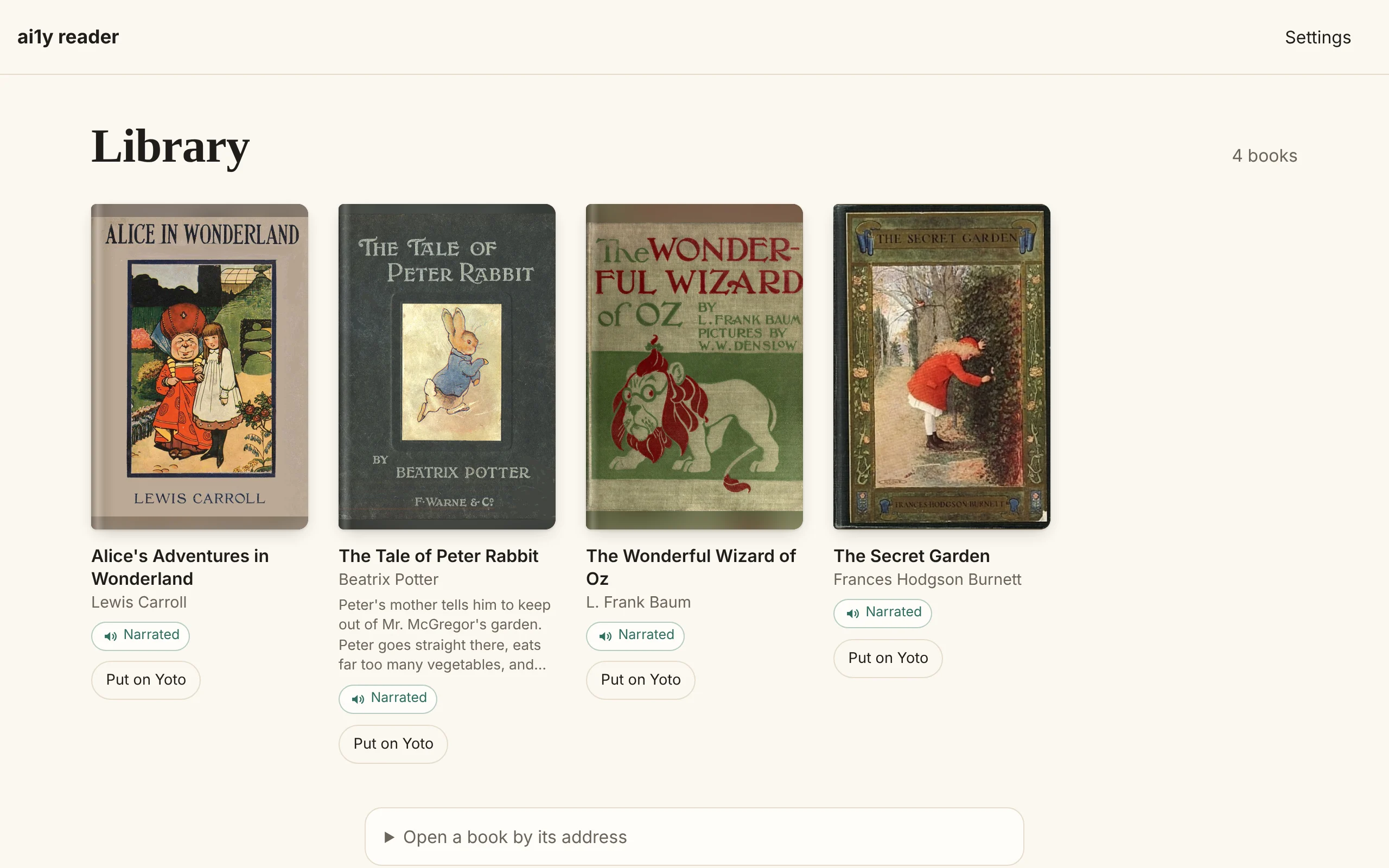
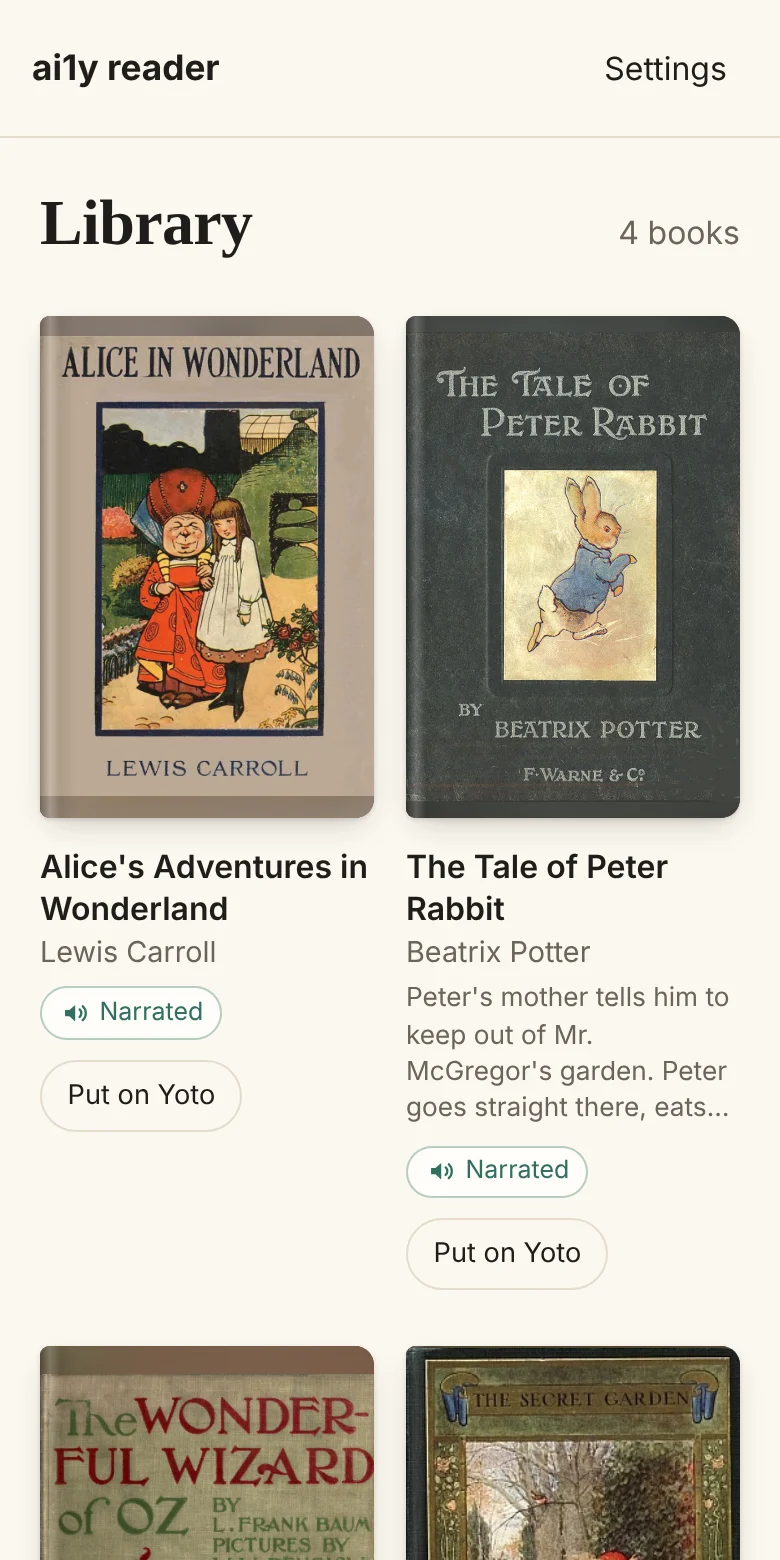
With no book open, the reader shows its shelf: every book it was given, twelve to a page. A book that comes with its own cover shows it, like the old printed covers of Alice, Peter Rabbit, Oz and The Secret Garden. Any other book gets a cover made for it, in a cloth color with the title and author in gilt, and a book with pictures shows its first picture across the top. When a book has a description, its first few lines show under the author, and a screen reader hears all of it. A Narrated badge marks books that come with a recorded voice.
To open a book that isn’t on the shelf, unfold Open a book by its address below it and paste the address of the book’s manifest.json.
Contents
Contents slides in from the left, like turning back to the front of the book, or up from the bottom on a phone. It shows the book’s cover and title, where you are (“Chapter 3 of 12”) and how far through the book, then every chapter by number and name, with the one you’re reading marked Reading now. The title page and other opening pages sit apart above the chapters.
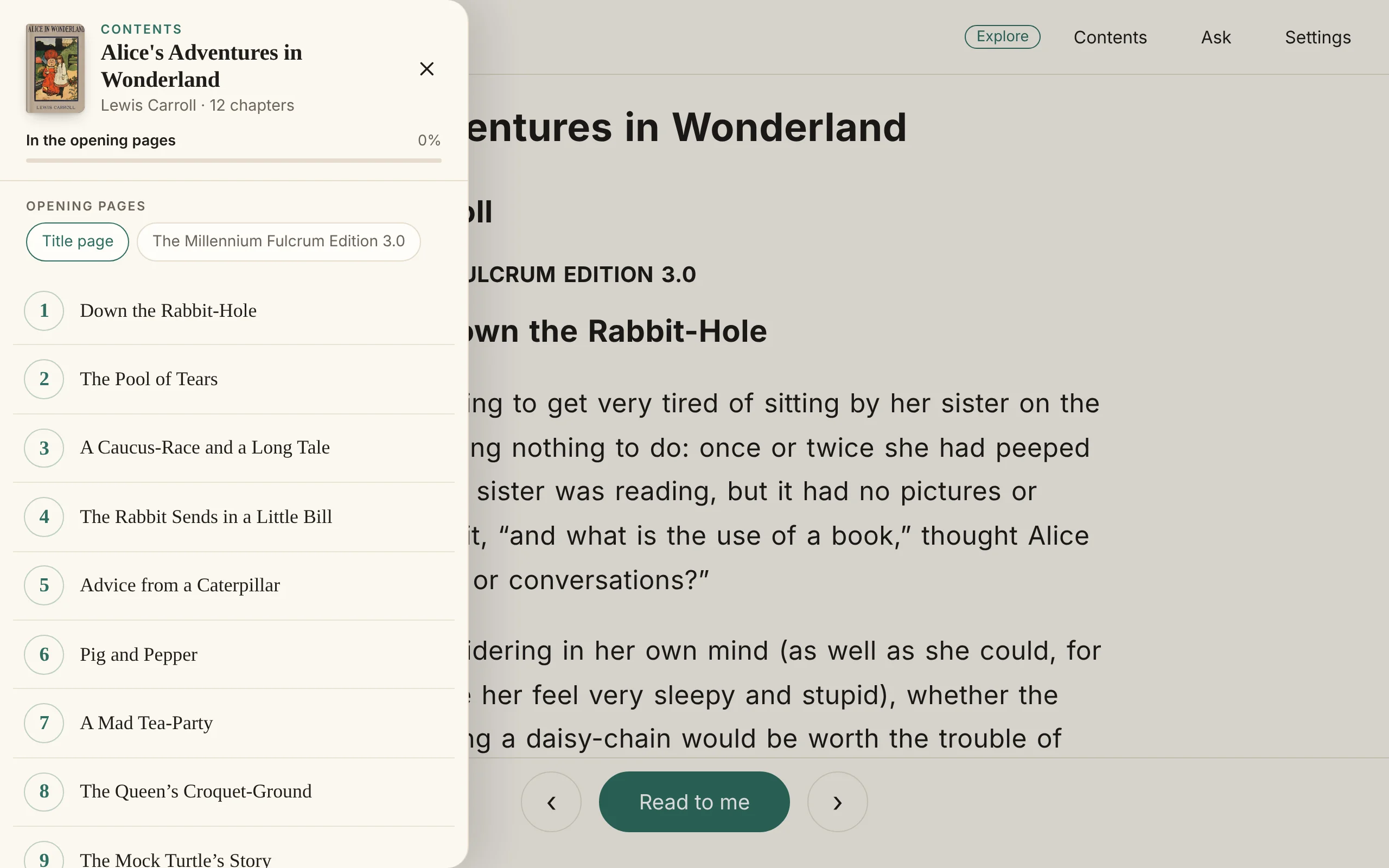
A book with 24 chapters or more gets a Find a chapter box at the top.
Settings
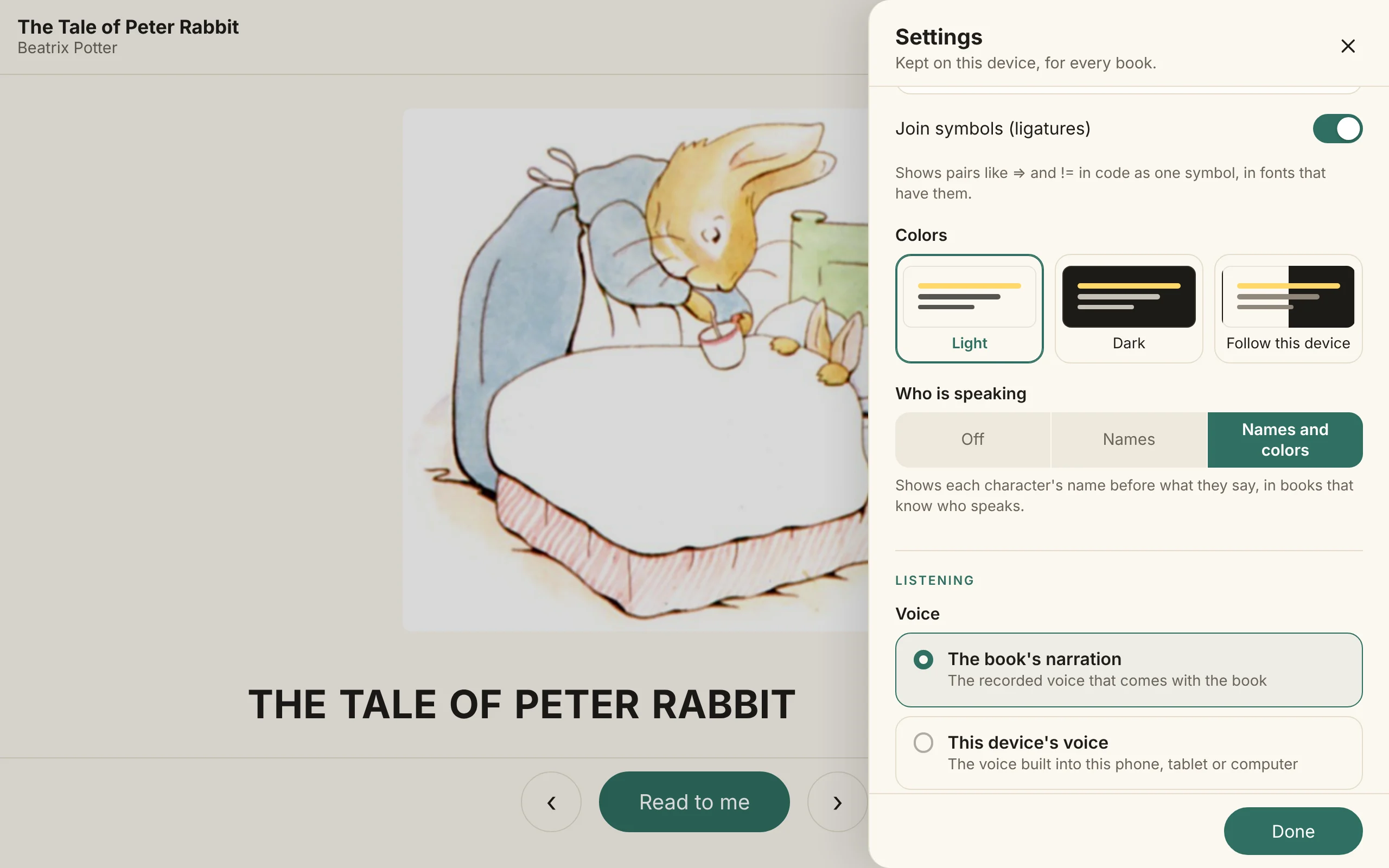
Settings slides in from the right, or up on a phone. Settings are kept on the device, for every book. A line of the book at the top shows each change to the text size, spacing or font as you make it. Every font comes with the reader, so it works offline.
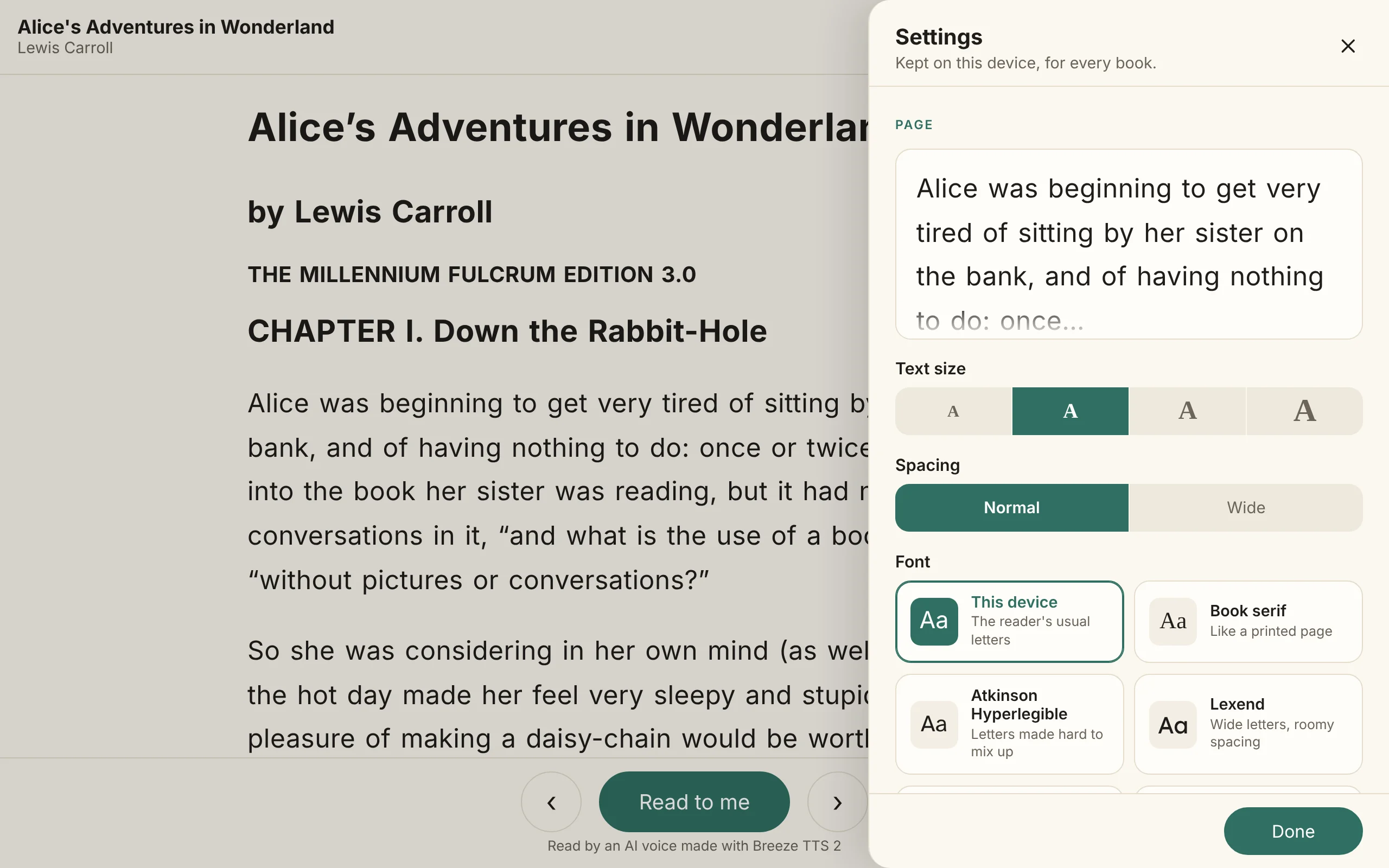
| Group | Settings |
|---|---|
| Page | Text size (also set by pinching the page), spacing, the font for the book (this device’s, a book serif, Atkinson Hyperlegible, Lexend, Andika, OpenDyslexic, Lato, Open Sans or Courier Prime; research hasn’t shown that any font makes reading easier for everyone, so pick the one you find comfortable), the font for code (JetBrains Mono, Fira Code, Cascadia Code, Atkinson Hyperlegible Mono or this device’s) with symbols like => joined into one (ligatures) unless turned off, and colors: Light (the default, since most book pictures are drawn for a white page), Dark, or Follow this device. In dark, pictures keep a light backdrop. Who is speaking: Off, Names or Names and colors (the default). |
| Listening | The voice (the book’s narration, or this device’s voice), the speed (from 0.5× to 3×, with the voice and background sounds keeping their pitch at every speed), whether the title page and publisher lines are read aloud, and Background sounds (as made, softer or off) for books with sounds or music under the voice. |
| Learning to read | What tapping a word does (reads on from that word, or says just that word, where a second tap opens Sound it out), and Practice reading aloud, off by default. |
| Summaries | Which summaries to show and read: pictures and charts, code, tables, long formulas. All are off by default. |
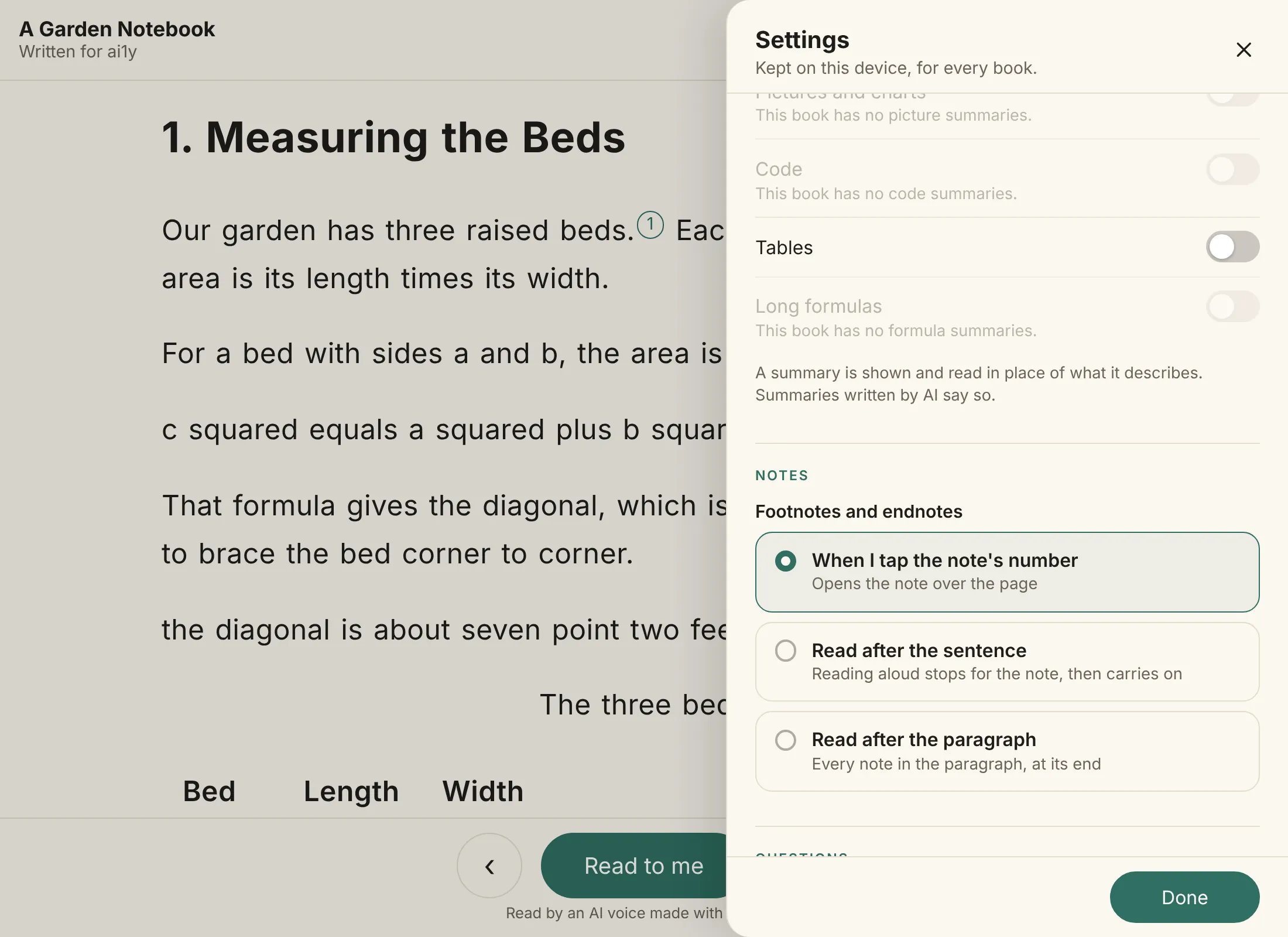
| Notes | When footnotes and endnotes are read: When I tap the note’s number (the default), Read after the sentence or Read after the paragraph. |
| Questions | Whether questions can be asked out loud (off by default; see Talking with your book), and whether answers may come from the whole book or only the pages read so far. |
| Offline | Save this book for offline reading. |
Who is speaking
In a book read by a cast of voices, Settings → Page → Who is speaking shows who says each line. It starts on Names and colors, and Off hides it. Names puts the character’s name in small letters just before their words, where they start speaking. A line that goes on after “said Mrs. Rabbit”, or over several sentences, isn’t named again; a new paragraph names its speaker again. Names and colors also underlines everything each character says in a color of their own, so you can follow a conversation down the page, and the name is always there too, so nobody has to tell colors apart. The name never gets in the way of reading along: the highlight and tapping a word work as before.
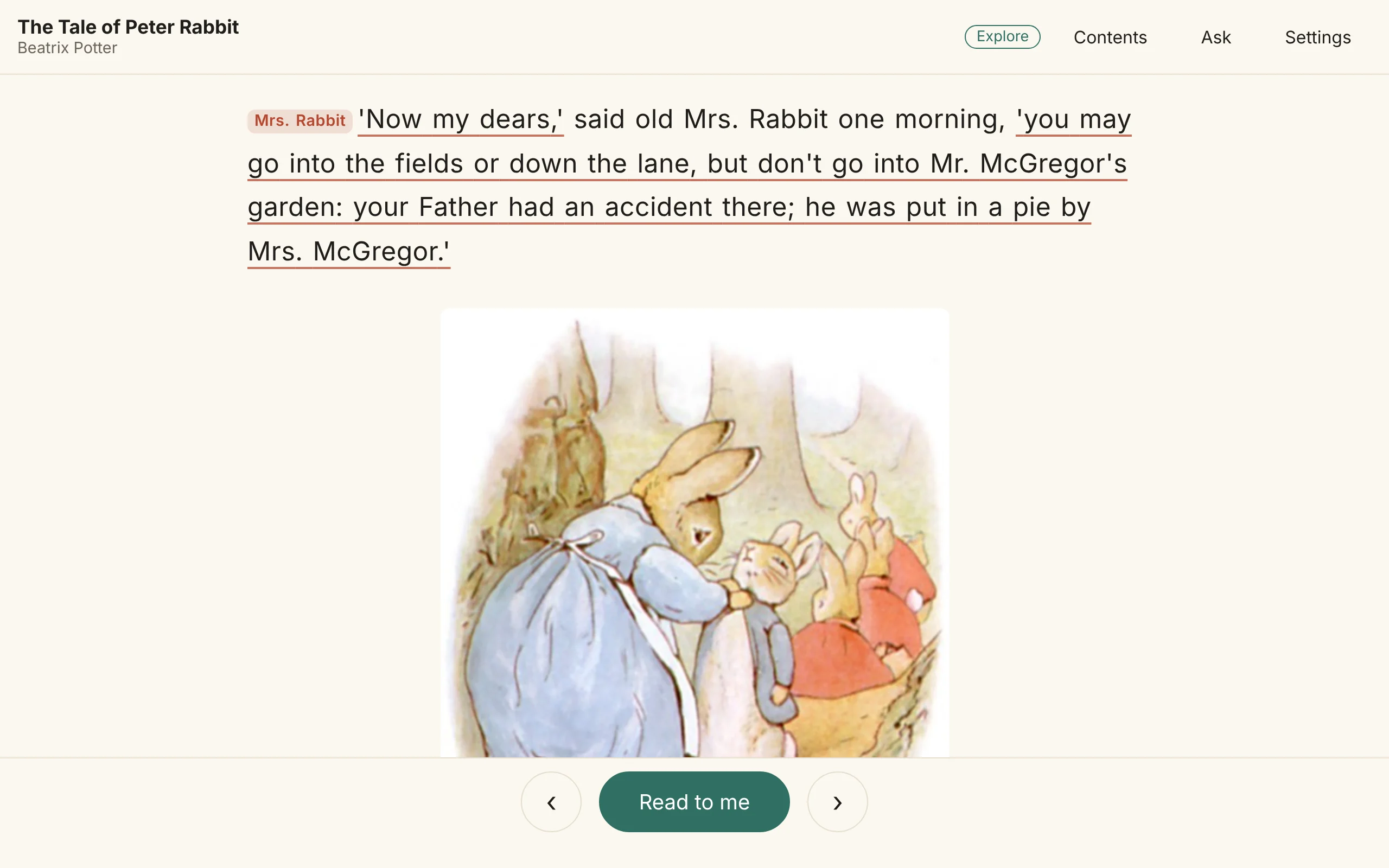
- A group speaking together shows the group’s name. The narrator is never named.
- The character, not the voice. A character’s line is named after the character even when the narrator’s voice reads it, since the setting says who speaks in the story.
- Books without a cast keep the setting greyed out, with “This book doesn’t say who is speaking.”
Asking about the book
Ask opens a panel for questions about the book. Every answer that comes from the book points to the sentences it came from, and Show me in the book takes you there, so the answer leads back into the text.
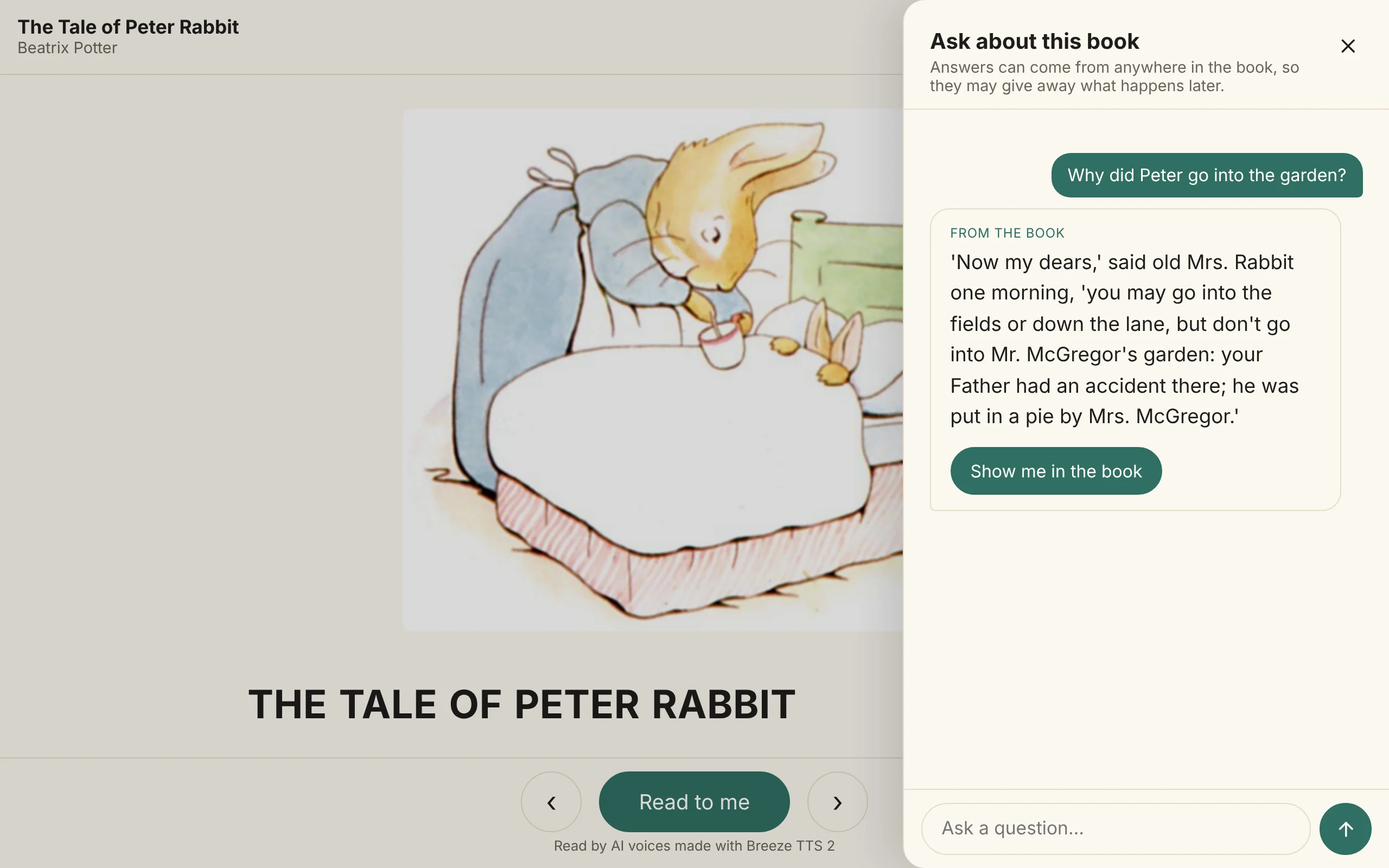
Asking isn’t on ai1y.co/read/ yet; it works in the creator studio’s reader.
- Answers use an online service. It is sent the question, the passages it needs and, in a conversation, the last three questions and answers, never anything about the reader.
- Spoilers are a setting. Answers can come from the whole book, which may give away what happens later, or only from the pages read so far.
- Questions out loud are off until a grown-up turns them on, since they are sent to an online speech service to be written down.
- Long books are searched with an index, made once for each book.
Talking with your book
With Asking questions out loud turned on in Settings, the Ask panel has a Talk button. Tap it once and ask. The answer is shown and read aloud, then the microphone opens again for the next question, so you can keep talking with the book. Follow-up questions, like “what did he do then?”, understand what was asked before.
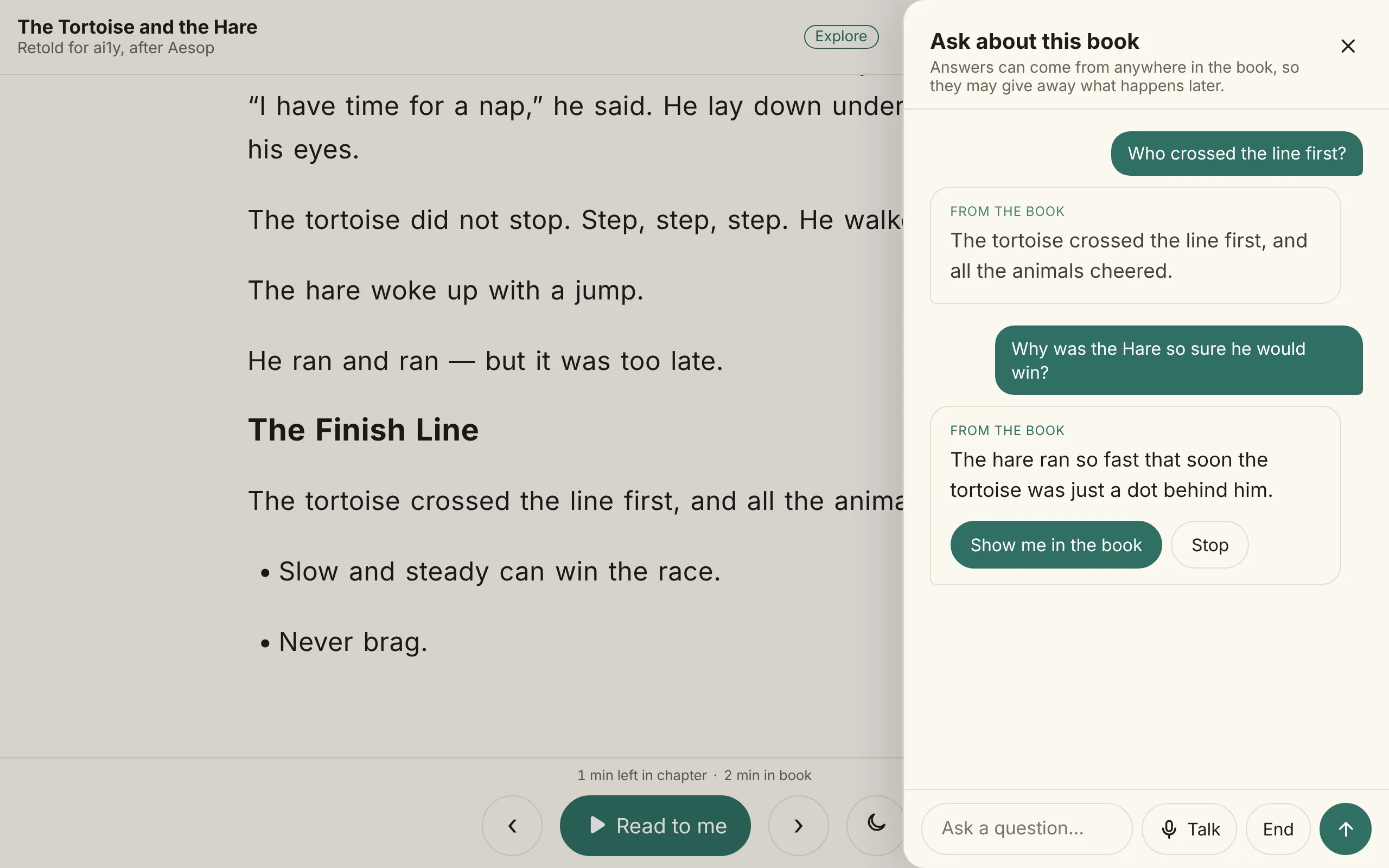
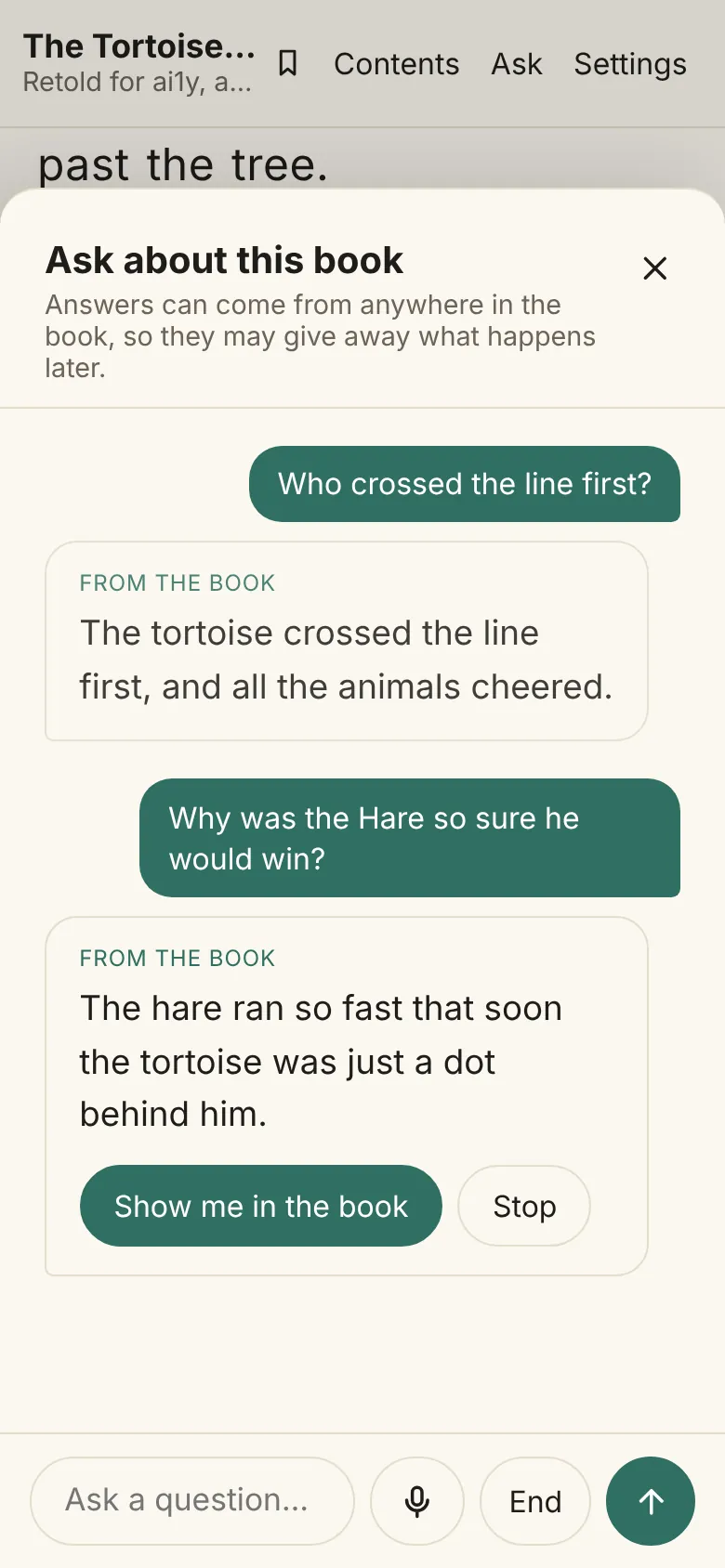
- Stop, while an answer is read, stops it and listens for the next question.
- End finishes the conversation. Closing the panel, Show me in the book, typing a question, or 8 seconds without saying anything also end it, and the panel says Tap Talk to keep going.
- What goes online. The recording goes to Deepgram to be written down; it isn’t kept there or used for training, and ai1y never saves it. The question, the book’s passages and the last three questions and answers go to Claude as text.
- Where it works. In the creator studio’s reader, like the rest of asking. Talking isn’t on ai1y.co/read/ yet. Sound it out, pattern hunt and the narration don’t need it.
Coming Answers from vetted web pages when the book doesn’t say, clearly labeled as coming from the web.
Practice reading aloud
Turn on Practice reading aloud in Settings and a Practice button joins the top bar. It is for reading a page aloud to a grown-up: the reader reads a passage, the grown-up taps the words that were missed, and the grown-up’s sheet shows words correct per minute and accuracy, with earlier readings and the words to practice.
ai1y never listens to or judges the reader’s own voice; the person listening is the grown-up. Practice readings are kept only in that browser, and the sheet can save them as a CSV file or delete them all.
Pattern hunt
The Practice sheet starts with Pattern hunt. Pick a spelling pattern: two letters that make one sound (sh, ch, th…), silent e (a_e, i_e…), vowel teams (ai, ee, igh…), bossy r (ar, or…) or word endings (-ing, -ed…). Or type your own, like “igh”, “a_e” or “-ing”. The sheet says how many words in the book have it, gives examples, and shows a map with a row for each chapter and a mark where the pattern is.
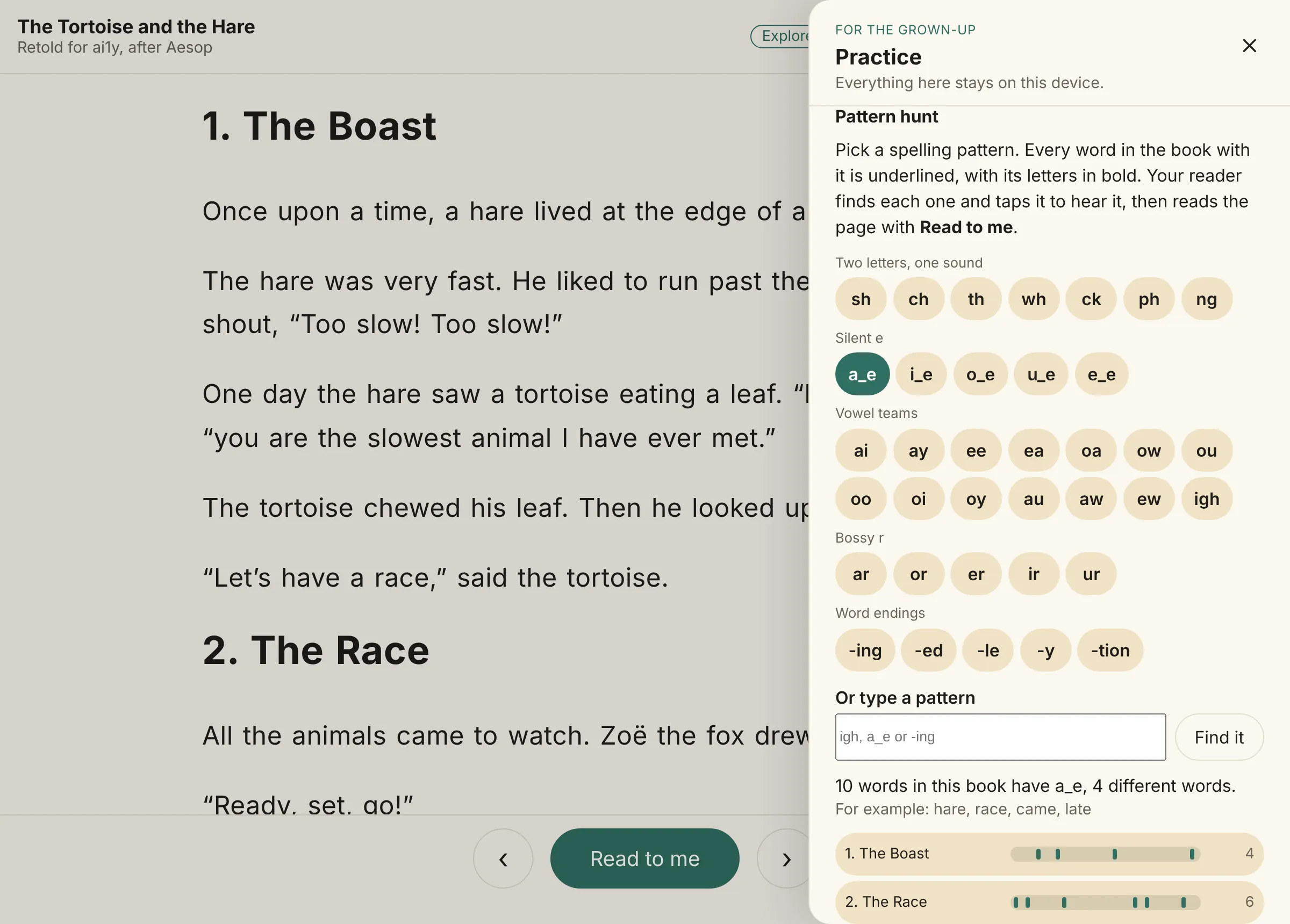
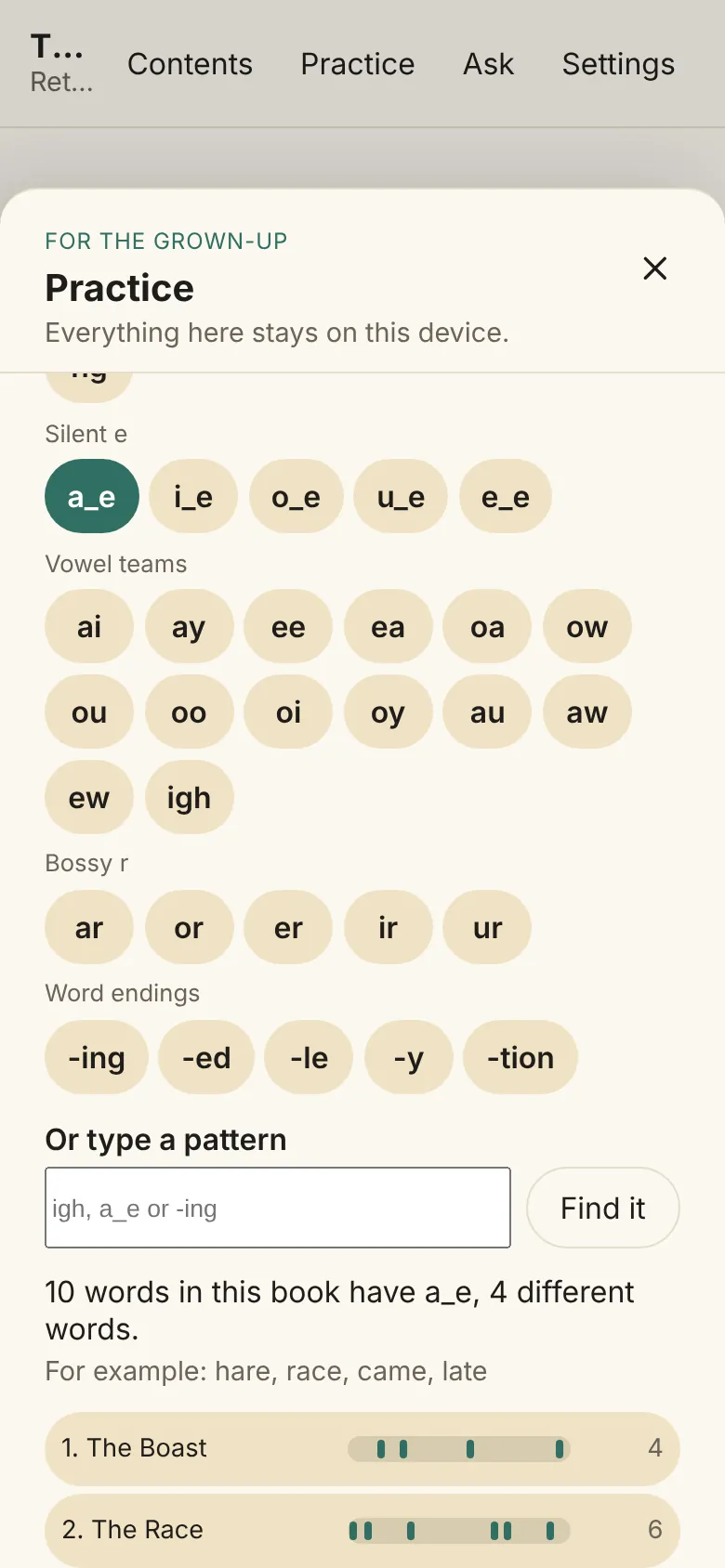
Tap Start the hunt here, or a chapter on the map. Every word with the pattern is underlined, with the pattern’s letters in bold. Your reader finds each one and taps it to hear it read, and a found word gets a double underline. Next and Back (or Enter) jump to the next word and on into the next chapter. Read to me still works, so they can then hear the whole page with the words still underlined. Change pattern goes back to the sheet, and Done puts the page back as it was.
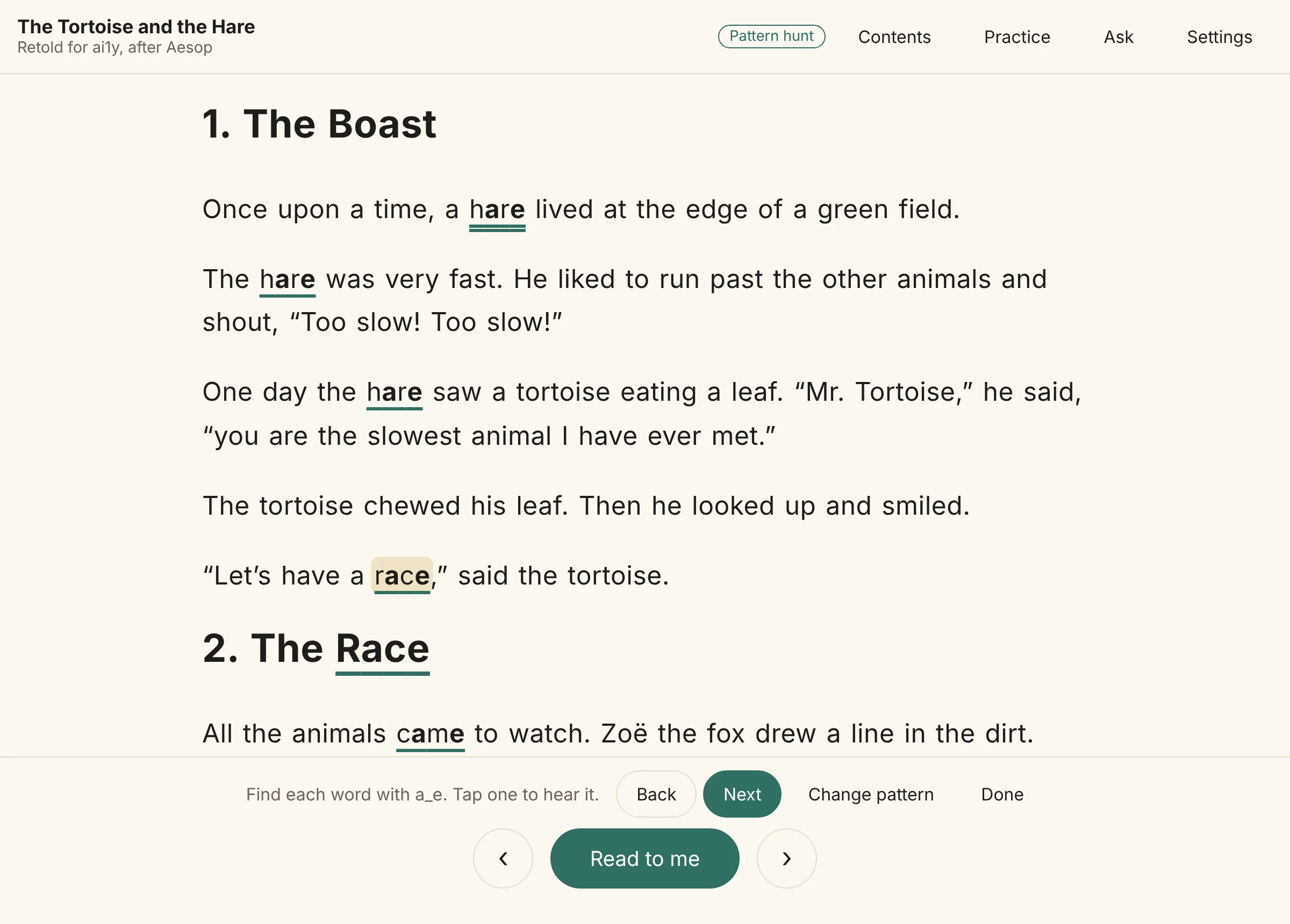
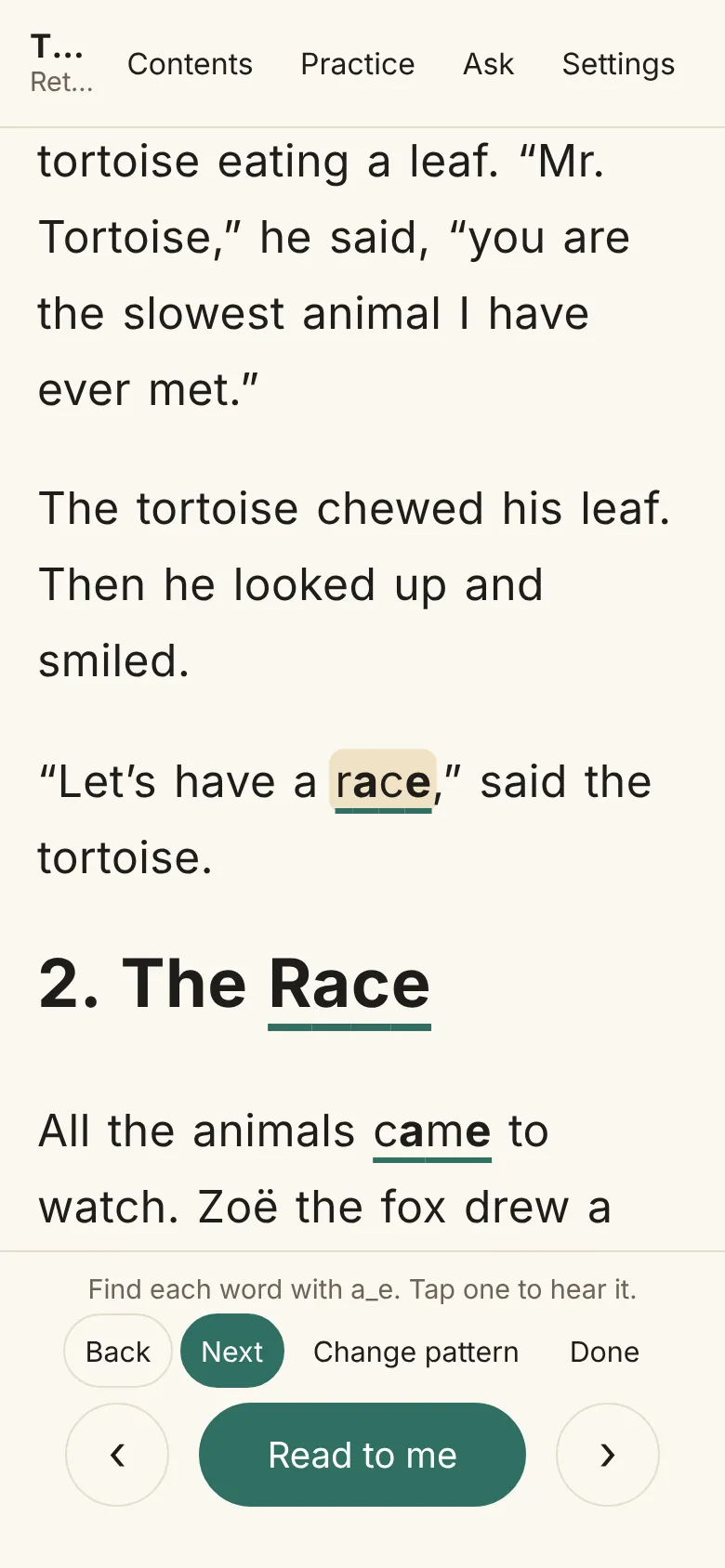
Patterns are found by spelling, so “ea” finds “bread” as well as “leaf”; hearing each word is part of the hunt. Silent e leaves out words like “have”, “come” and “one”. No score is shown, nothing is kept, and nothing is sent anywhere.
Pictures, code and tables
Books keep their pictures, with the alt text and captions their authors wrote. A book can also carry short summaries of its pictures, charts, code, tables and long formulas, so a listener hears a plain sentence instead of tripping over them. Summaries are off until you turn them on in Settings, kind by kind, and a summary written by AI says Summary written by AI.
Summaries are written once, when the book is made, so they work offline and every reader of a book hears the same one. Formulas and small tables are spoken by rules, not by a model. See Writing summaries.
A line with no letters or digits, like a row of stars between scenes, is shown but not read aloud, unless the book’s creator chose to have it read: the narration pauses on it for a moment, as it does on a picture.
With a kind of summary turned on, each summary shows in place of its original, and Show the original under it opens the original right there. Hide the original folds it away again and puts the page back at the same word. With summaries off, the book shows as printed, and a screen reader still hears each summary as the description of its picture, table or code.
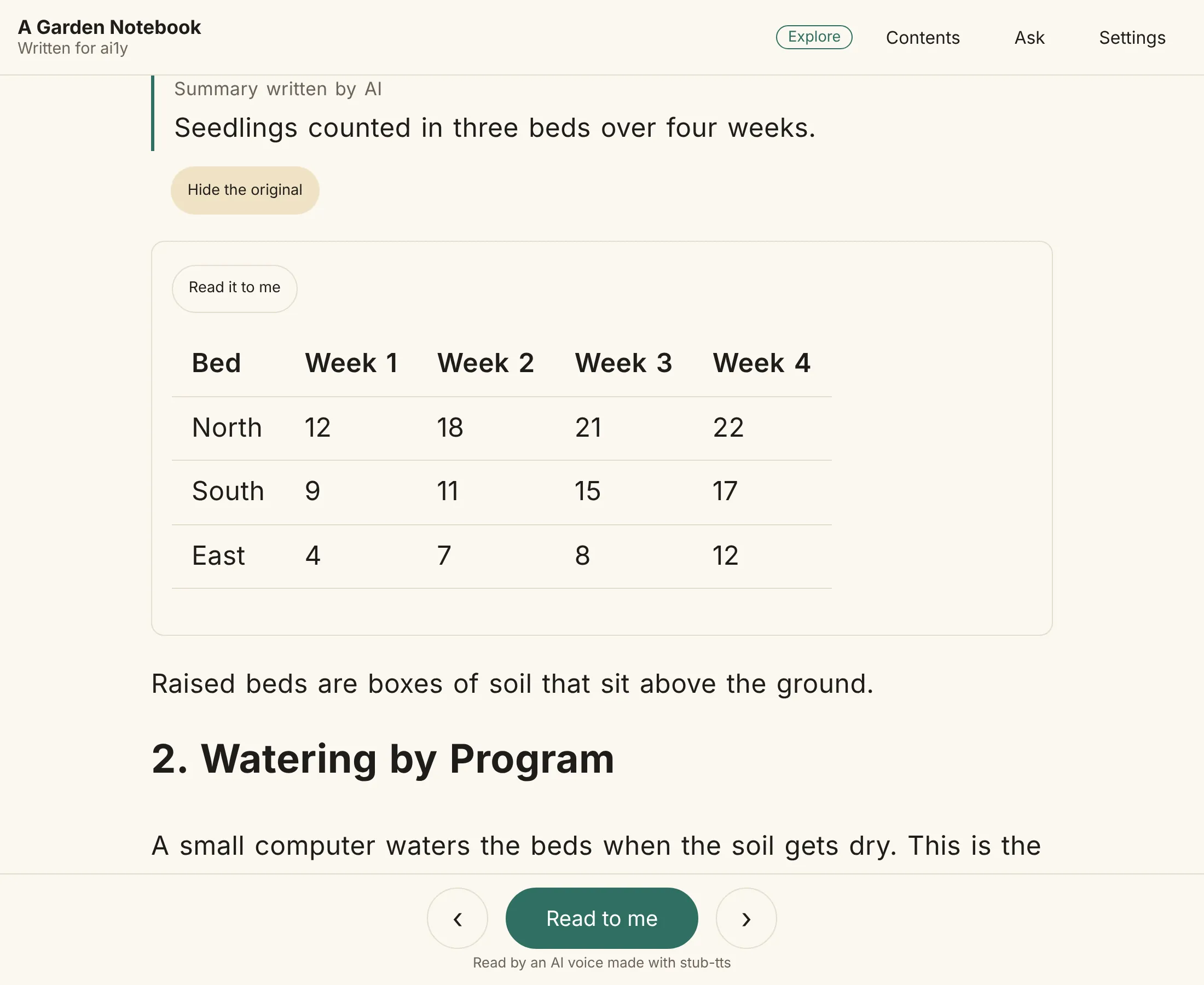
Tables show as tables, with the first row as headings, and on a narrow screen a wide table scrolls sideways. A table, code listing or formula on the page has Read it to me, in this device’s voice: a table row by row, each cell with its column heading; code line by line, with its symbols named (“open paren”, “underscore”); a formula by its spoken form. The row or line being read is highlighted, and the button becomes Stop.
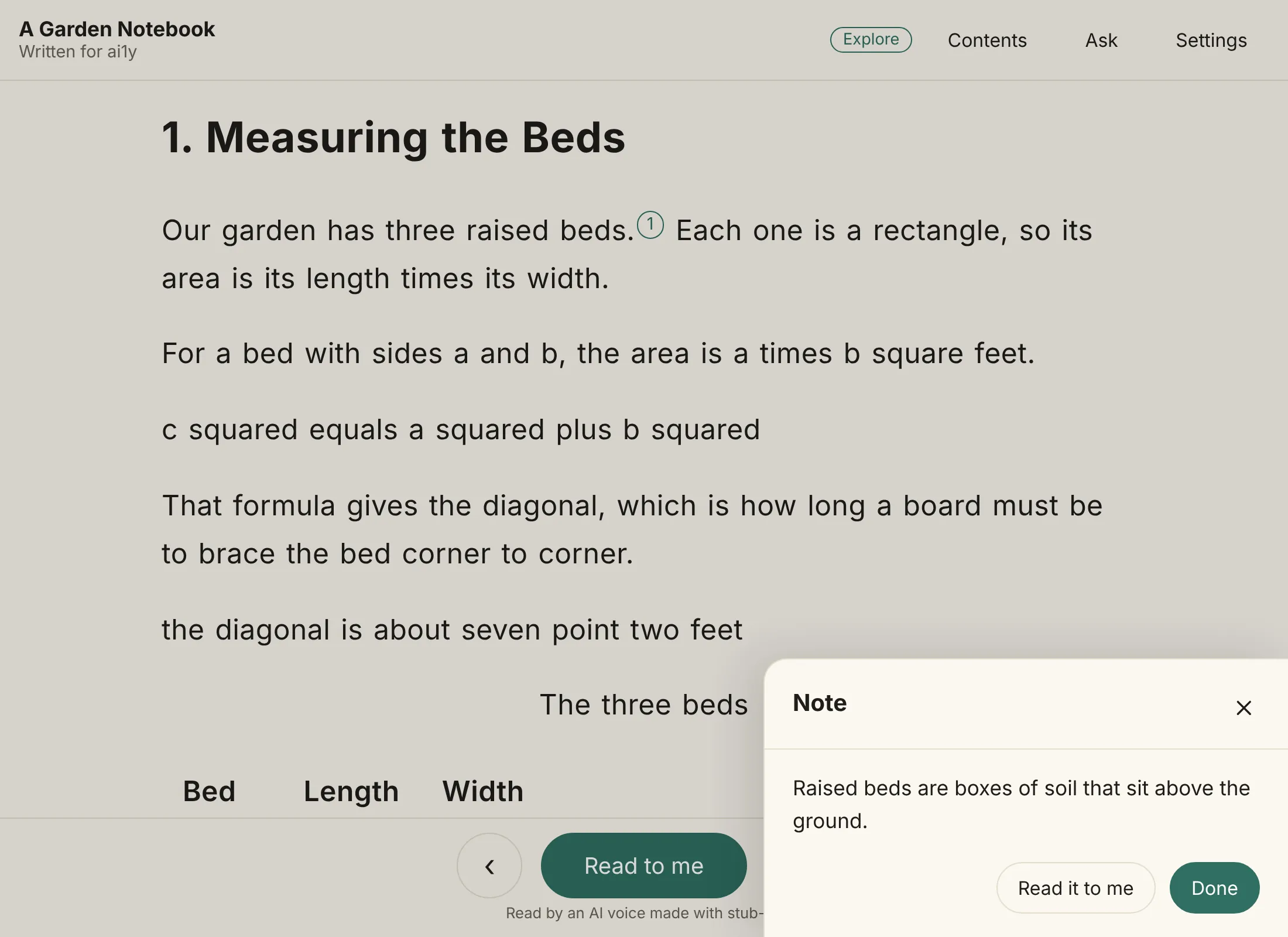
Footnotes and endnotes stay where the book has them, in smaller text, and each note’s number is a small button. Tap it to open the note over the page, with Read it to me and Done. Tapping a word inside a note reads it. Reading aloud passes over notes, and over a Notes section at the end of a book, unless you choose otherwise in Settings → Notes: Read after the sentence stops for each note and then carries on, and Read after the paragraph reads every note of a paragraph at its end. In this device’s voice each note starts with “Note:”; in the book’s own voice there is a short pause, then the note in that voice.
Offline and privacy
- Save this book for offline reading downloads every file the book lists, its cover included. After that it opens and reads aloud with no connection.
- Every file is checked against the hash its book’s manifest gives before it’s used, and kept by that hash, so a saved file never needs downloading again. Only the manifest is checked again online, to find a new version.
- The reader stores only its settings, and practice readings once practice is used, in that browser.
- Online services are used only for asking questions, and only when they are set up.
Phones and tablets
The reader fits any screen, so it works on a phone or tablet in its browser.
Pinch the words
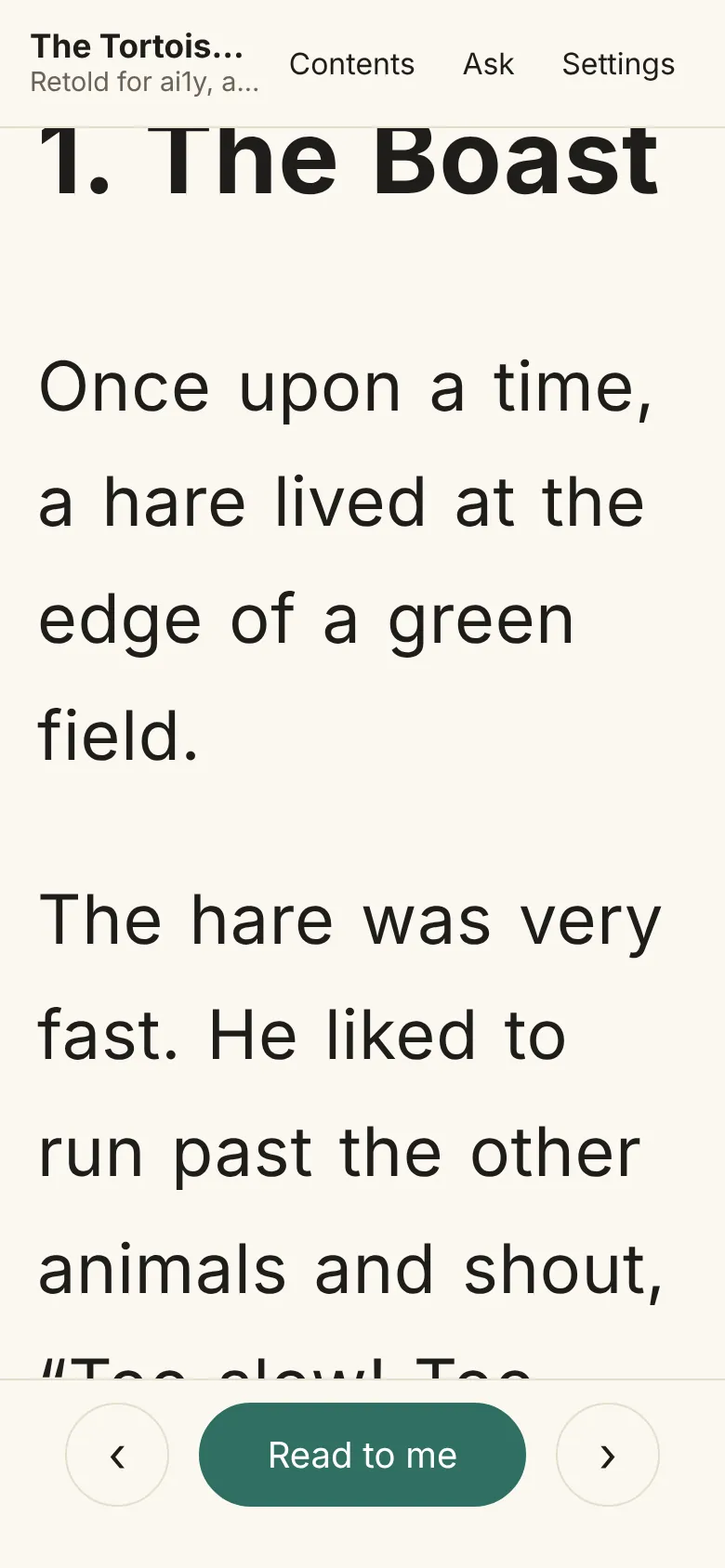
To make the words bigger or smaller, pinch the page with two fingers: spread them apart for bigger, or bring them together for smaller. The words step through the same four text sizes as Settings → Page (Small, Medium, Large and Extra large), and Settings shows the size you picked. The text rewraps to fit the screen, so you never scroll sideways, and the words between your fingers stay where they were. The title bar at the top and the Read to me bar at the bottom stay as they are. A pinch on a Mac trackpad does the same, and in Chrome, Edge and Firefox, Ctrl with the mouse wheel over the page changes one size per click. Pinching anywhere else, such as on the title bar, the reading controls or a sheet, zooms the whole screen as usual, and your phone’s and browser’s own zoom keep working.
On an iPhone or iPad, Share → Add to Home Screen keeps the reader one tap away.