
What you can make
You can make a read-along from any DRM-free EPUB you have the right to use. The voice engine can be swapped for another. A narrated book can also go on a Yoto card.
The creator studio takes you through it on screens, from drafting the cast to listening to the finished book.
The creator studio
The studio runs the whole workflow from screens: draft the cast and review it, pick each character’s voice by ear, then read and fix who says each line, check how the voice says the book’s names, add sounds, and build. It opens on Cast, since voices are picked before lines are fixed. It plays every line from the book’s own audio, so what you hear is what a reader will hear.
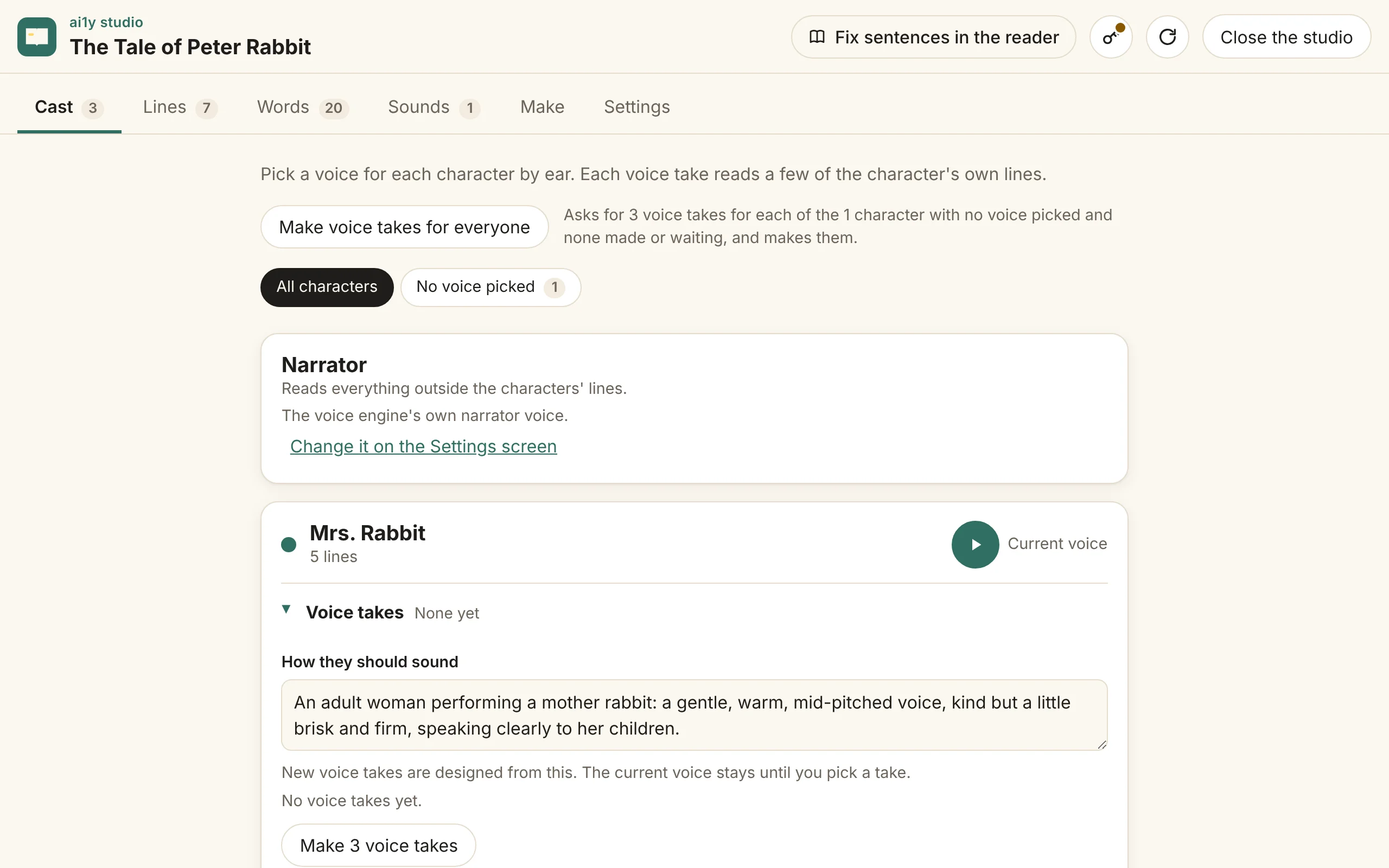
Cast
Each character with how they should sound. Ask for voice takes, each a voice designed from that description reading a few of the character’s own lines, and pick the one you like; Make voice takes for everyone makes them for each character who has no voice picked and no takes yet. Each take shows how fast its voice speaks, marked Fast above 5 syllables a second, and Discard deletes the takes you won’t use: one at a time, or tick several and choose Discard N selected, or clear the list with Discard all (Discard the other ones when a take is in use). The same works in every list of takes in the studio, and a take in use is kept until you stop using it. Your own recording turns a recording of you, or of someone who agreed, doing a character’s voice into a voice take, with what it says typed in; the recording stays beside the cast file. Once a voice is picked, that character’s voice takes fold away, and No voice picked shows only the characters still to do. Characters can be added, merged into one another, or removed, which gives their lines to the narrator.
Lines
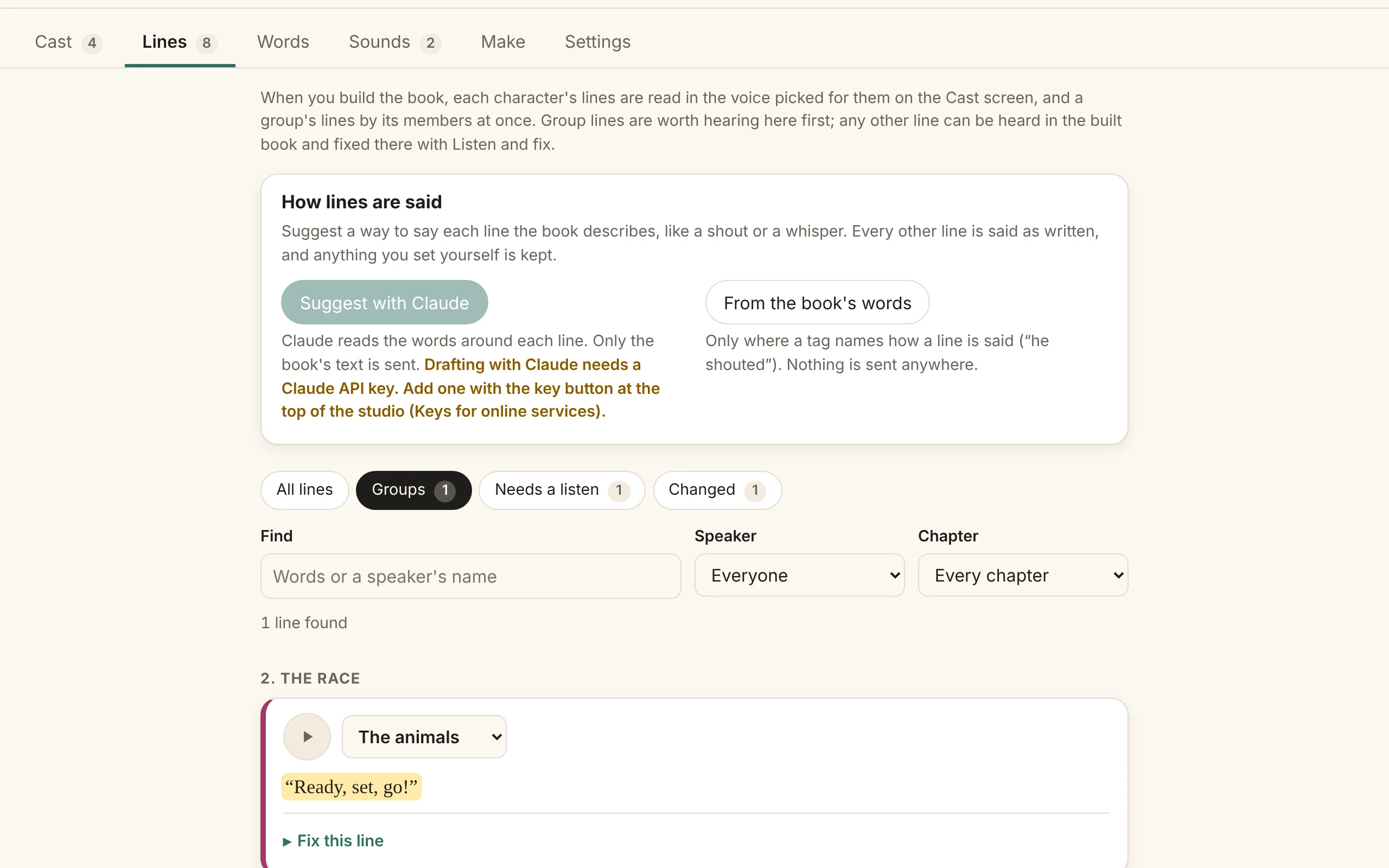
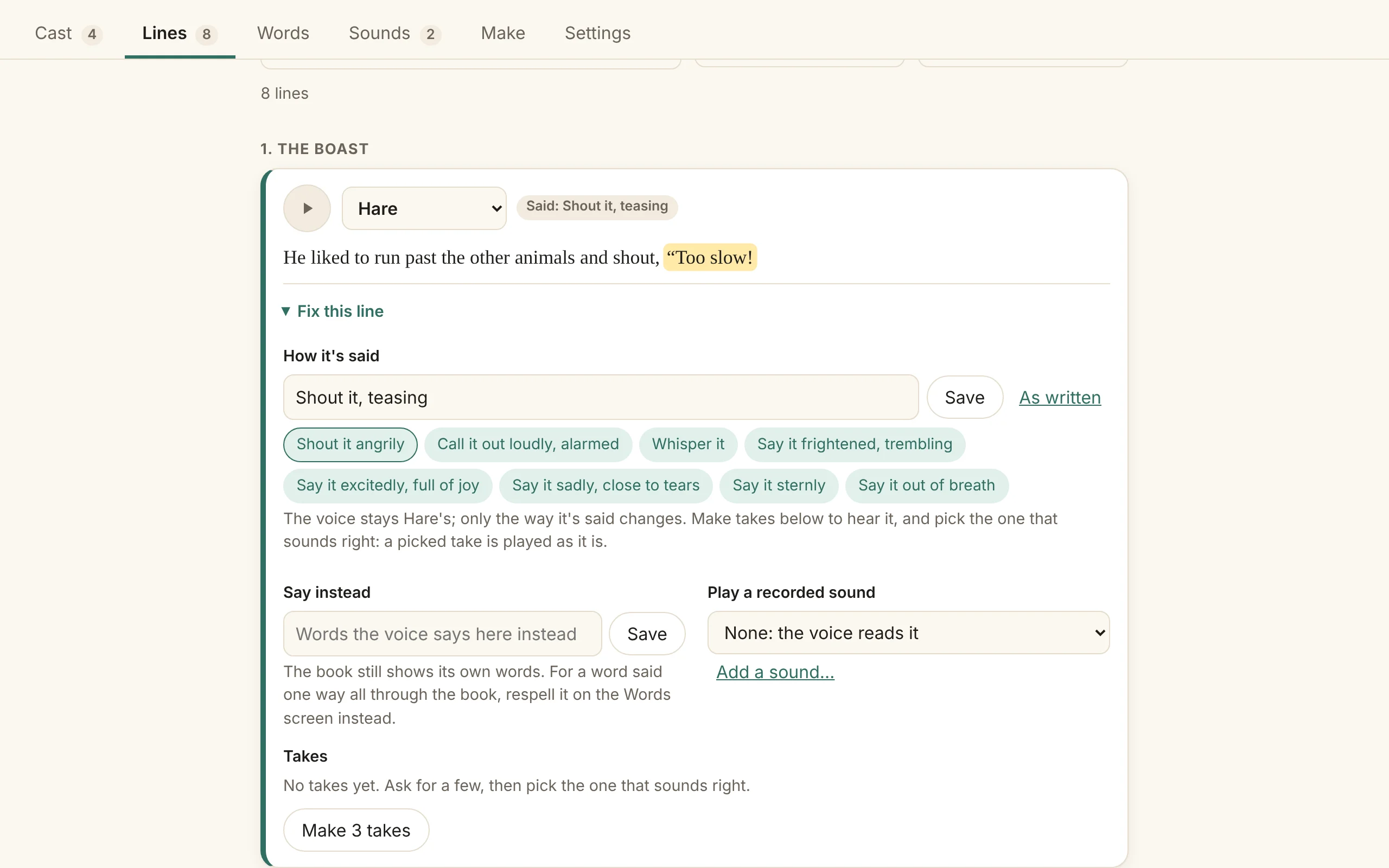
Every line a character says, in book order under its chapter. The screen opens by saying what a build reads each line in: a character’s lines in the voice picked for them, and a group’s lines by its members at once. Group lines are the ones worth hearing here first; any other line can be heard in the built book and fixed there with Listen and fix. Play it, change who says it, or open Fix this line to say how it's said (“Shout it angrily”, or one suggested from the book with Suggest with Claude), give it words to say instead or a recorded sound, or make new takes and pick the one the line plays (Stop using this take lets the build read it again). Filter by speaker or chapter, find lines by their words, or show only the Groups lines, those that need a listen (a group line with no take in use counts) or those that have changed since the last build. A line badged Narrator read it last build fell back to the narrator because its voice drifted or said other words; the next build tries the speaker’s voice again. A line read by a character with no voice picked yet says so, with a link to pick it on Cast. Once a voice is picked, takes made before it are kept and marked In an earlier voice, and a line the last build read in that earlier voice is badged Built in an earlier voice until the book is built again.
Any line can be marked to come back to later, for example once a long build finishes: Mark for review on its card marks it, and pressing it again takes the mark away. Marked lists the marked lines, with a count.
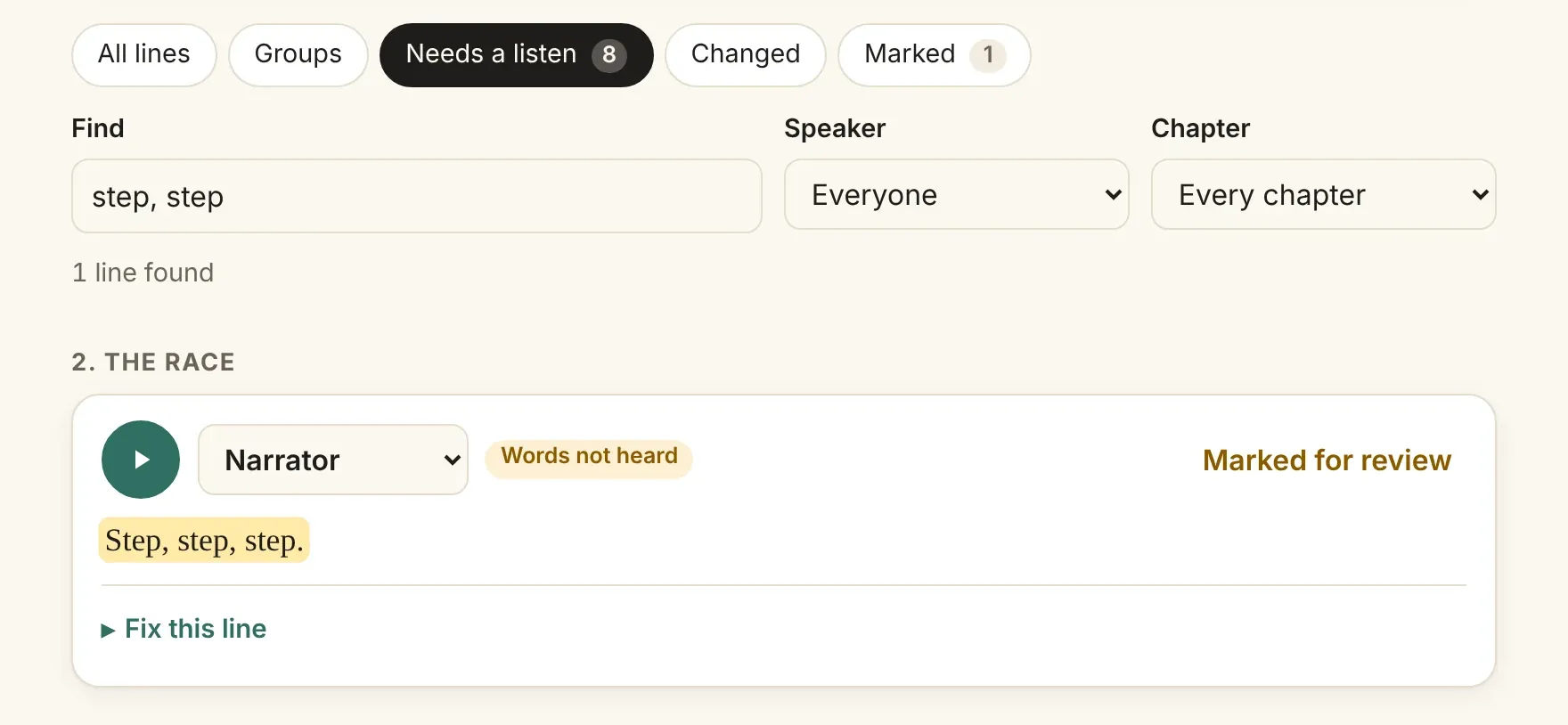
A build never stops for one line whose words it can’t hear. When the word check hears a narrator line’s words in none of its readings, the build keeps the first reading, times its words by their length so the line still lights up as it plays, and carries on. A character’s line is kept the same way, in the character’s own voice, as long as that reading sounds like them, rather than going to the narrator; this happens most with very short calls like “Hm!” and with made-up words. A line that sounds like the wrong voice still goes to the narrator. On the Lines screen that line is badged Words not heard and counted under Needs a listen, and the studio marks it for review, so it shows under Marked too; take the mark away and it stays away. Give it a listen: if it sounds right, nothing needs doing, and if not, make takes or say it differently. Words that sound alike count as heard, so “sighed” heard as “side” is fine. A take you picked always plays, even when the word check can’t hear its words.
Above the list, the book map shows every line of the book as a small square, in book order, with a row of squares for each chapter. That includes what the narrator reads between the quoted lines, such as chapter headings, “said the Hatter” and paragraphs of narration, so the map starts where the book starts. Color it by What needs doing (voice check failed, needs a listen, changed, picked take, or nothing to do) or by Speaker; the legend says what each color means and how many lines have it. By speaker, the narrator is grey, the seven characters with the most lines each have a color of their own, and everyone else shares one color, counted together in the legend, such as “32 other speakers, 133 lines”. A line marked for review has a ring. Whatever you pick above the map lights it up: a filter like Needs a listen, words in Find, a speaker or a chapter. The other lines stay on the map, dimmed, so you can see where in the book the lit ones are.
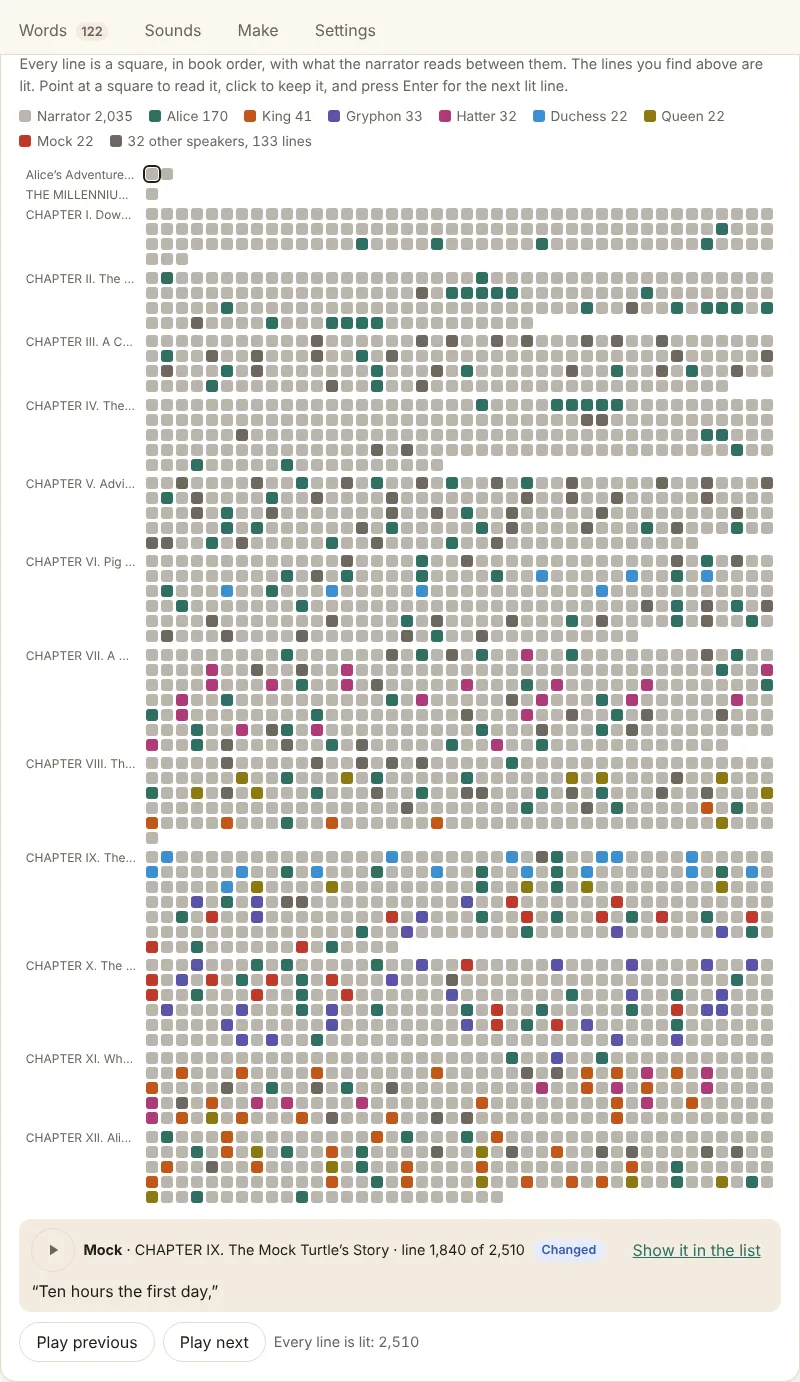
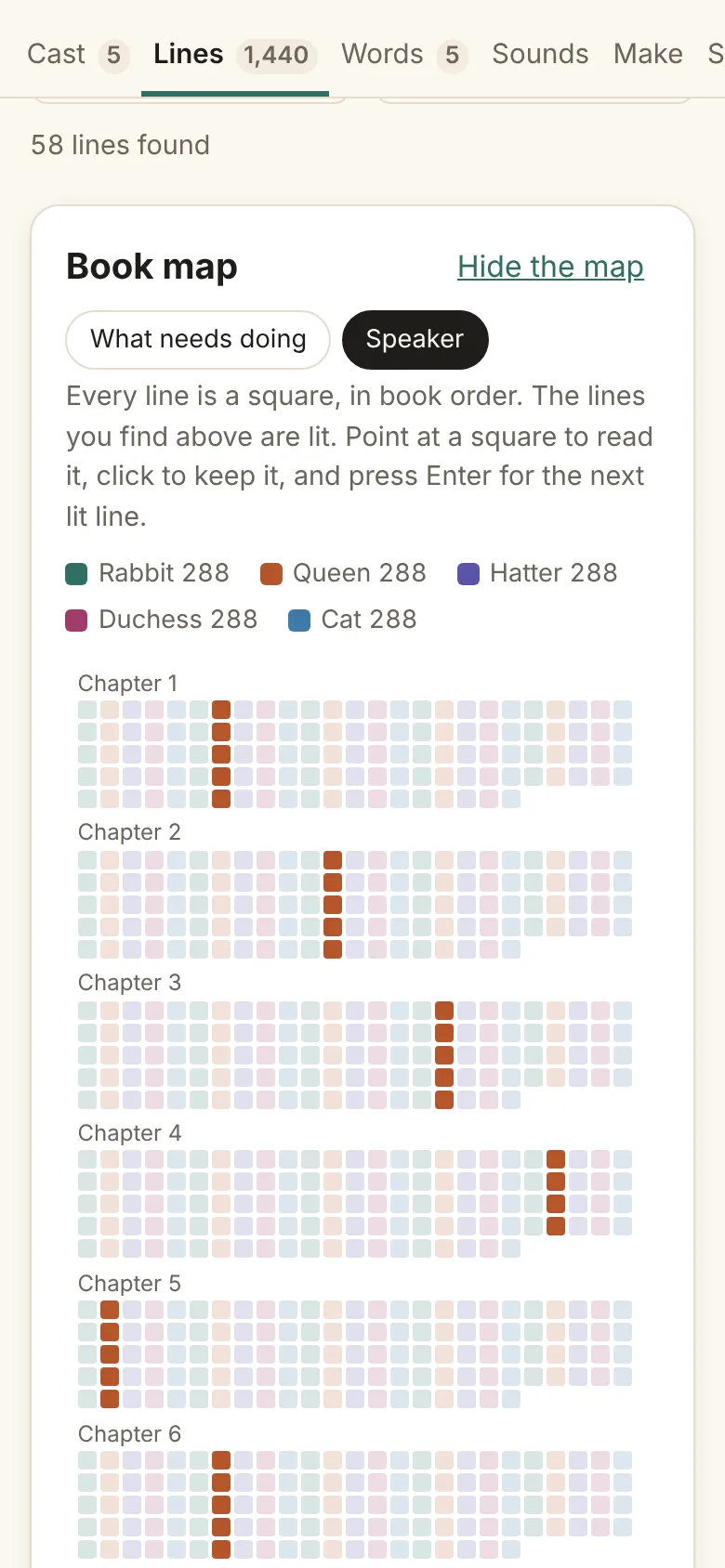
Point at a square to read its line under the map; click or tap it to keep it there, with its play button. Press Enter (or Play next) to play the next lit line, and Shift+Enter (or Play previous) for the one before. So pick Needs a listen, click the map, and press Enter, Enter, Enter to hear those lines one after another. Space plays or stops the line, and the arrow keys move from square to square. Show it in the list takes you to the line’s card to fix it. A stretch of narration between lines reads and plays too, but has no card in the list, so it has no Show it in the list. Hide the map folds it away, and the studio remembers that in this browser.
When the draft puts words under the wrong speaker, such as one quotation shared by two characters, or a quotation running on into the narrator’s words, split the line. Press Split beside the line’s speaker, then tap the word the second line starts with. Both lines appear straight away, each with its own speaker to pick, and Undo beside them puts the line back exactly as it was, picked takes included. Put back together on the first line joins two neighboring lines again.
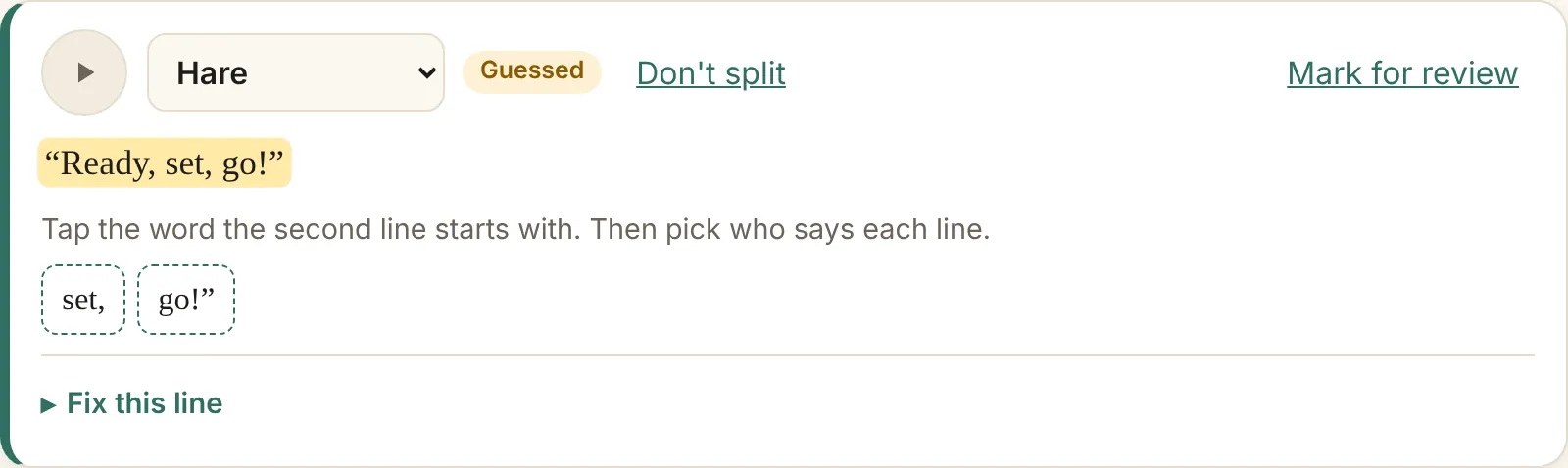
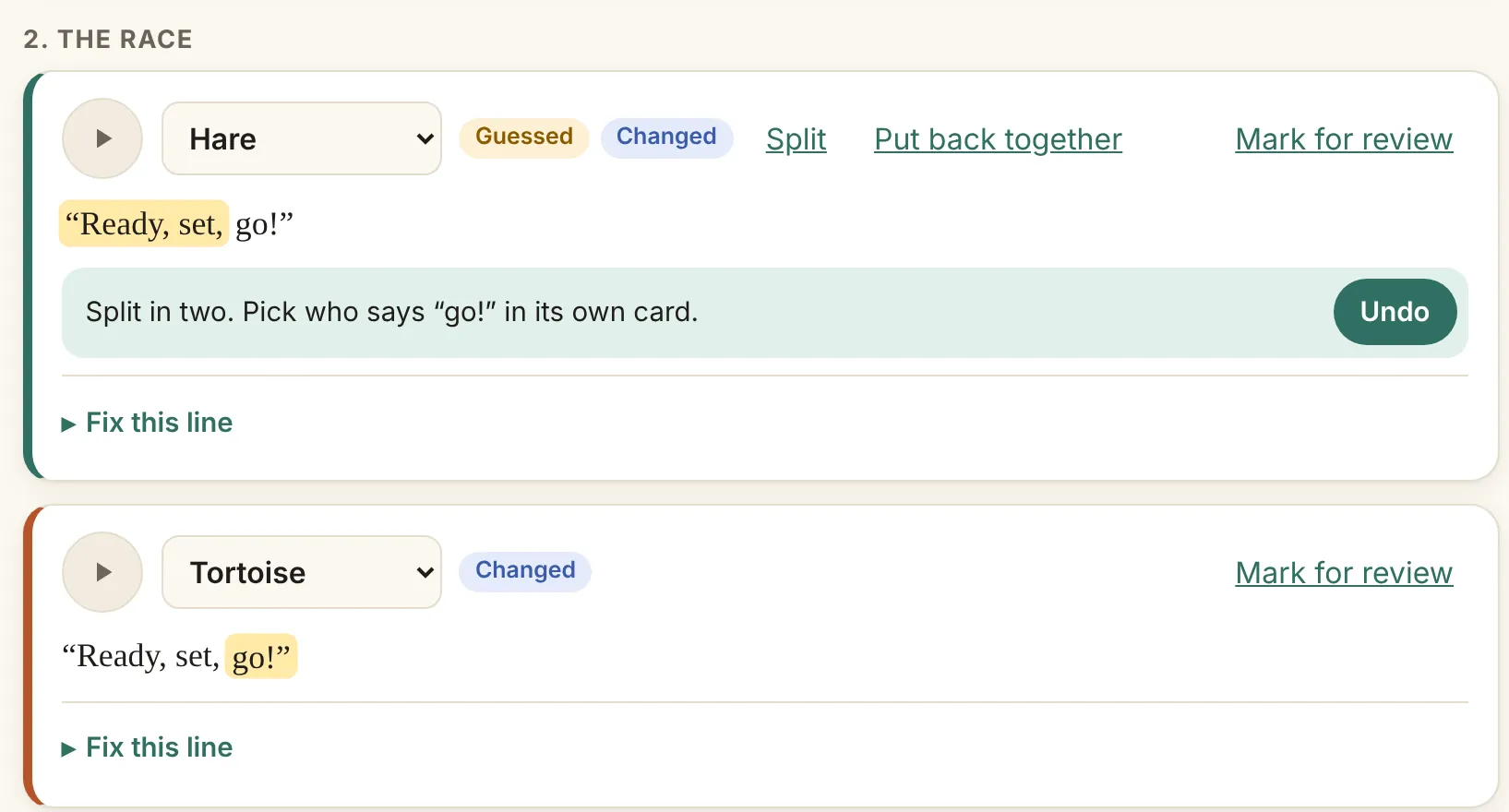
A split makes no takes by itself. The line’s old take is set aside, not deleted, the sentence shows as changed, and Update the book reads the pieces in their voices. Splitting a line read in one go with others sets that reading’s take aside for all of them, and Undo picks it again. Each piece is as loud and as clean as the line was: a volume or clean-up set on it stays on both pieces, on the Timeline and in the Fix sheet, and words given out of the narrator’s part keep that part’s volume too. Putting two pieces back together keeps the first piece’s volume and clean-up, and Undo puts the line back exactly as it was, its volume and clean-up included.
Make
Four steps, in order. Draft the cast, then review the draft: each character with who they are, how they should sound and their first lines, all changed in place, while Worth a look points out names that may be one character, voices with only a stand-in description, and quotations with no speaker. Hear the voices makes voice takes for every character, to pick one each by ear. Build the book is offered once you mark the cast right; a character with no voice picked gets one designed from how they should sound. Pressing a button that starts a costly run, such as Build, Make takes or Put on Yoto, accepts the studio’s own quote for it; if the studio can’t say how much a run would make, the page says so and makes nothing. Takes and builds run as jobs, one at a time, with their progress shown on every screen; takes start as soon as you ask for them, and Stop ends a job. Each build goes into a folder of its own beside the cast file, and the studio then shows that build; a book can also be built a few minutes at a time.
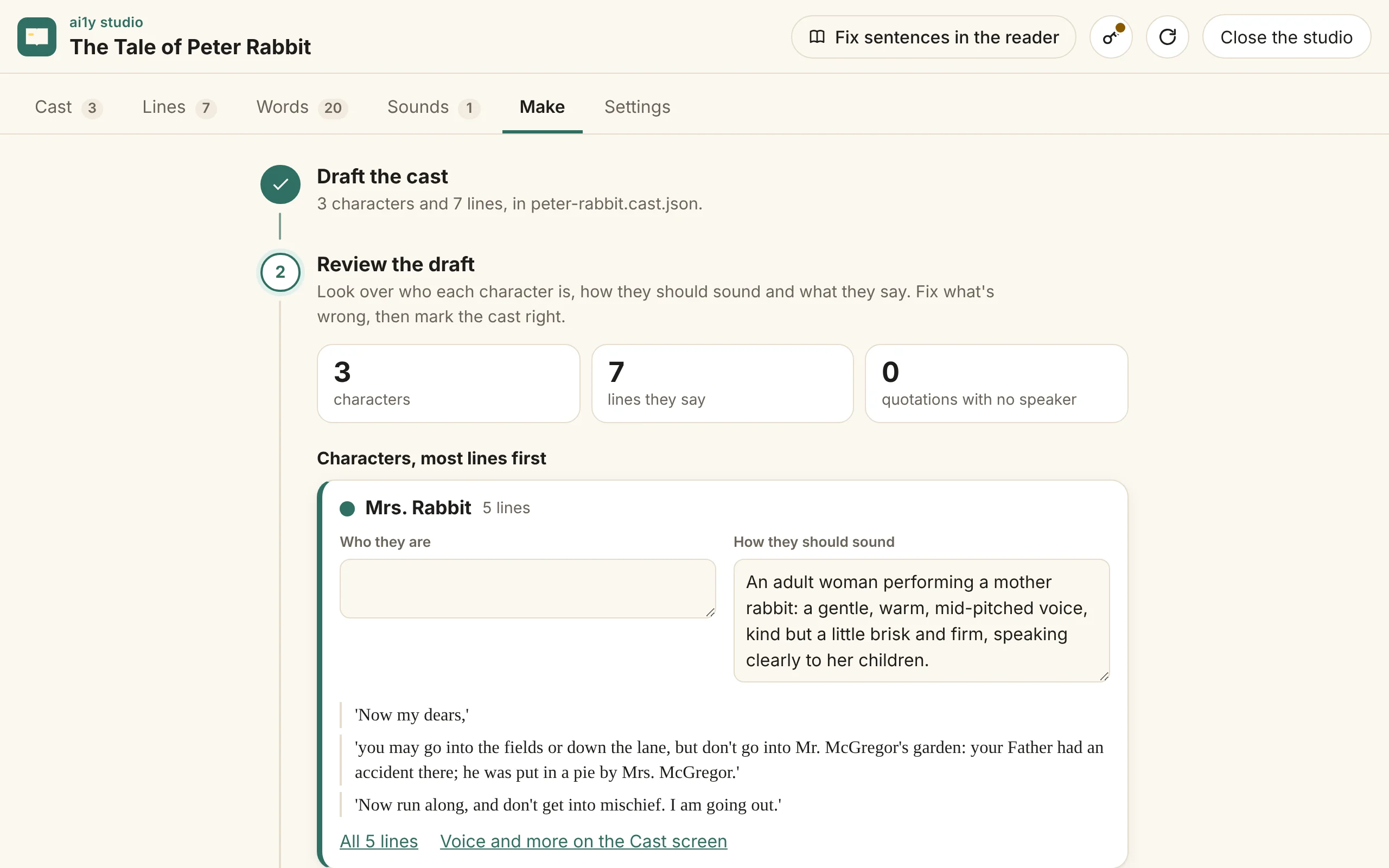
The cast file stays the record: every choice is written to it at once, and it names no engine, so a reviewed cast can be voiced again by another one.
Every change is saved whole or not at all. If the studio stops part way through saving one, it finishes or undoes that change the next time the book opens. A change you make while a job runs, such as picking a take, editing a direction or typing a respelling, is kept: a job that finds the book changed under it does its part again on the book as it is now, and if the book keeps changing it stops and says so, ready to run again. When the studio is busy, a change may answer that it couldn’t be saved after a few short tries; nothing was changed, and trying again is safe. A few small .lock files sit beside the cast file, and a hidden .book.cast.commit.json while a change is being saved. They let the studio and its jobs take turns, so leave them be.
A few minutes at a time
A long book takes hours to narrate, so hear the start before the rest is made. On Make, Build the book has Or a few minutes at a time: pick 2, 5, 10 or 20 minutes (5 unless you pick another) and Build the first 5 minutes. The build stops at the end of a paragraph, or at the end of the chapter when that comes soon after, and the studio says how far it got and about how long the whole book will be. Then listen and fix: a word said wrong is fixed once, before hours of audio say it. Build the next 5 minutes carries on from there, and Build the rest of the book finishes it. The chapters already made are kept as they are, and each step adds only new narration.
A whole build keeps each chapter as soon as it is finished, and so do Build the next 5 minutes and Build the rest of the book. The studio switches to the book so far, so you can listen to and fix the finished chapters while the rest is still being read. Lines, Sounds and Listen and fix play the finished chapters in their character voices. The studio’s progress names the chapter being read and counts the sentences read so far. If a build stops or fails partway, the chapters it finished stay as a build to listen to and fix, and Build the rest of the book carries on from them. The readings already made are kept too, so building again reads only the rest. A quick fix with Update the book is different: it changes the finished book all at once, at the end.
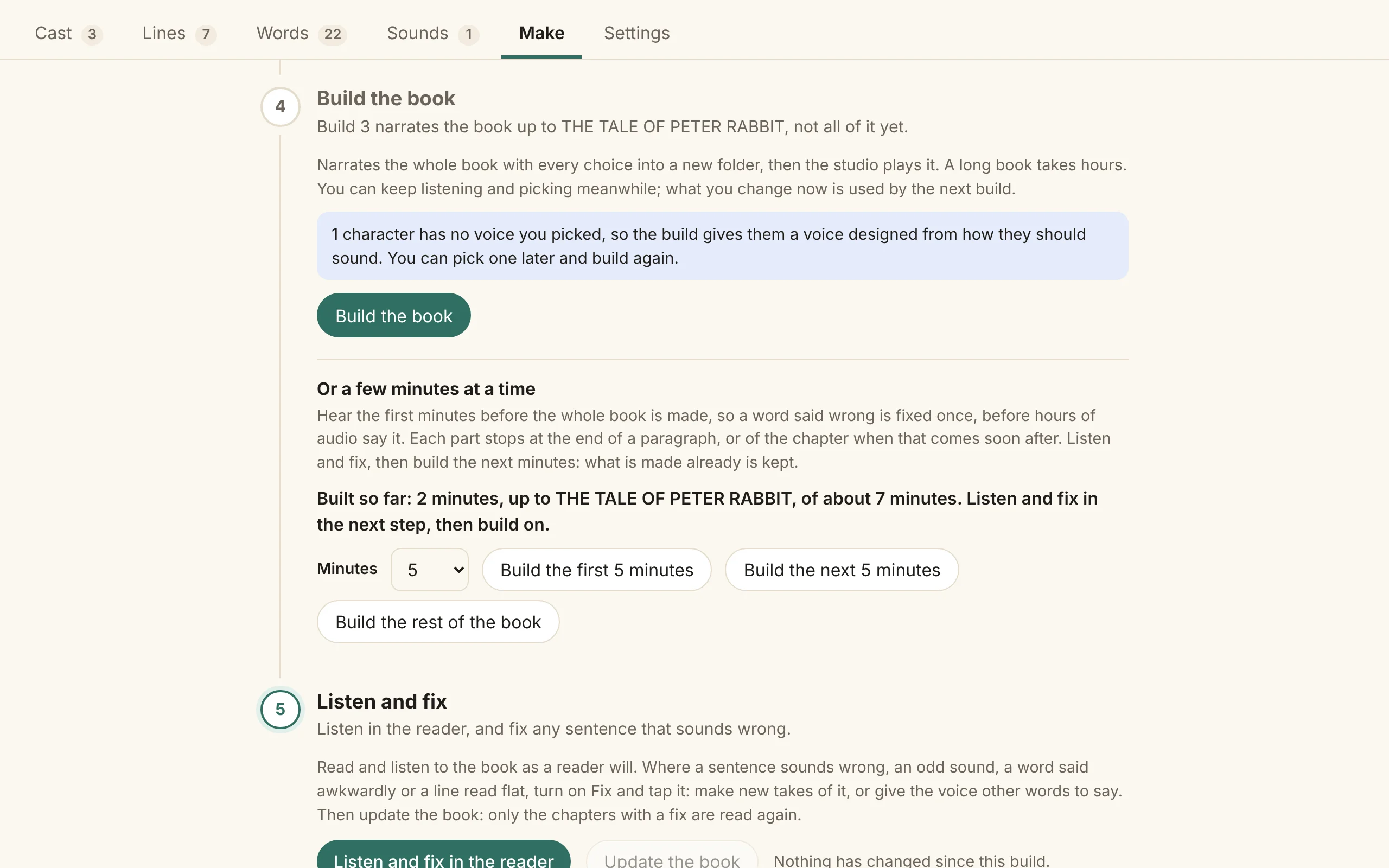
To build up to a chapter you choose, open Or a few minutes at a time, pick the chapter under Or from the start to the end of, and press Build to the end of that chapter. The build narrates from the start of the book to the end of that chapter and no further. The minutes choices are estimates, so they can stop partway through a chapter or run into the next; this stops exactly at the chapter’s end. Afterwards, Build the next 5 minutes and Build the rest of the book carry on from there.
Use it to build again a chapter you’ve already listened to and fixed, after a change that needs a whole build, without building the rest of the book. Lines keep the readings they already have.
History
The studio keeps every version of your book. Each change to the cast file, the respellings or the pre-read’s suggestions keeps a copy of them as they were after it. Audio isn’t kept in the history, so takes you discard are still deleted.
The History tab lists the changes, newest first, in words, such as “Volume −3 dB”, “Read apart · Too slow!”” or “Respelled a word”, with when each was made and its number. Changes made outside the studio, by hand or by the cast command, show as Changed outside the studio, and a job that changed the book, such as the pre-read, shows as that job. Show older changes loads 50 more.
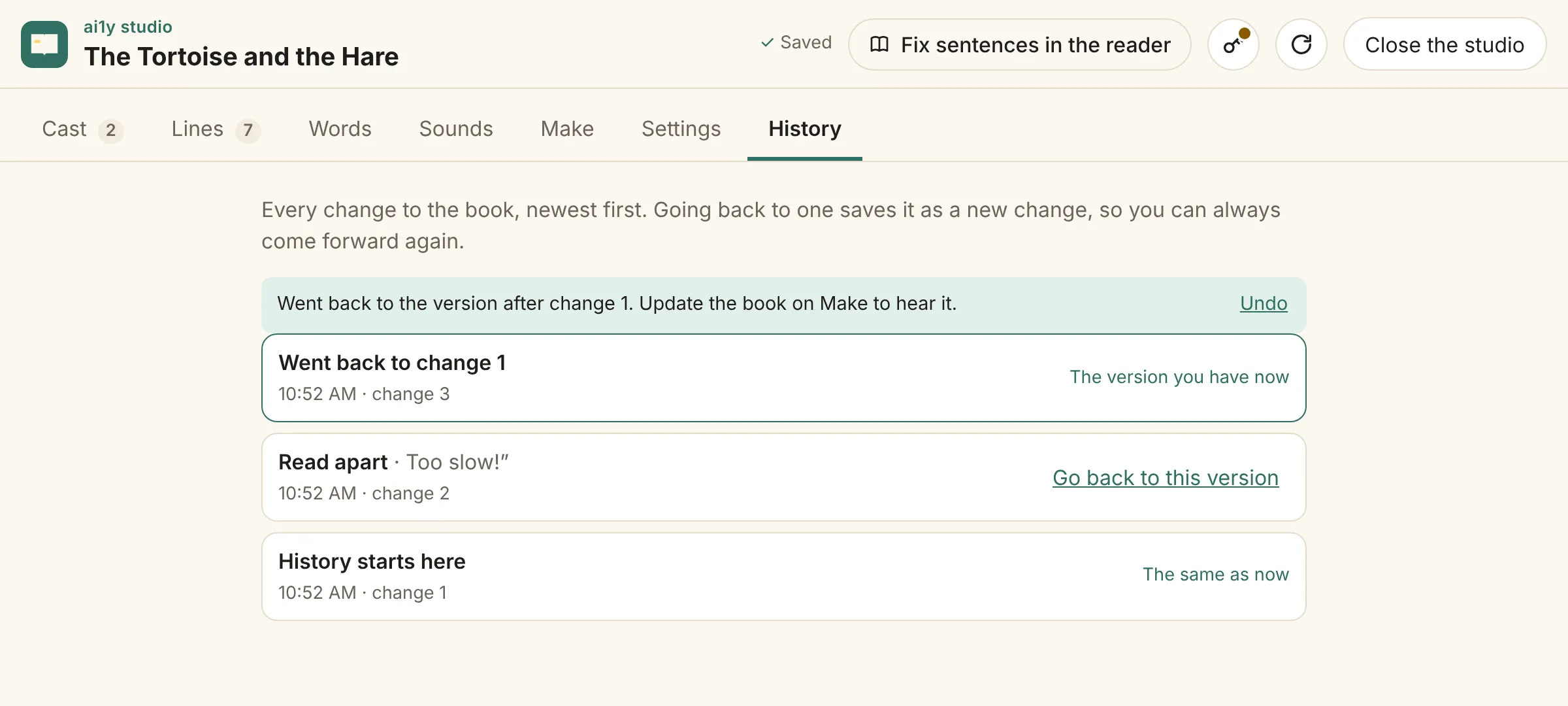
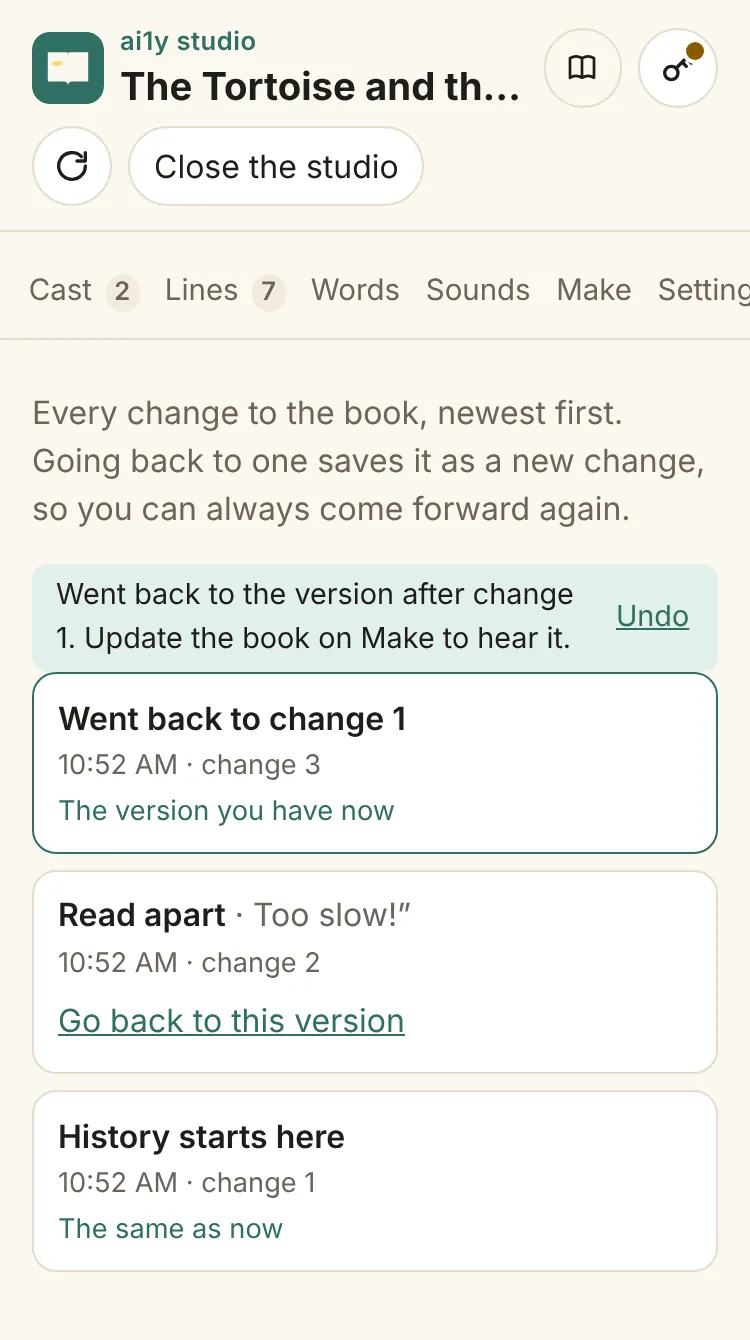
The version you have now is marked The version you have now, and every other change has Go back to this version. Going back saves that version as a new change, so you can always come forward again: a note says what happened, with Undo. If a take, sound, background or recorded voice that version used has been discarded since, it’s left out and the note says so, and those lines go back to a made voice. Press Update the book on Make to hear it.
To go back for one sentence only, use Earlier versions of this sentence in the reader’s Fix sheet.
To clear the history, delete the book.cast.history folder beside the cast file. It starts again the next time the studio opens.
Listen and fix
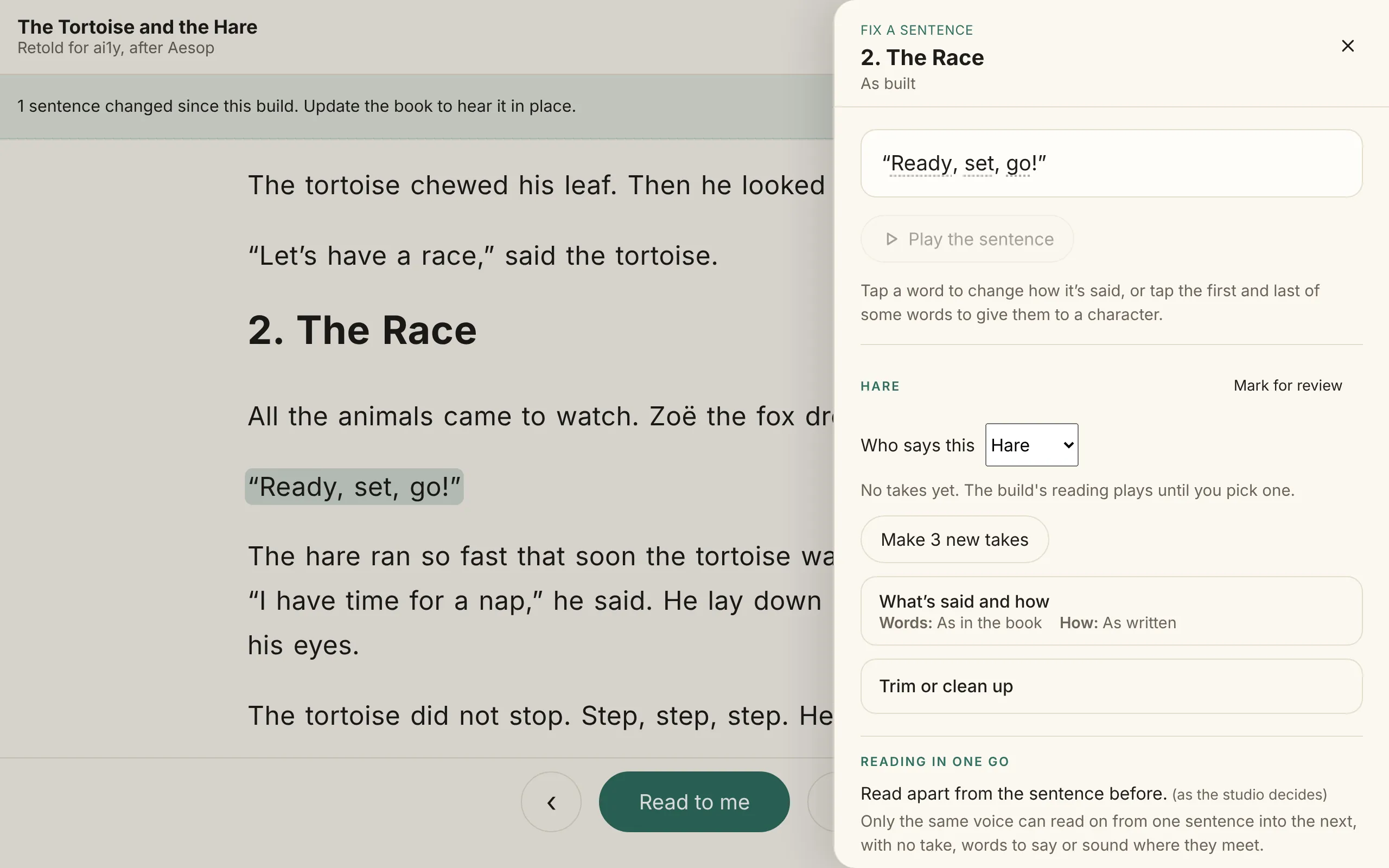
Once the book is built, the last step on Make is Listen and fix. Listen and fix in the reader (also in the studio’s header, as Fix sentences in the reader) opens the built book in the reader, for final touches while you listen. Turn on Fix and tap a sentence: it opens with each part and who reads it, to play as built, read again as new takes and pick one, or give words to say instead just there. Sentences changed since the build are underlined, and Update the book reads again only the chapters with changes, keeping the rest as they are. When it finishes, the reader stays open where you were and loads again only the chapters the update changed, and audio from a chapter that didn’t change keeps playing. If you reload the page yourself, only the files that changed download again, on the studio’s network address too.
Each part of a sentence on the sheet also has Mark for review, as on the Lines screen, including parts the narrator reads alone. Once the book is built, Listen and fix says how many lines are marked, and while you fix in the reader, sentences with a marked part are highlighted. A mark changes nothing you hear, so it never makes the book out of date; marks are kept in the studio’s project, not the cast file.
The sheet stays where it was while you edit. Whatever you tap, such as Discard, Use, Make 3 new takes, Mark for review, or the volume, trim and clean-up controls, stays in place on screen. When you discard a take, the next take moves into its place. A sentence you open from the page starts at the top of the sheet.
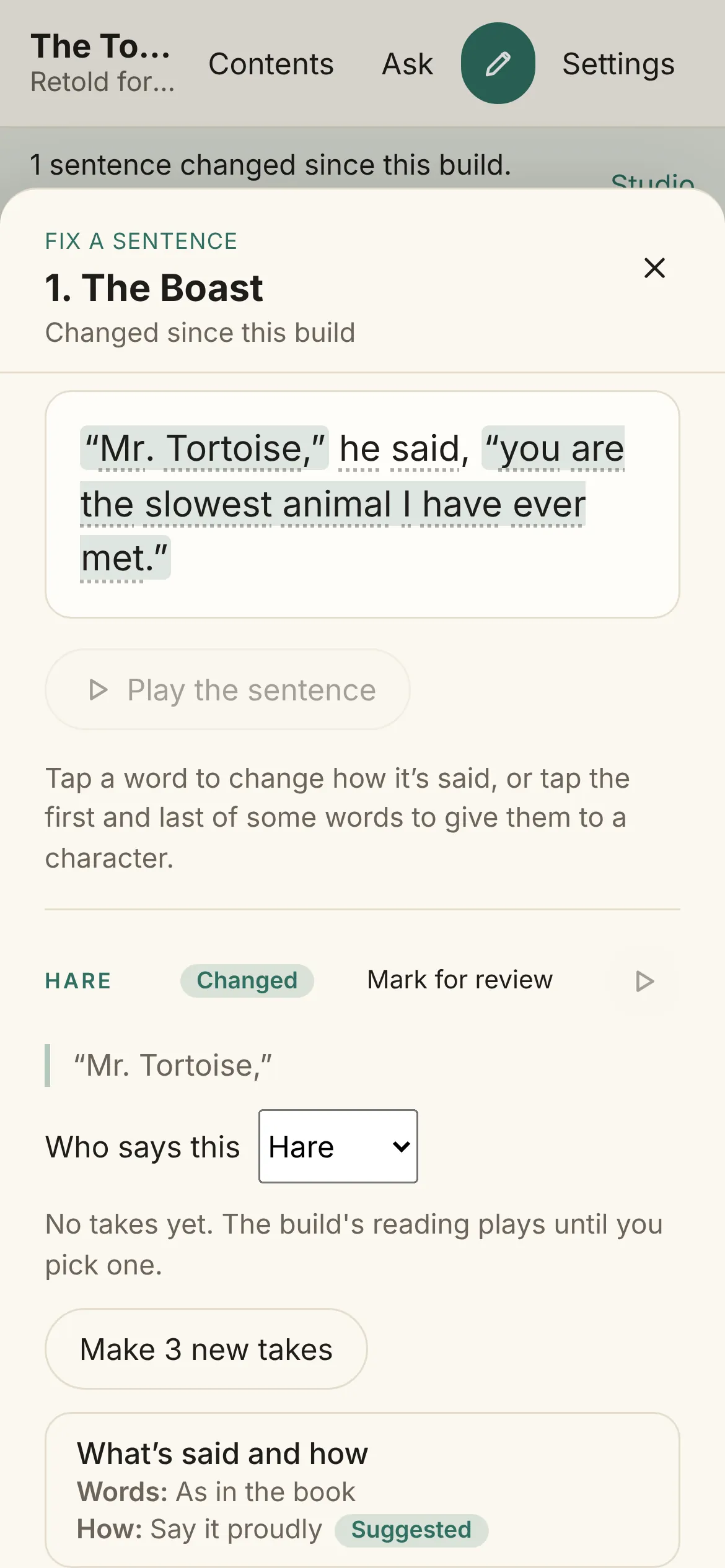
What’s said and how
Each part has one card for what it says and how, titled What’s said and how, for the narrator’s parts as well as the characters’. Its title shows both at a glance: Words, as in the book or the words you gave, and How, the way the line is said now, such as “Shout it angrily”, or As written. A way suggested from the book is marked Suggested.
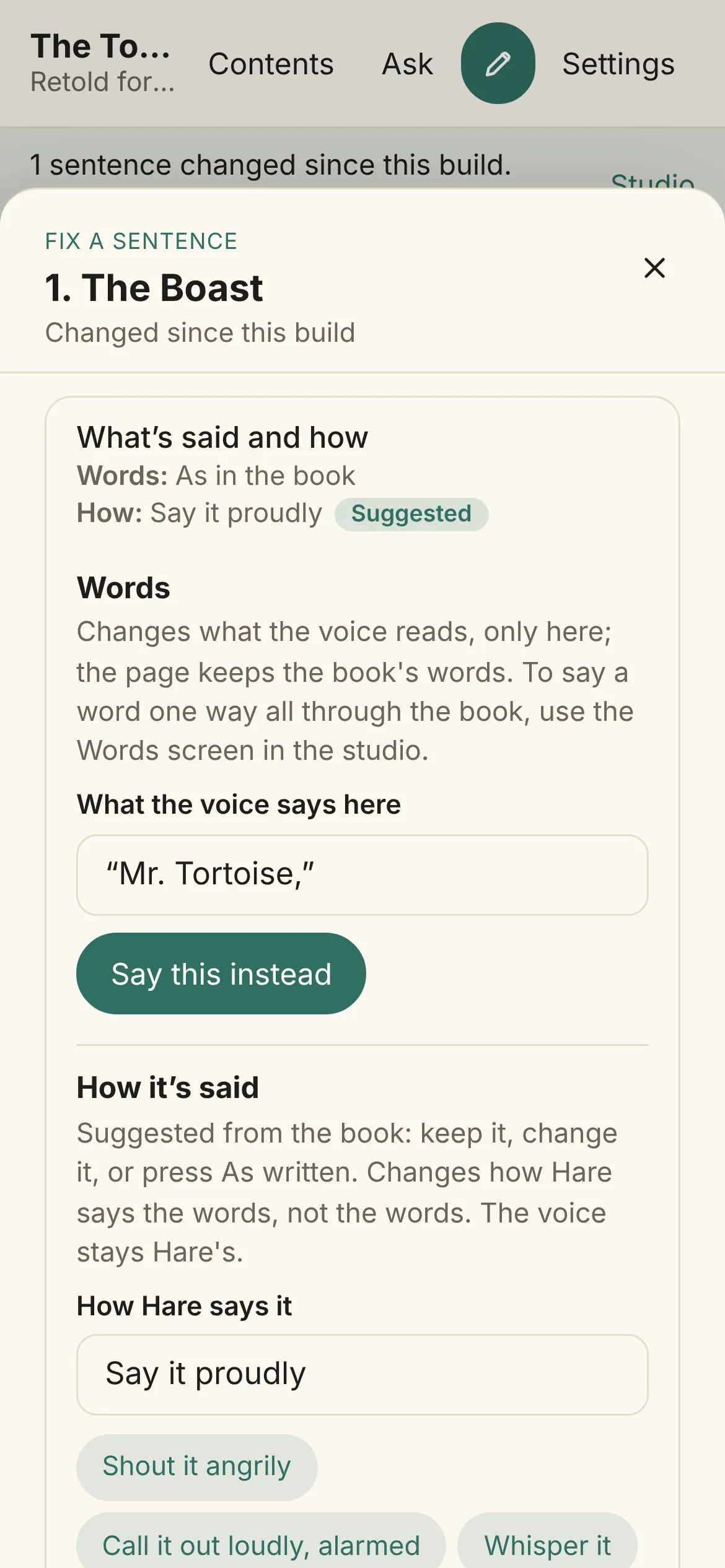
Inside, Words changes what the voice reads, only there: the page keeps the book’s words. Type what to say in the box, which grows as you type, and press Say this instead (or Enter), or Use the book’s words to go back. How it’s said changes only the delivery, never the words, and the voice stays the character’s. Pick one of the same ready directions as on the Lines screen, or type your own and press Say it this way; As written takes it away. The narrator’s parts take a direction too, for example “Whisper it” for a quiet moment.
Either change sets aside a take picked for the part, since it was made the old way, so press Make 3 new takes to hear it: each take says how it was said. Nothing is read again until you press a button, and Update the book still asks first about respelled words.
Show how it goes
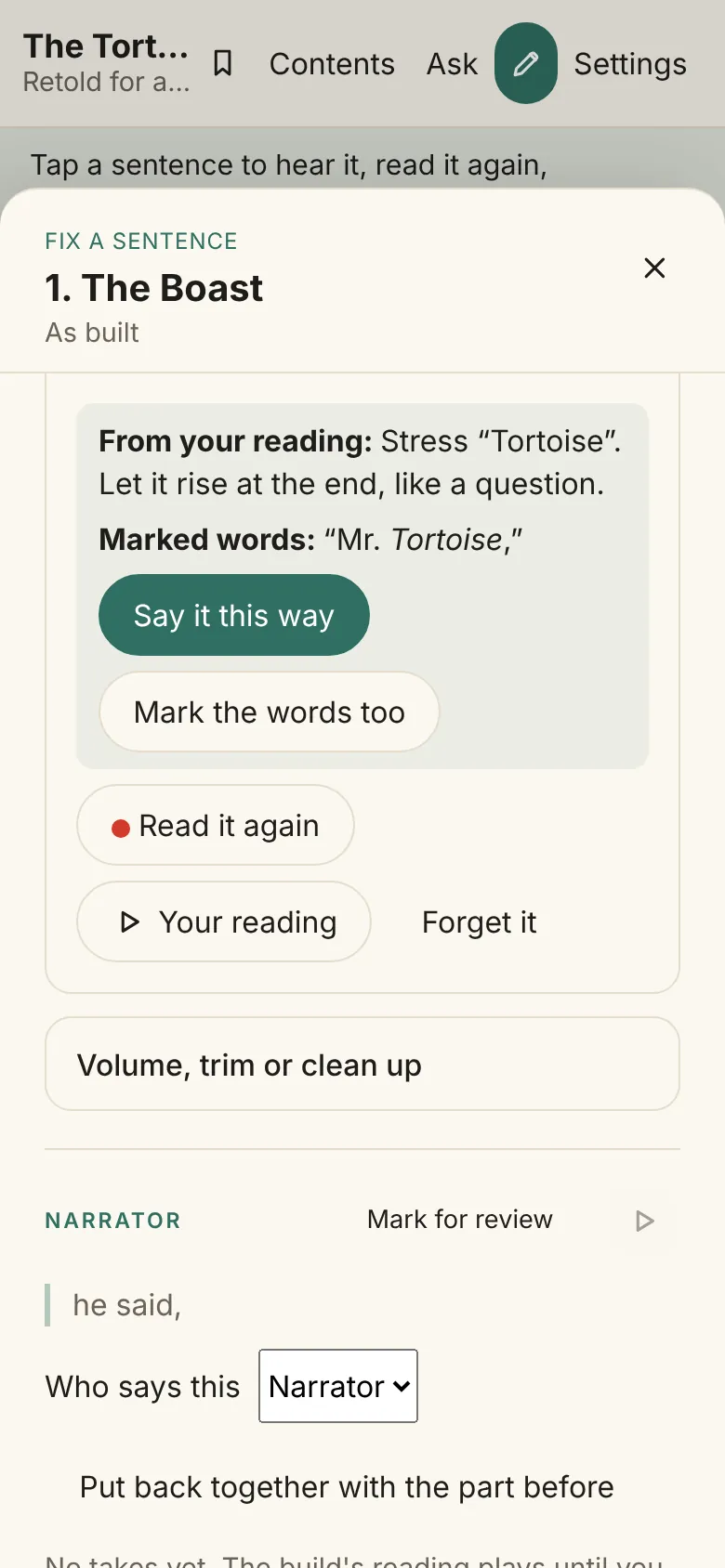
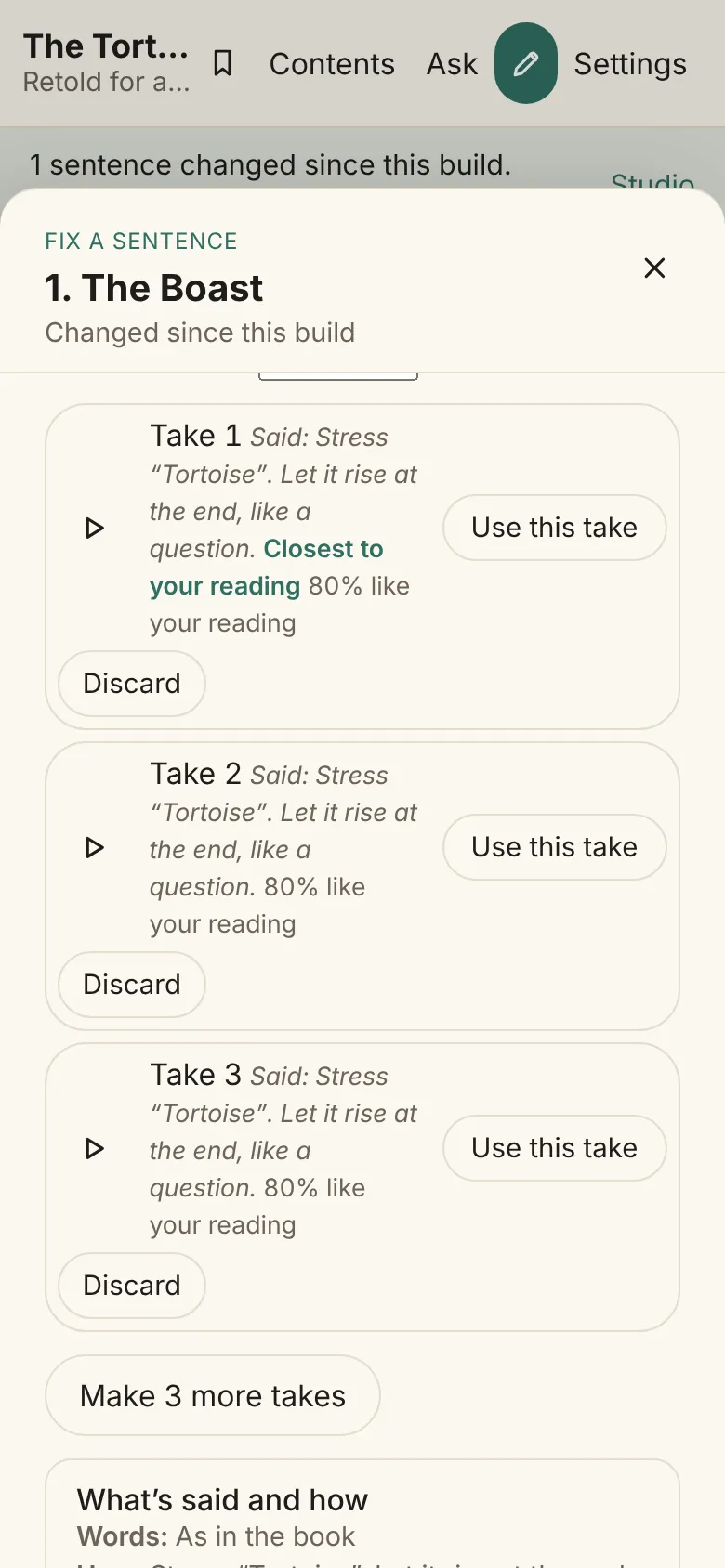
When a line is easier to say than to describe, say it yourself. Under How it’s said, find Show how it goes, press Read it aloud, say the line the way it should go, then press Stop. The studio listens for the words you stressed, where you paused, whether the end rose like a question, and how fast you went, and puts that into a direction, for example “Stress “Tortoise”. Let it rise at the end, like a question.”
Press Say it this way to use it as the line’s direction, and Mark the words too to put the stressed words in italics in what the voice reads. Your reading plays it back, Read it again replaces it, and Forget it deletes it. The voice stays the character’s: your reading changes how the line is said, not who says it.
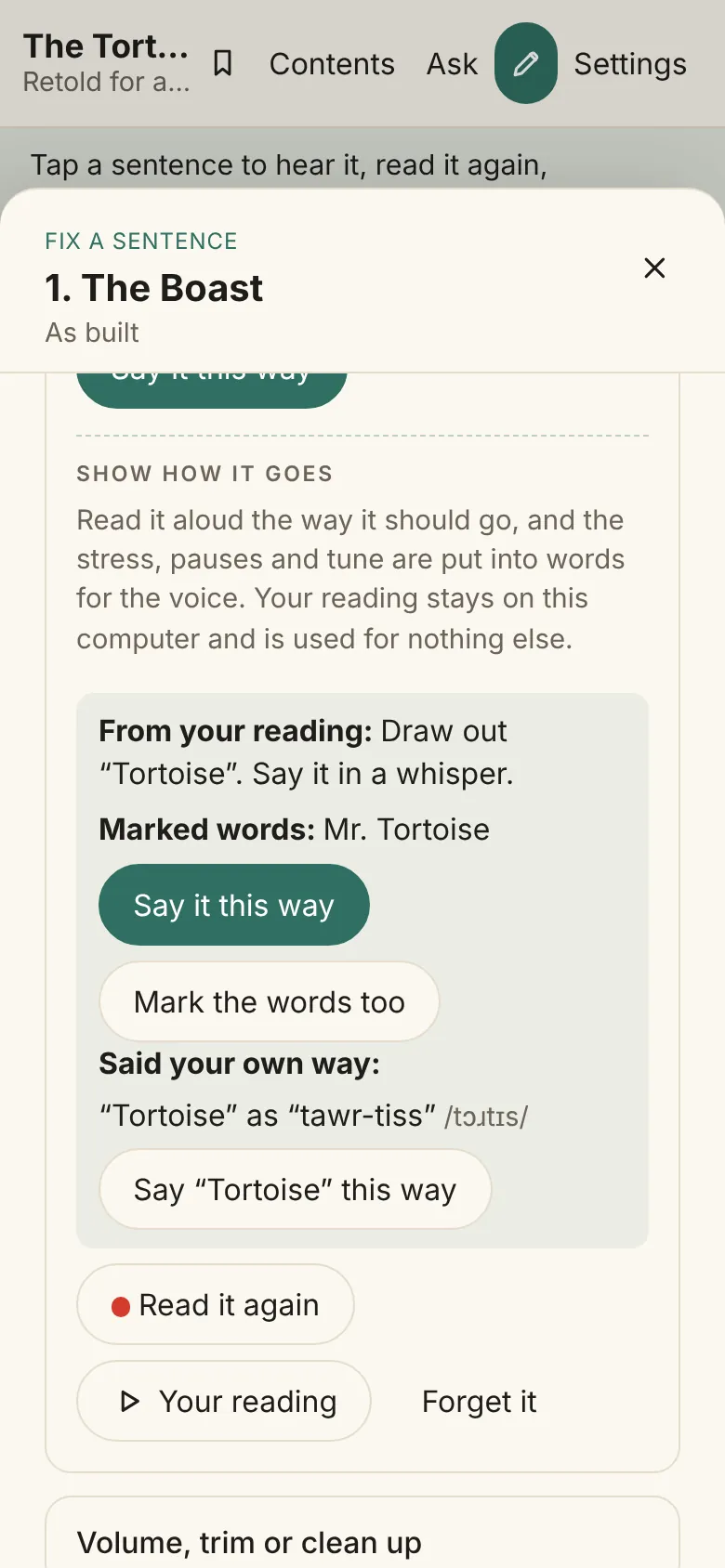
Said your own way
Your reading also shows how you say the words. If you say a name or a made-up word differently from how a dictionary says it, it’s listed under Said your own way, for example ““Ally” as “al-ee””, with the sounds heard beside it. Press Say “Ally” this way to give the voice that respelling everywhere the word appears; you can change it later on the Words screen. Listening for this needs the phoneme model the sound-it-out timings use, and without it the sheet says so.
It listens for two more things one reading shows plainly: a word you held long, which becomes “Draw out “no”.”, and a whisper, which becomes “Say it in a whisper.”
Takes like your reading
Press Make 3 new takes to hear it. Each take says how like your reading it is, such as “80% like your reading”, and the nearest is marked Closest to your reading, so you can start listening there. Takes keep their score after you forget the reading.
Your reading stays on your computer, beside the cast file. It is used only to work out the stress and pauses: it never becomes a voice, never goes in the book, and is never sent anywhere. The microphone works only on a secure page; elsewhere, the sheet says so.
Borrow a reading from another line
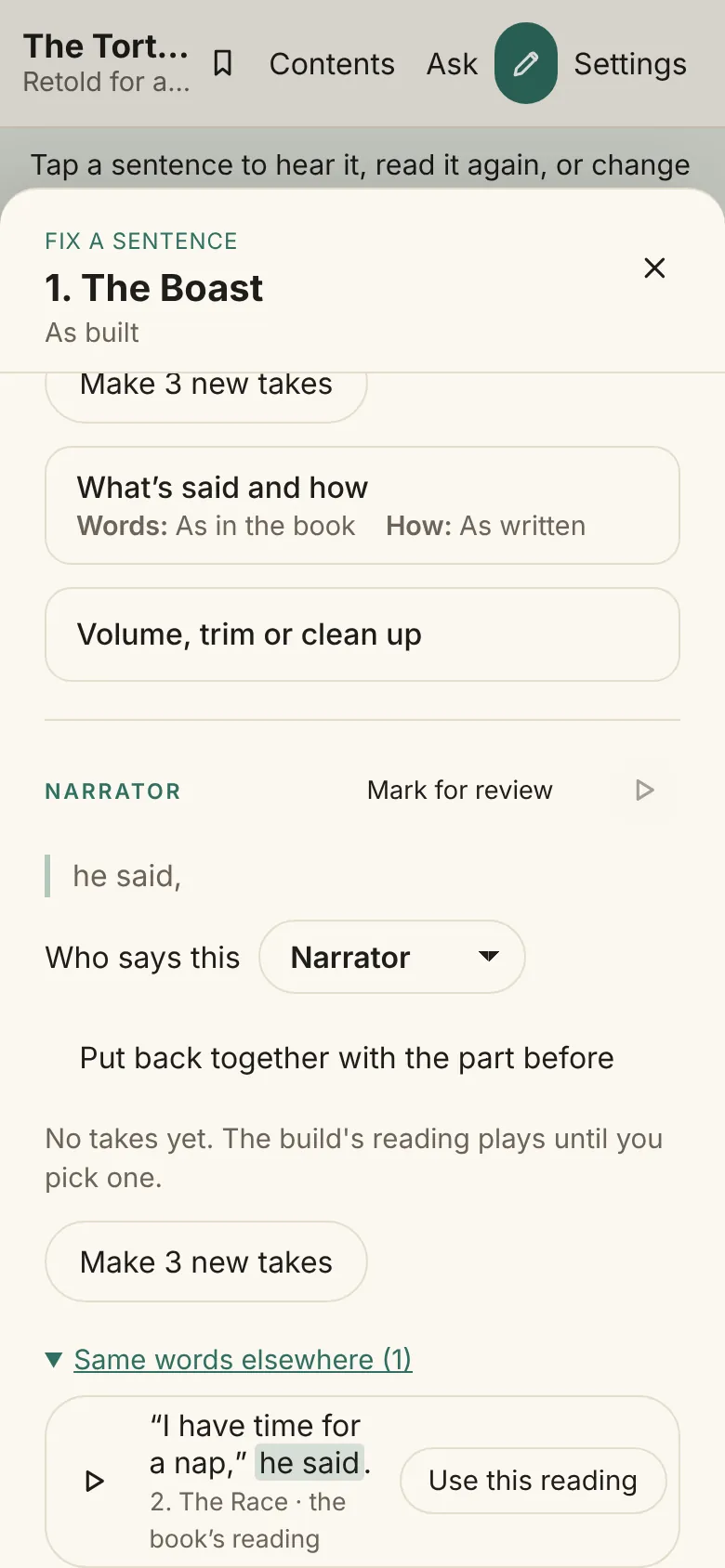
Some short phrases, like the narrator’s “said Alice” between two quotes, are hard to get right with new takes, because each take is a fresh try and a direction in words can’t describe a two-word lilt. If another line already says the same words the way you want, you can use that reading for this line. In the Fix sheet, under a part’s takes, Same words elsewhere (1) opens a list of the same words read elsewhere in the book in this voice, with the sentence each reading comes from and its chapter. Press play to hear exactly what would be used, then Use this reading. It’s used at once, and Undo puts back what played before. Press Update the book to hear it in the book.
The words must be the same, ignoring capitals and punctuation, and in the same voice. Readings that end with the same punctuation come first, since a comma and a full stop sound different. A reading can come from the book itself, even from inside a longer sentence (“said Alice” out of “said Alice to herself”), or from another line’s take. Your own recordings aren’t offered yet.
The reading is copied into a new take of this line, marked Borrowed from …. It stays even if the other line changes or its take is discarded, and you can trim it, change its volume or clean it up like any take. If the line is read in one go with others, using a borrowed reading reads it apart. The studio’s Timeline has the same list: pick a clip, and its panel shows Same words elsewhere, with Undo in the panel.

Marks for how a word is said
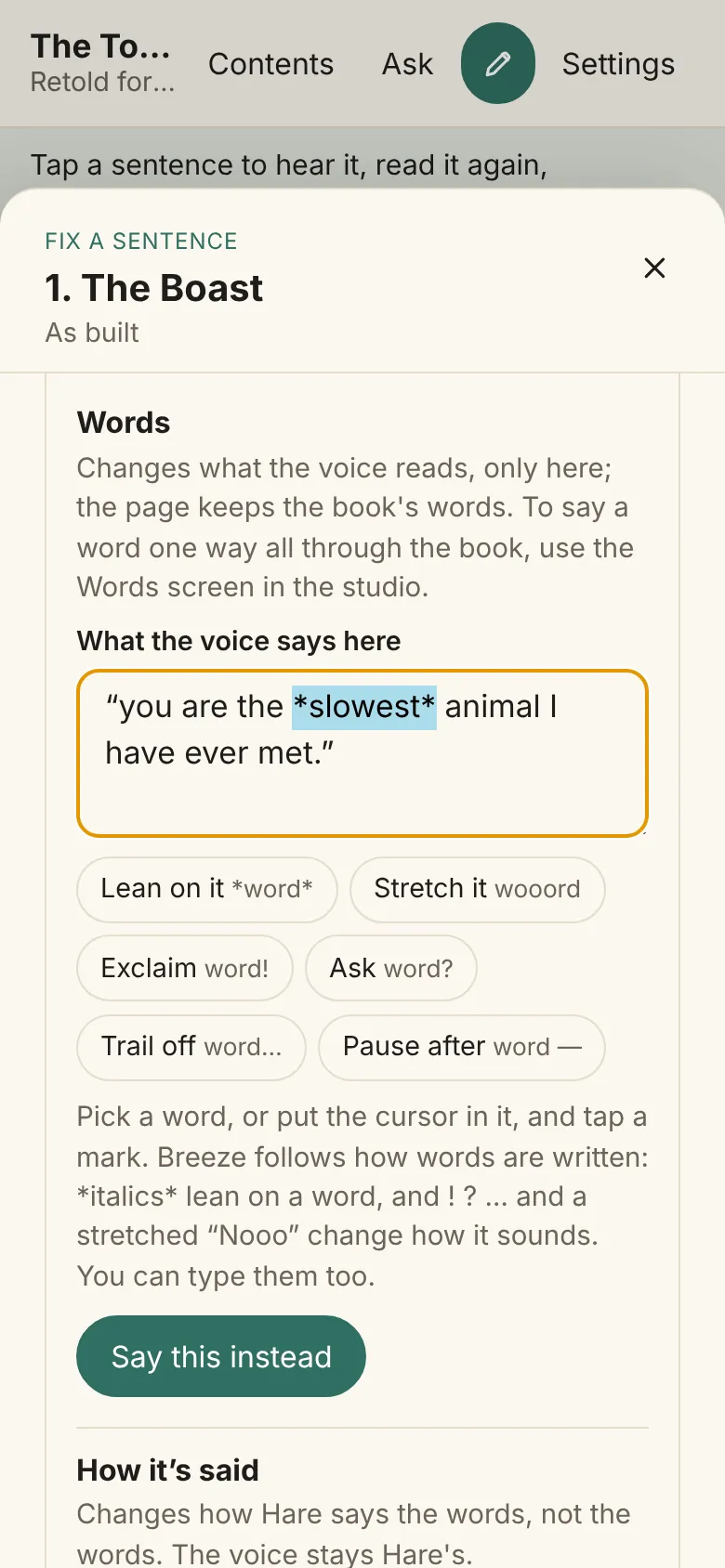
When the way to say a word is hard to put into a direction, shape the word itself. Under What the voice says here, pick a word, or put the cursor in it, and tap Lean on it (*word*), Stretch it, Exclaim, Ask, Trail off or Pause after. You can also type the marks yourself; the hint under the box shows them. The voice gets the words exactly as typed, marks and all, and the marks shape how it delivers them, so listen to a new take to check. Italics show as italics in the card and on the Lines screen.
Change a part’s volume, trim or clean it up
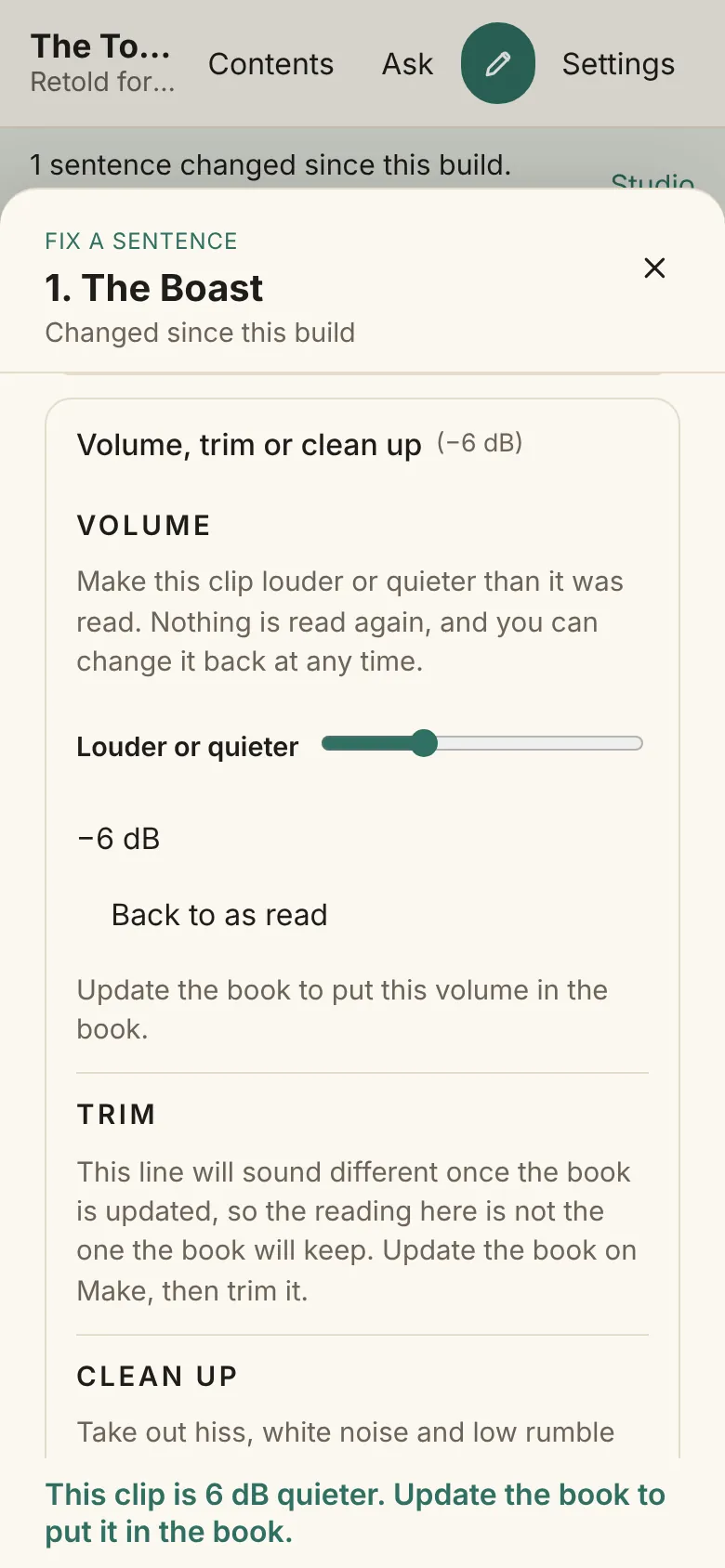
Each part of a sentence on the sheet also folds out Volume, trim or clean up: the same Volume, Trim and Clean up as on the Timeline, saved to the same clip, so a change made in either place shows in the other. The fold-out’s title shows the part’s level when it isn’t 0 dB, such as “(−6 dB)”, and says when a part is already trimmed or cleaned its own way, such as “(trimmed, cleaned its own way)”. The reader plays the book as built, so the sheet says to Update the book to hear the change in place. The reader on ai1y.co has no Fix tools and doesn’t change.
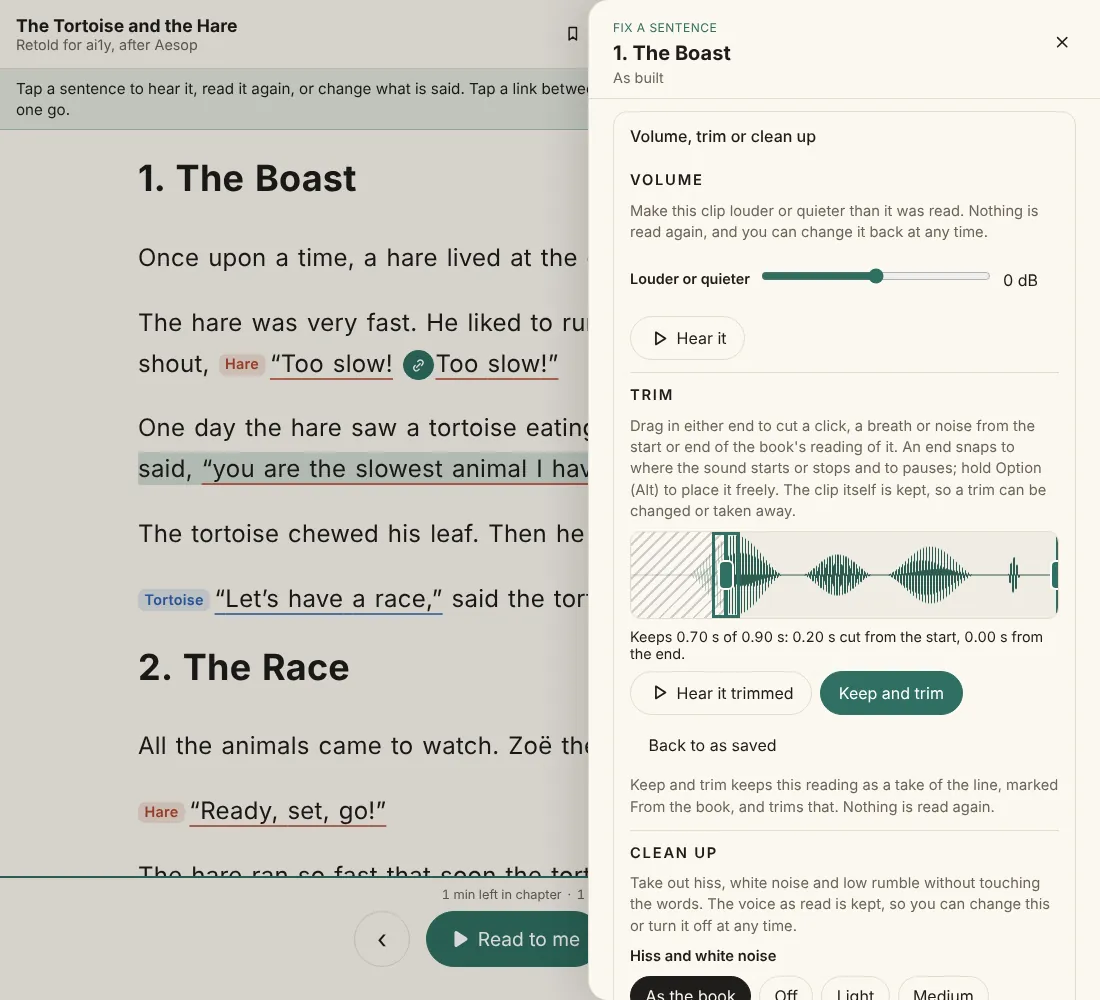
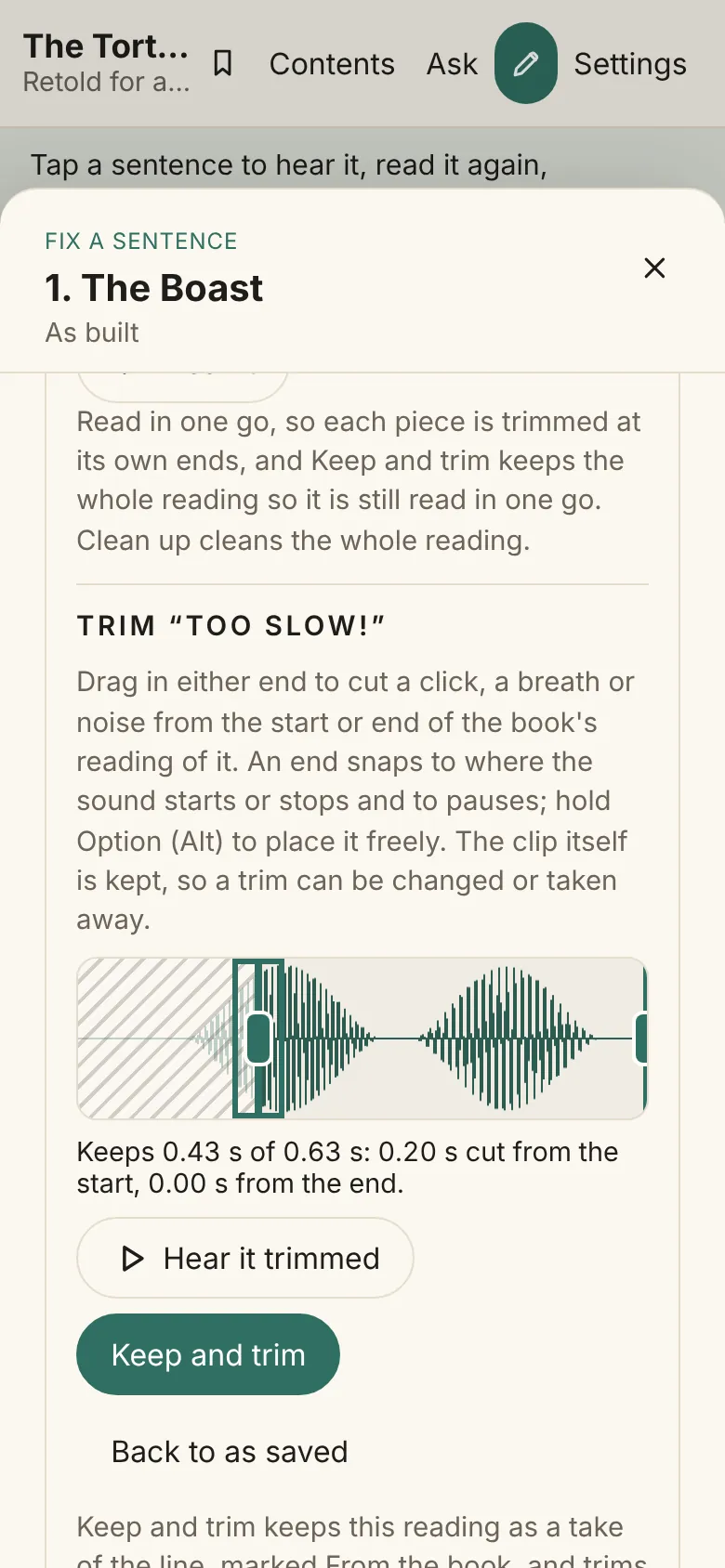
Lines read in one go
Lines linked to be read in one go are one part of the sheet, and its Volume, trim or clean up covers the whole reading. One Volume slider sets every piece. Each piece has its own trim, named by its words, such as Trim “Too slow!”, even when the piece is in the next sentence. One Clean up cleans the whole reading, and Hear it cleaned plays all of it.
Keep and trim keeps the whole reading as takes, marked From the book and Read in one go, so it is still read in one go after Update the book. A trimmed line plays shorter by exactly what you cut. You can keep a clean-up first and trim afterwards. As with any part, Update the book to hear the change in place.
The sheet shows the sentence’s words to tap. Tap one word to open how the voice says it all through the book, with Say it this way everywhere and, once it has a respelling, Say it as written. Tap a second word to pick every word between the two, then choose a character under Who says these words and Give them these words: they become that character’s line, with the quotation marks and punctuation around them. Every part also has a Who says this menu, for the narrator or anyone in the cast.
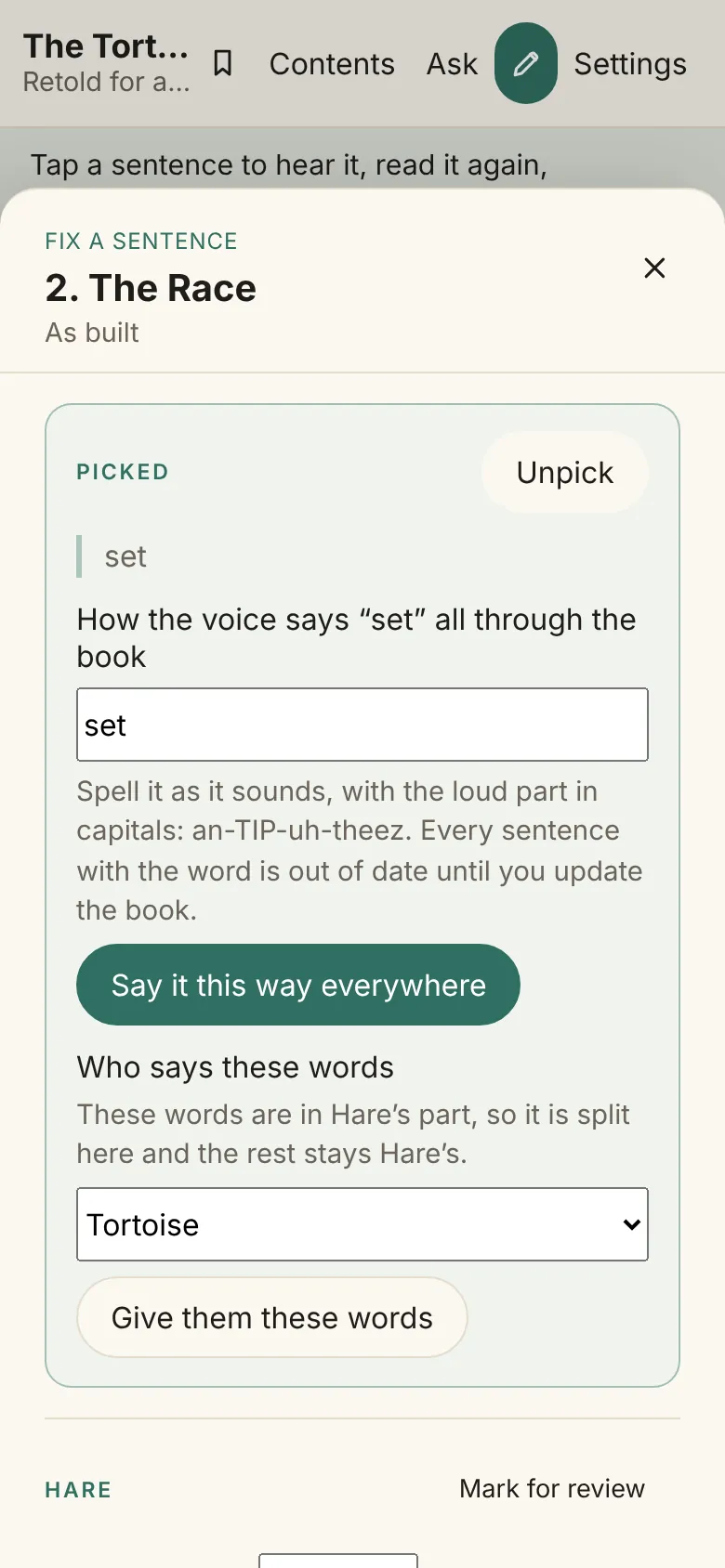
Split a part and give words to someone else
Picked words can be inside a character’s part. The sheet says so, such as “These words are in Hare’s part, so it is split here and the rest stays Hare’s.” Pick who says them, the narrator or anyone in the cast, and Give them these words: the part is split there and the rest keeps its speaker.
A part right after another has Put back together with the part before. Each split or join happens at once with Undo beside it, which puts the lines back exactly as they were, picked takes and linked lines included. As on the Lines screen, nothing is read until you Update the book.
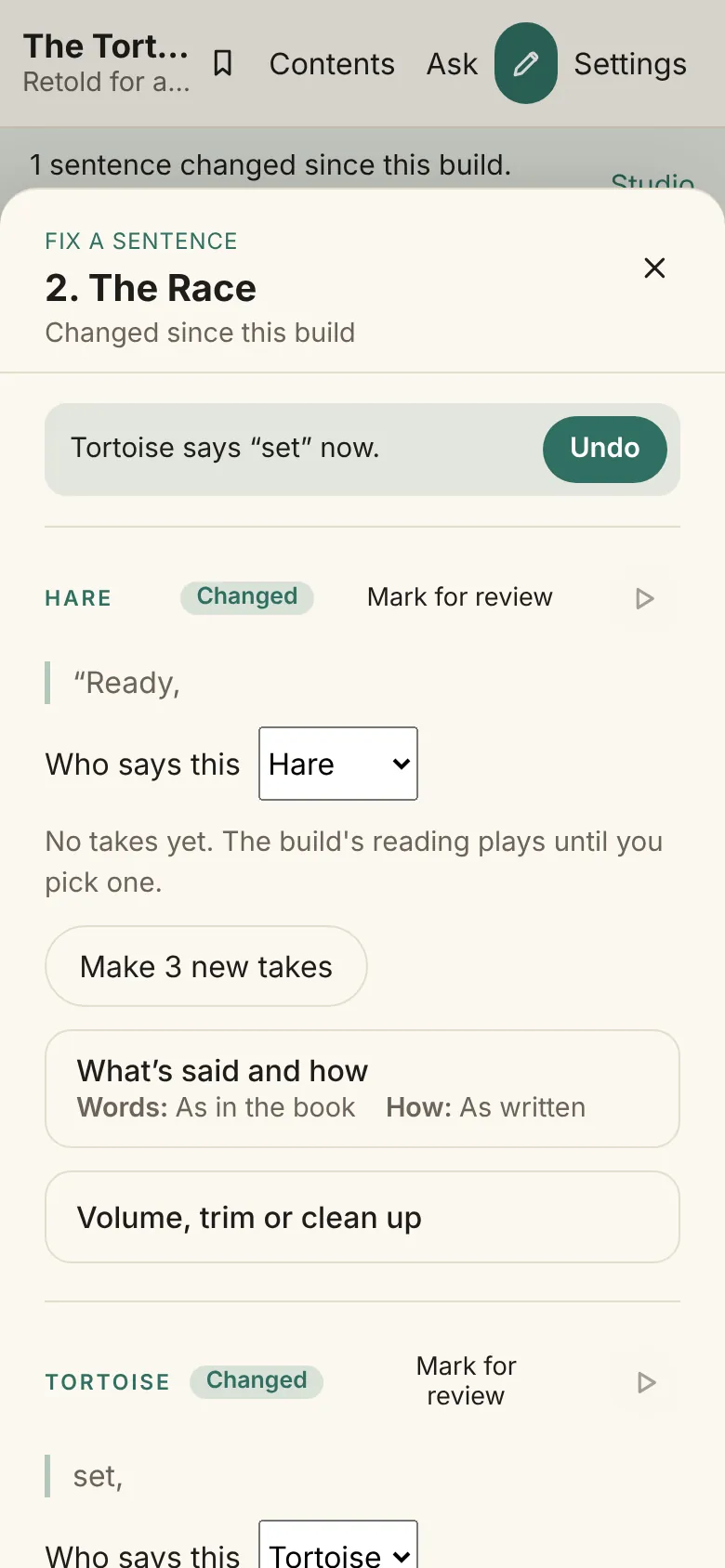
After the split, each piece is its own part of the sheet, with its own Who says this, takes, What’s said and how and Volume, trim or clean up.
Under Reading in one go, the sheet says whether the sentence is read together with the one before it and the one after it, and whether you chose that or the studio did. Read them in one go joins two sentences into one reading, so they flow like one speech; it works only when the same voice reads where they meet, the narrator included, and says why when it can’t. Together they can be up to 600 characters, with a warning past 300 that long readings can drift. Read them apart keeps sentences apart that the studio would join, and Let the studio decide hands the choice back. A changed join marks both sentences out of date, so Update the book picks it up. The choices are kept in the cast file, under joins.
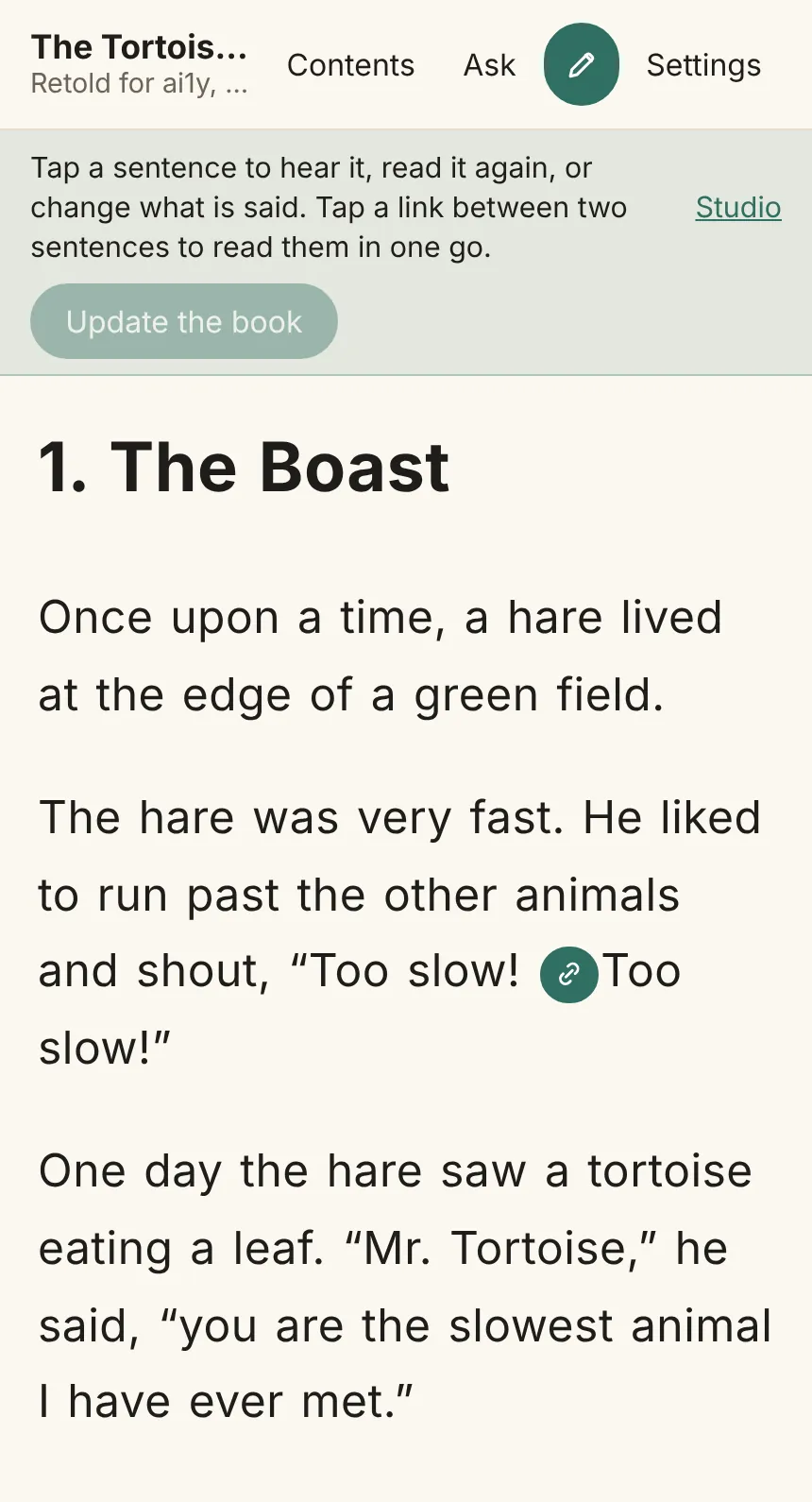
Join or part sentences from the text
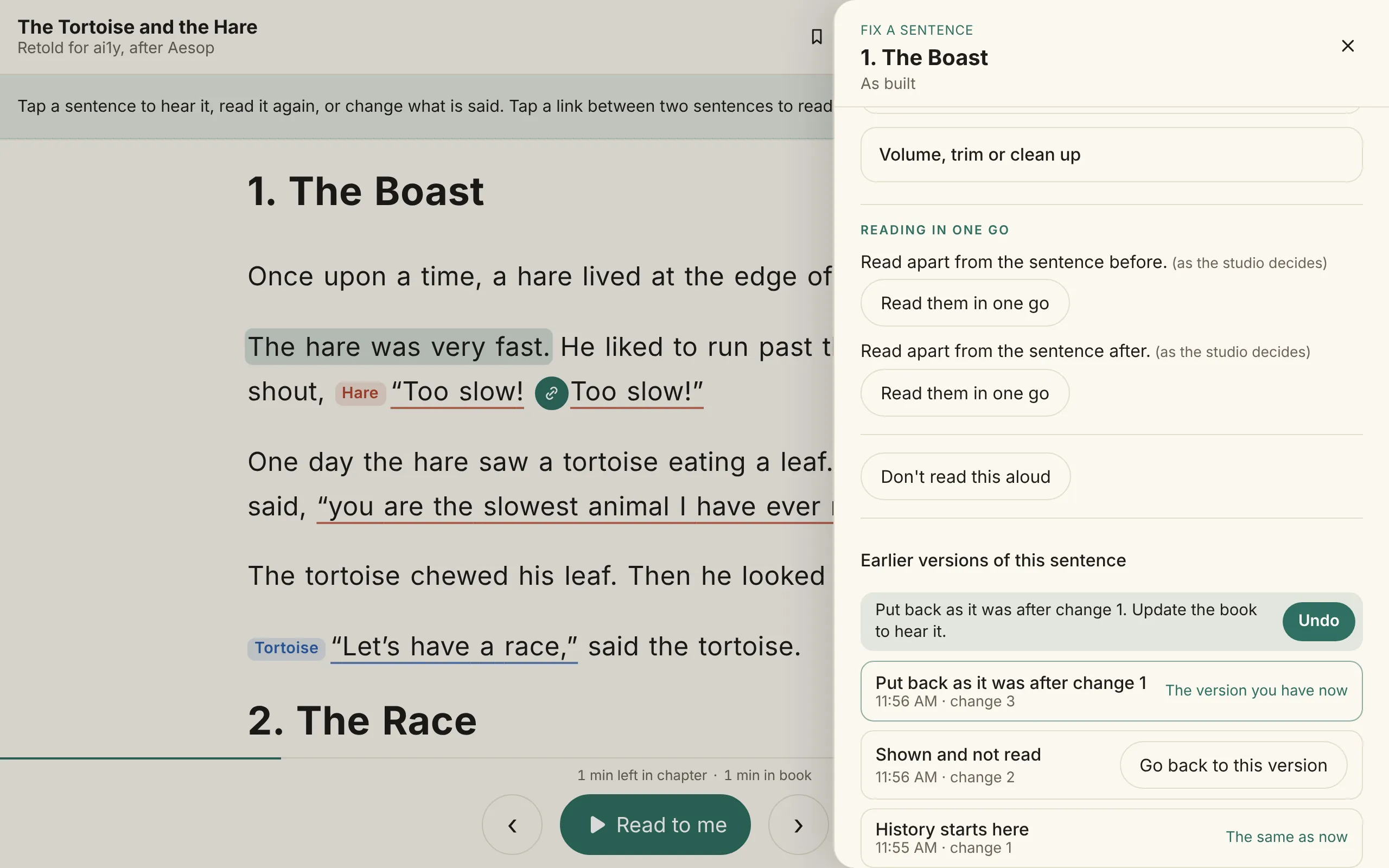
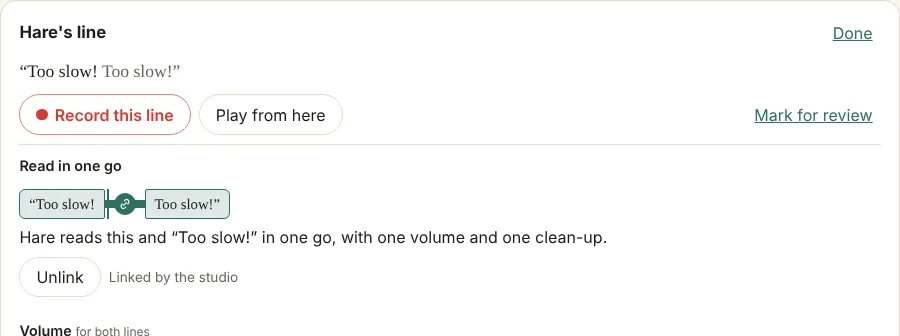
With Fix on, a small link sits in the text between two sentences that one character reads on through, such as the Hare’s “Too slow! Too slow!”. A filled link means they’re read in one go, and a dashed one means they’re read apart. Tap the link to switch: both sentences show as changed, and Update the book picks it up.
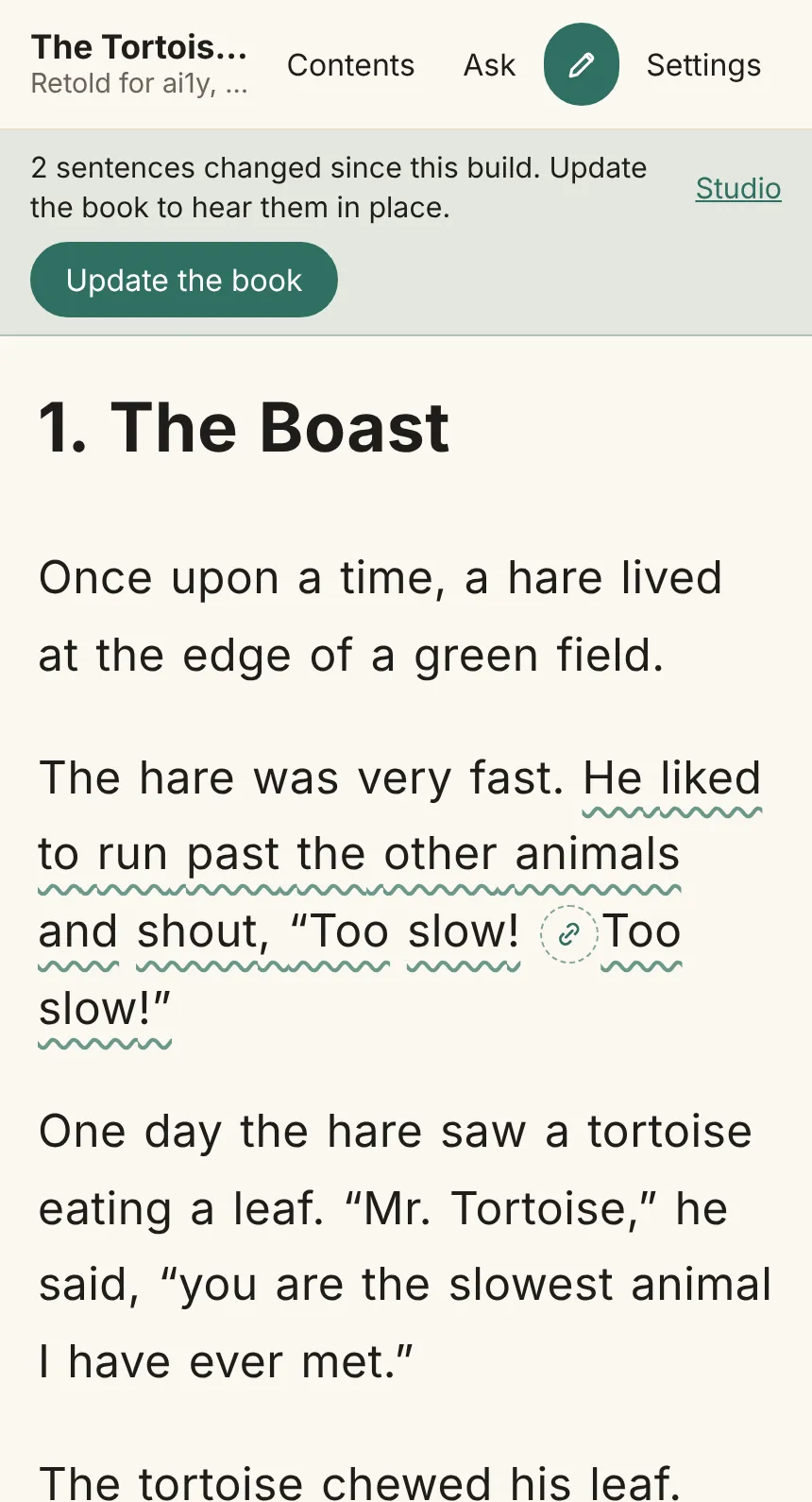
A link that would make one reading longer than 600 characters is greyed out, and past 300 characters it warns that long readings can drift. The narrator’s sentences get no links, so the page stays easy to read; join those from the sheet’s Reading in one go, and once you’ve made a choice there, its link shows in the text too. The same links are on the studio’s Timeline.
A link also shows, dashed, where one character’s lines meet but a take is picked on either line, or the two are said different ways. Tapping it links them at once, to be read again together, in one go, said the way the first line is.
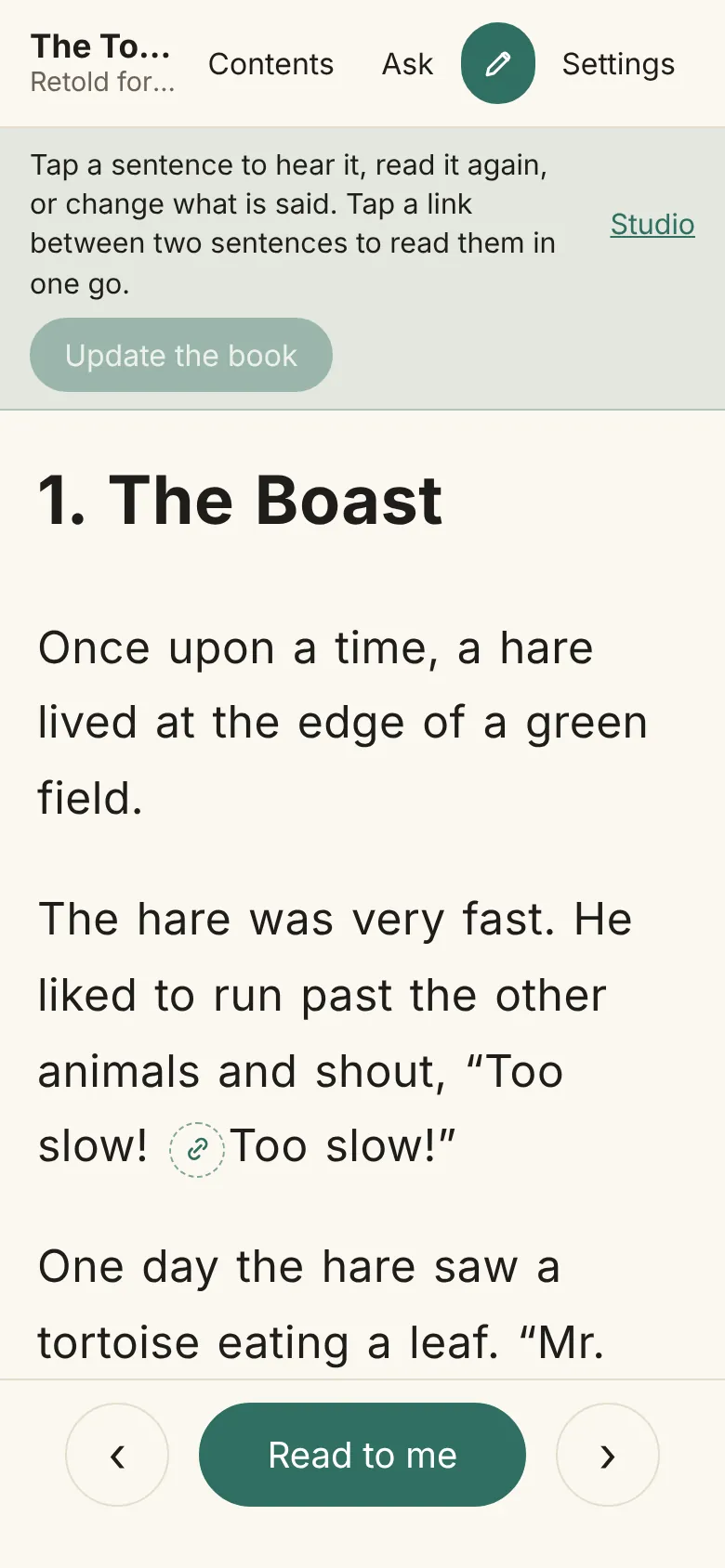
Links show what the book has
A link you set always shows filled, as you chose. If the book still has those sentences read apart, both show as changed, so Update the book reads them again in one go. A link shows dashed only where you haven’t set it yourself and the build read the sentences apart; hovering over it, or a screen reader, says why. If you link only some of the sentences in a reading, the ones you linked are read in one go and the others on their own, so the link you didn’t set shows dashed; tap it to link those sentences too. When Update the book finishes, the links show how the new book reads the sentences straight away, with no reload.
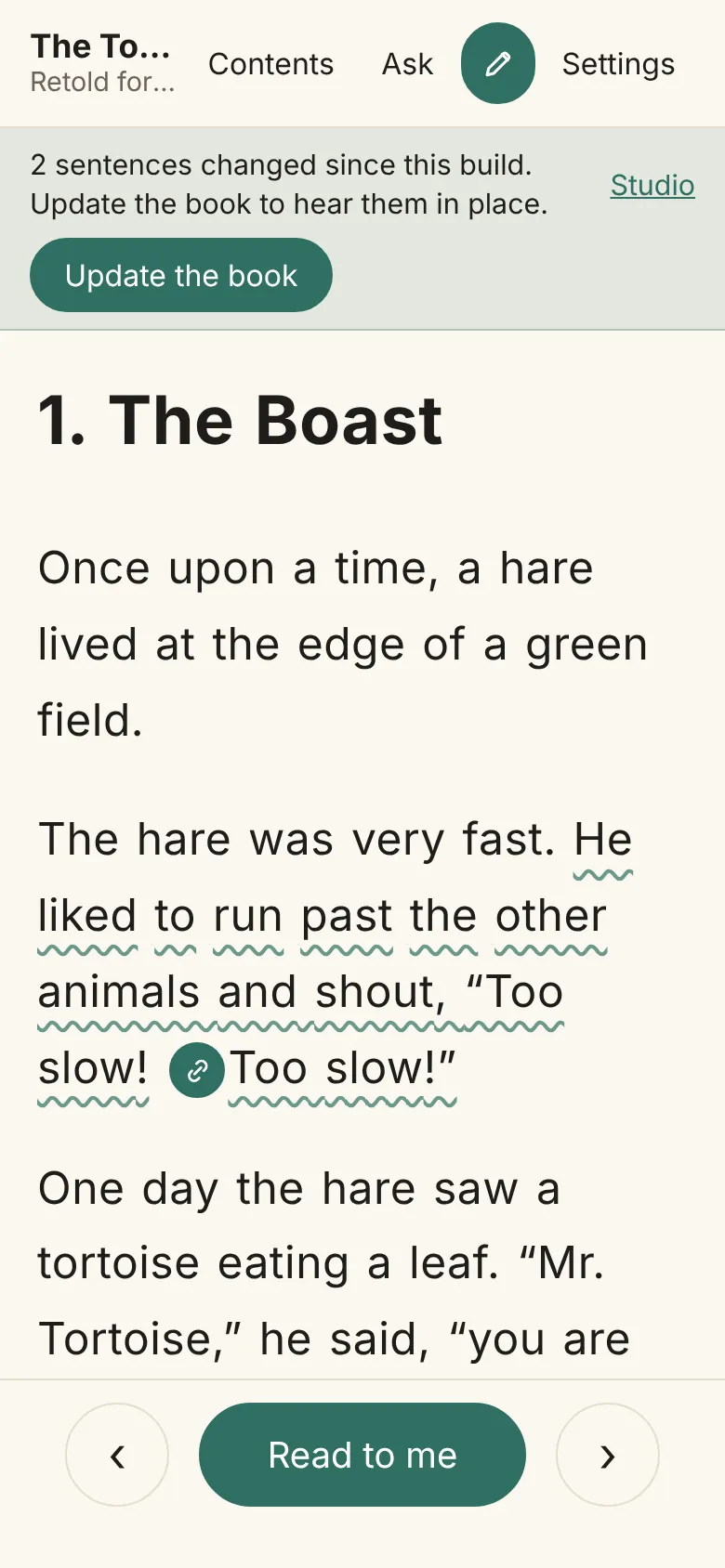
Every tap on a link counts as your choice, even when it matches what the studio would pick anyway. So tapping a link to read the sentences in one go again marks them as changed, and Update the book reads them again, together.
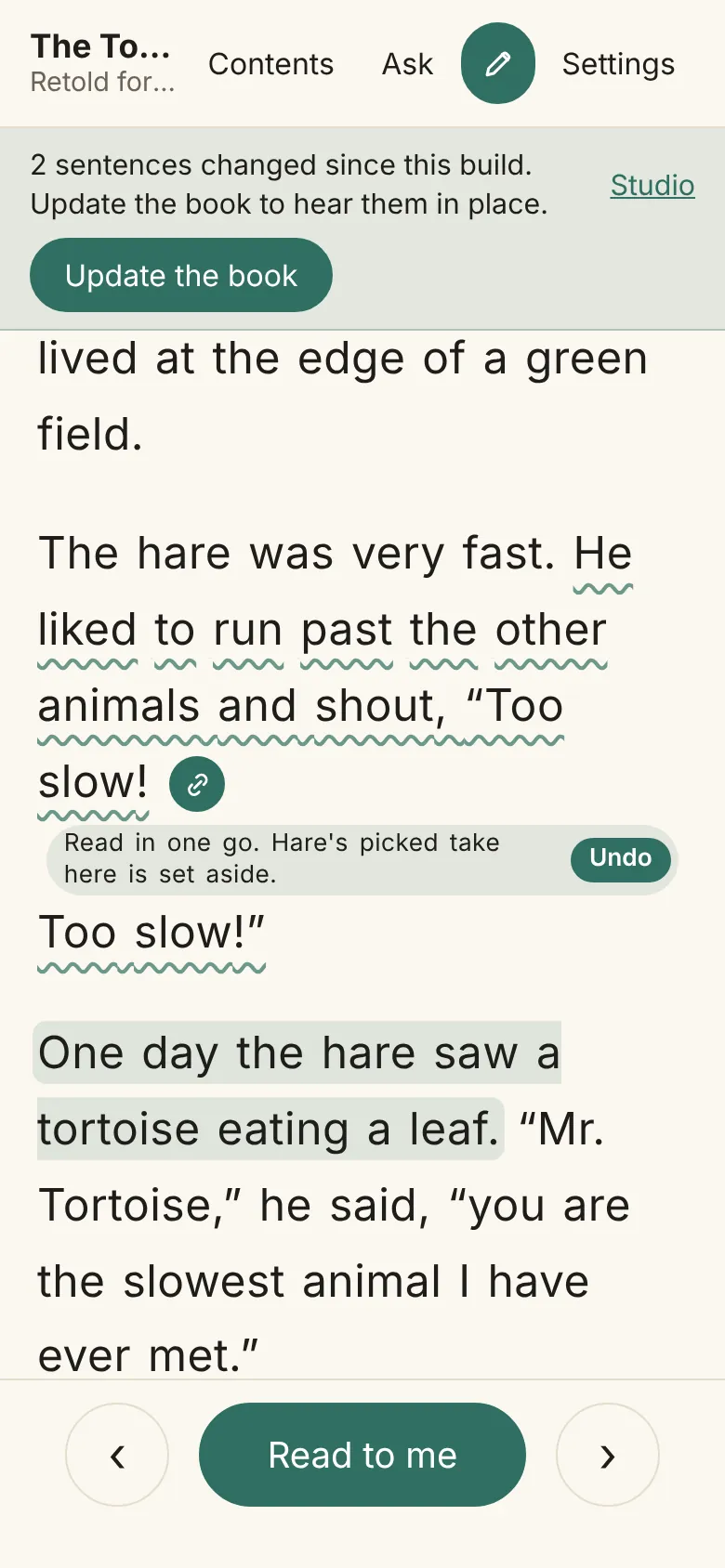
Linking lines that already play one reading’s takes keeps those takes in use. Where other takes were picked, a small note beside the link says they were set aside, with Undo, which puts the link and the takes back exactly as they were. You can tap links one after another: each link that set takes aside keeps its own note until you tap that link again, undo it, or update the book. Nothing is read again until Update the book, so you can change several links and update once.
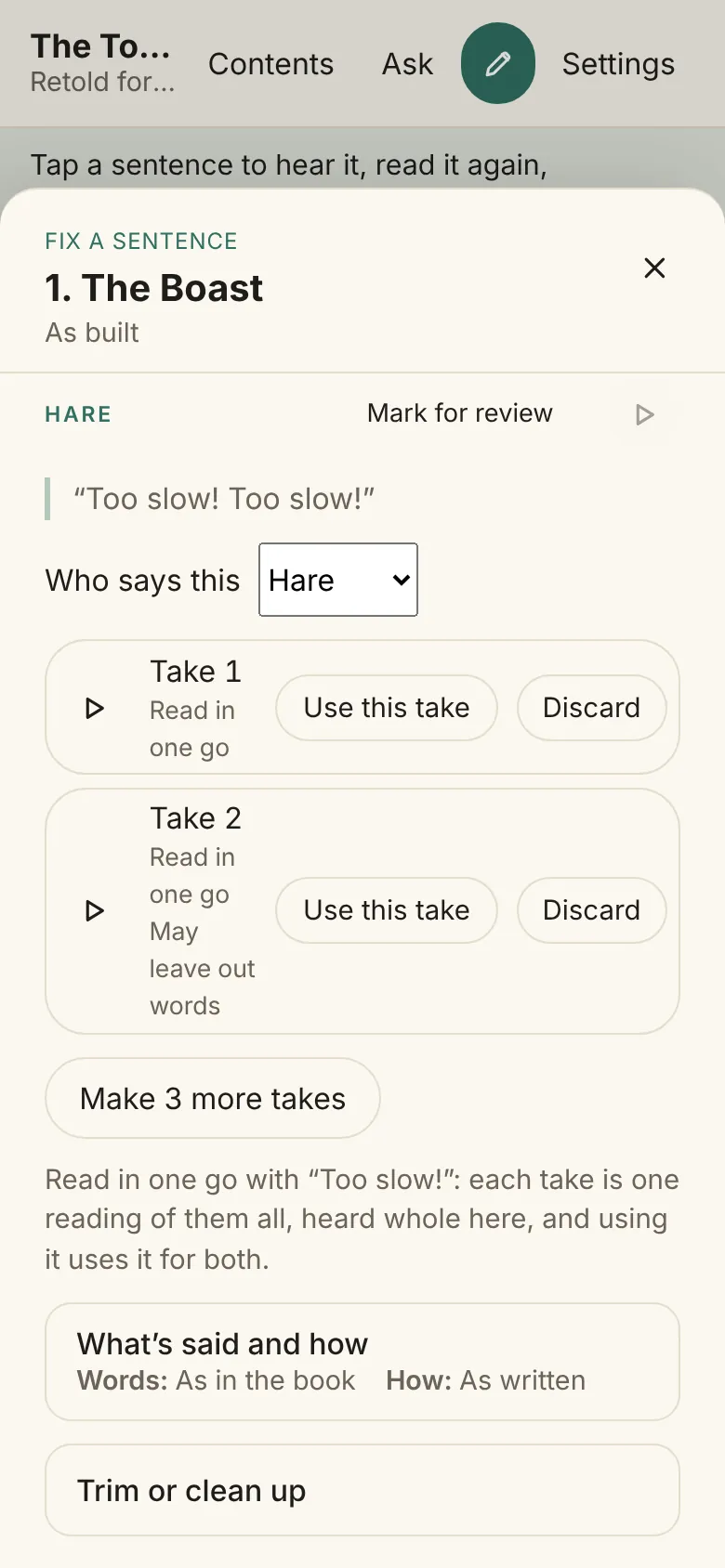
While a link is filled, the sheet shows the linked sentences as one part, the same whichever of them you tap, with all their words, such as the White Rabbit’s whole “Oh dear! Oh dear! I shall be late!”. Its play button plays them all as the book has them now. Make 3 new takes there reads them together as one reading, then cuts it between them. The part’s takes are takes of the whole reading, numbered Take 1, Take 2 and so on and marked Read in one go, and each one plays the whole reading straight on, as the book will once you use it. Use this take, stopping using it and Discard act on the whole reading. Takes made of one of the lines on its own, before they were linked, aren’t listed there. What’s said, how it’s said, and Trim or clean up stay with the sentence you tapped. Tapping the filled link to read them apart sets that take aside, with the same Undo, and the next update reads them afresh one by one. If takes can’t be made, the part says why, and the button reads Try again.
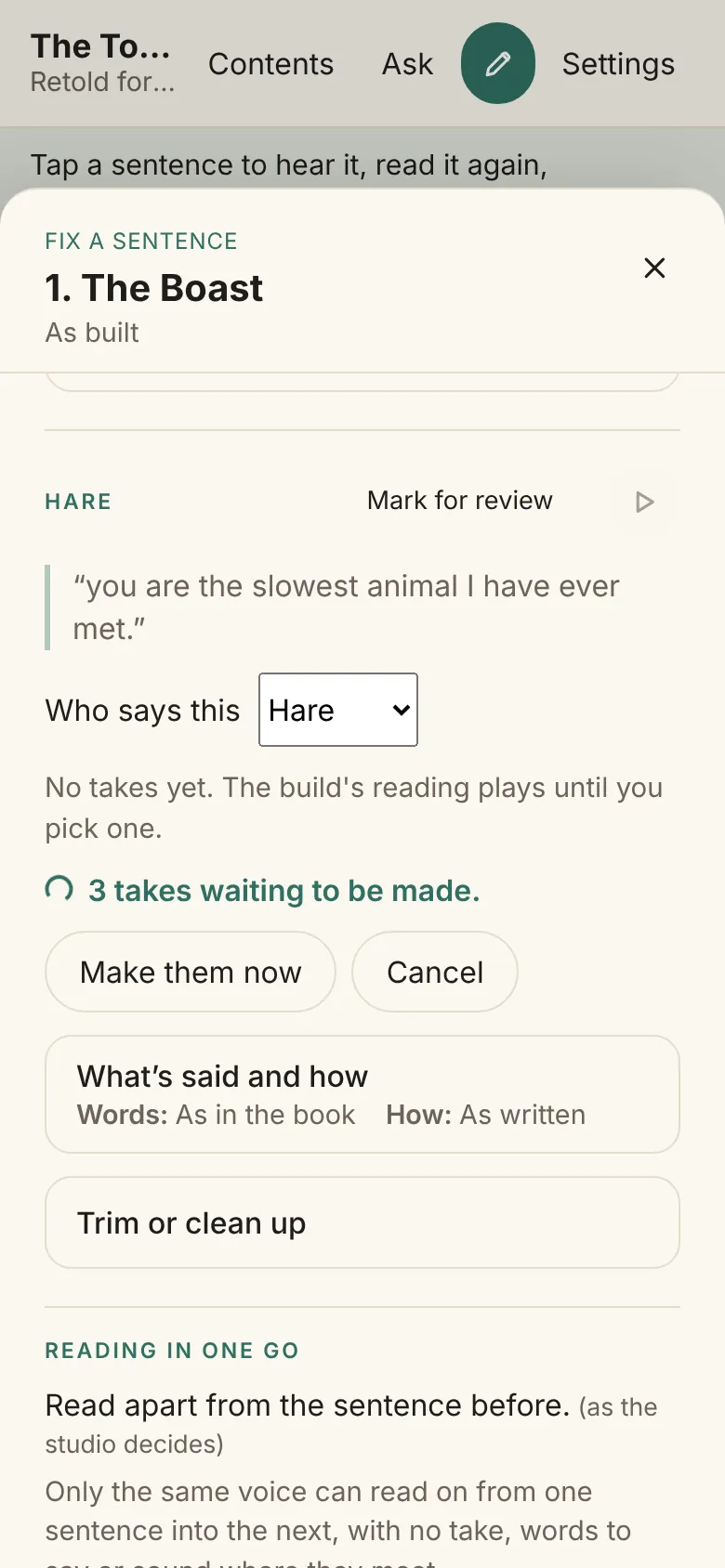
Linked sentences are read together even when each is too short to check on its own, such as the White Rabbit’s “Oh dear! Oh dear! I shall be late!”. The reading is cut at the pause between them, and the lines go under Needs a listen in the studio, so give them a listen after the update. Linked sentences play straight on, the way the voice read them, with no pause added between them, whether the book read them or you picked a take of the whole reading. If the reading is hard to cut, the book still keeps them in one go, cut where it fits best, rather than reading them apart. The same goes when the voice check doesn’t hear the speaker’s voice in that reading: the book keeps it, and the lines go under Needs a listen as Voice check failed. If something stops partway through Make 3 new takes, the takes already made are kept and only the rest wait.
Takes left waiting with nothing making them, such as when the studio was closed while making them, say how many are waiting to be made. Make them now makes them, and Cancel lets them go.
Takes of linked lines always come out
Make 3 new takes on linked sentences always makes takes. If the voice isn’t heard saying every line, it reads them again a few more times, and if it still isn’t, the takes are cut from the closest reading. Such takes say May leave out words next to their name, so listen before you use them. The takes log says what the voice was heard to say.
Each reading is cut in the pauses that fit it best, all chosen together, so a call said twice, such as the White Rabbit’s “Oh dear! Oh dear!”, is cut between the two calls and not inside one.
Linked lines are said one way
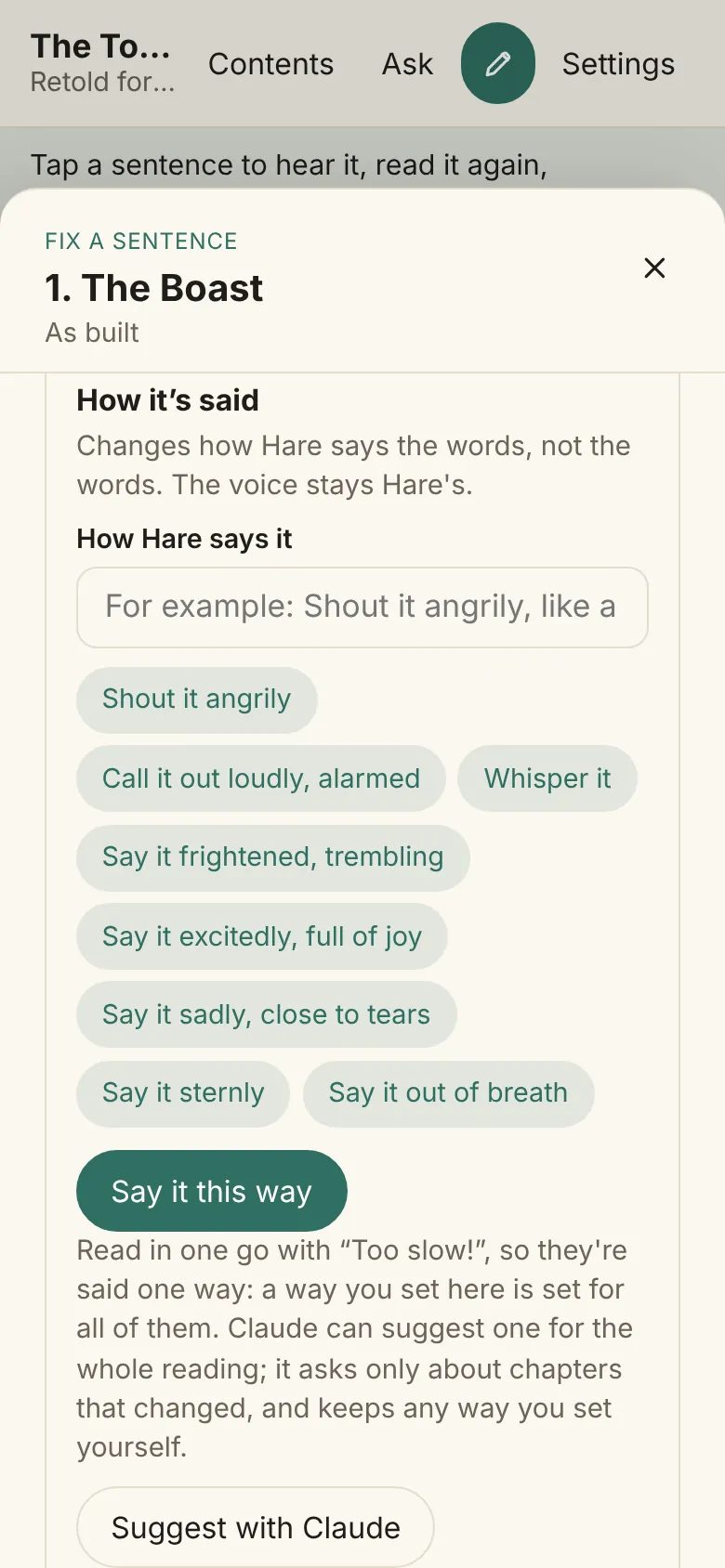
Sentences read in one go are one reading, said one way. In How it’s said on a linked part, a way you set is set for all of them, and their takes are set aside, as for any change of how a line is said. The part says so, and offers Suggest with Claude, which suggests a way to say the whole reading. It asks only about chapters that changed and keeps any way you set yourself. When Claude can’t be asked on this computer, the button is greyed out and the part says why.
Don’t read this aloud keeps a sentence on the page but out of the narration: the book pauses on it for a moment, as on a picture, and Read this aloud undoes it. A line with no letters or digits, like a row of stars between scenes, starts out not read; tap it and choose Read this aloud if you want it read. Update the book picks either change up, and the cast file keeps your choices under spoken.
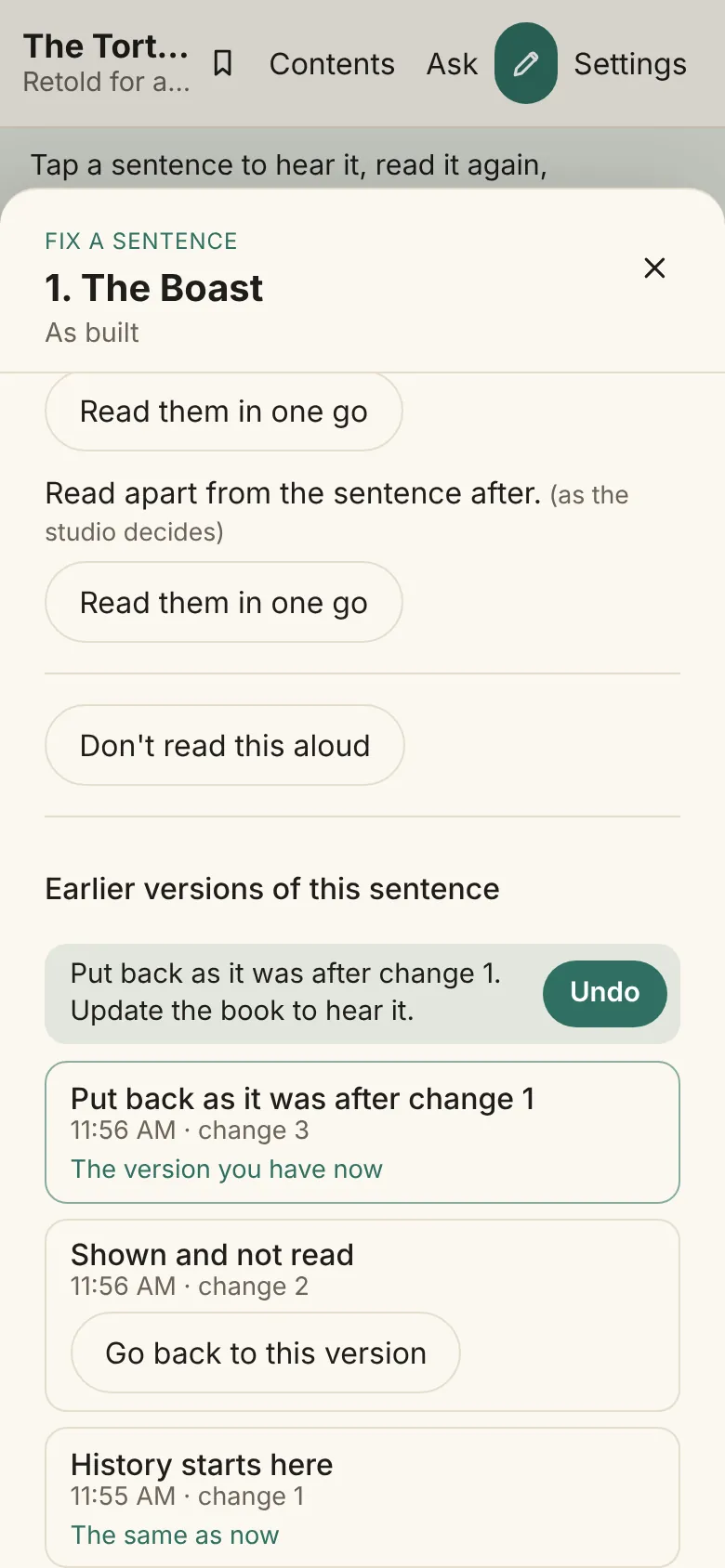
Earlier versions of a sentence
At the end of the Fix sheet, Earlier versions of this sentence is folded away. Open it to see the changes that changed this sentence, newest first, in words, such as “Shown and not read”, “Volume −3 dB” or “Changed what is said”, with when each was made and its number. Changes to other sentences aren’t listed, and neither are respellings, which are the book’s, not one sentence’s.
The version you have now is marked, and every other has Go back to this version. It puts just this sentence back as it was after that change, as a new change, and changes you’ve made since to other sentences stay. If the sentence is read in one go with the one before or after, then or now, they go back together, and the note says so. A note says what happened, with Undo. Takes or sounds discarded since are left out, and the note says so too. Press Update the book to hear it. If a line no longer fits, for example because someone who spoke it has been taken out of the cast, going back is refused and the sheet says why.
Whatever you change after a build, in the studio or the reader, is noticed: a respelling, a line’s words, speaker, how it’s said, sound or take, a voice picked, a group’s members, lead or mix, and a background added, moved or remixed on the Timeline. Make then says Out of date, with how many sentences and backgrounds changed, and one Update the book makes again only those; a background change mixes the background track again without reading any line. A change that alters every chapter, such as the voice engine or its models, the narrator’s voice, the seed, Breeze’s loop setting or the voice check, says that every chapter will sound different and asks you to build the book again.
You don’t have to update the book to hear most changes. While you fix in the reader the studio serves, Hear changes on the Fix bar plays the sentences you changed as they will sound after Update the book, in place, with the sentences around them as the book reads them, so you can hear how lines flow, such as the narrator’s “she said” between two quotes. It’s on unless you turn it off, and this device remembers. Press Play or read on: when reading reaches a changed sentence, it plays the sentence as it is now, lit word by word, then carries on in the book from where that sentence ended. With the switch off, the reader plays the book as built. Nothing is saved by listening: the book and the cast file stay as they are until Update the book.
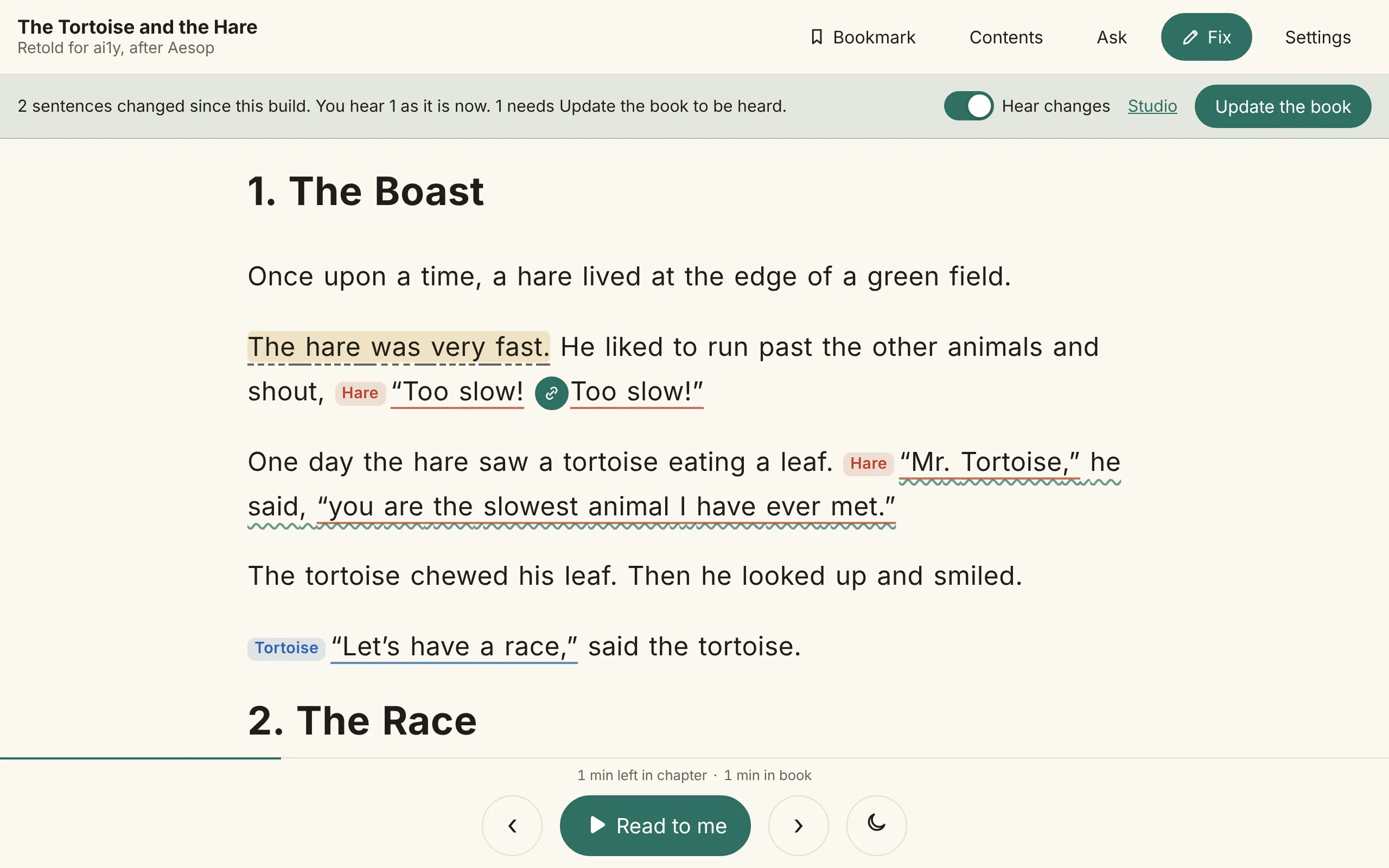
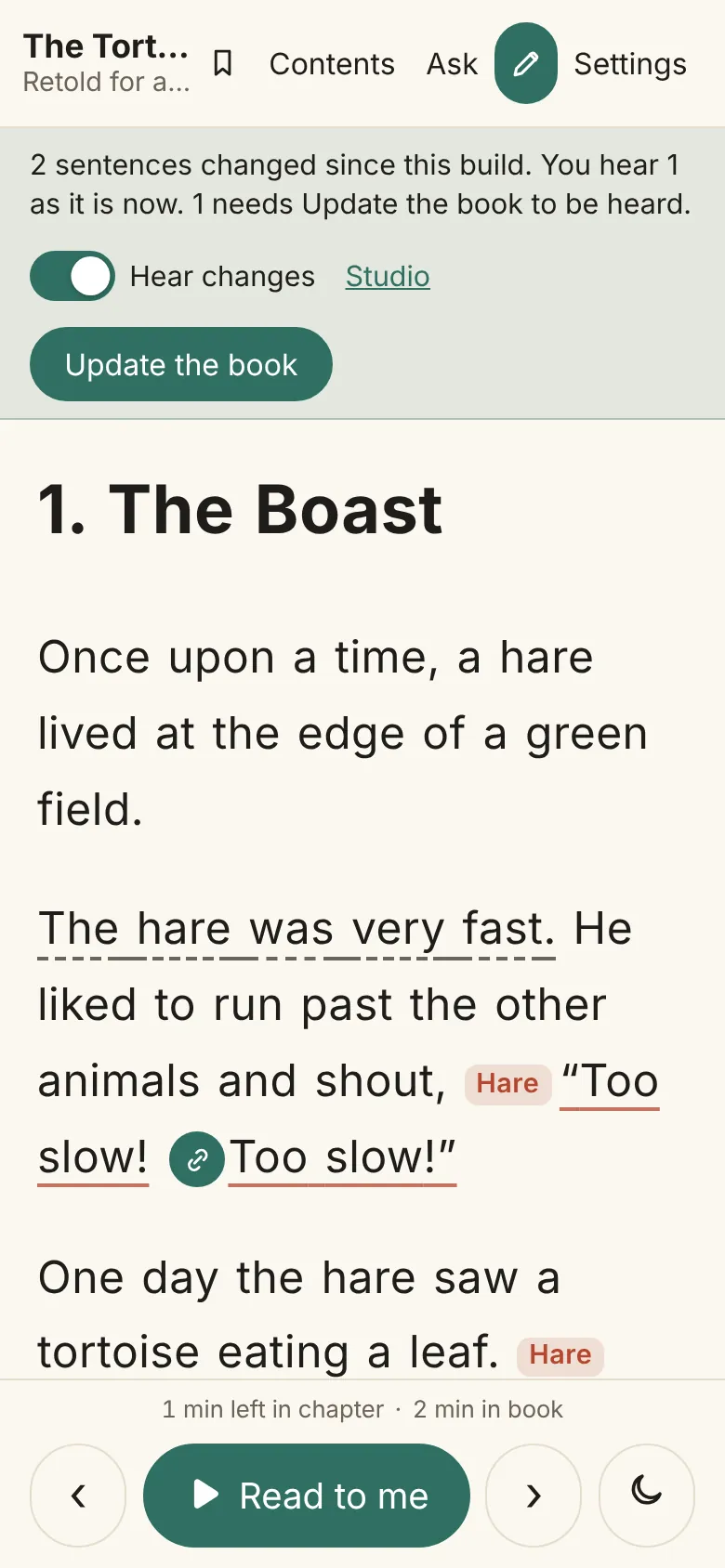
You hear at once a newly picked take, whether made, recorded, kept from the book or cut with the scissors, trims, volume lines, a clip’s volume, clean-up, pauses set on the Timeline, and a reading in one go with its takes picked. Anything a voice has to read again waits for Update the book: new words to say, another speaker or voice, a respelled word, a link made or taken away, or a sentence read aloud or no longer. Those sentences have a dashed underline and play as built until the update, and the bar says how many, for example “2 sentences changed since this build. You hear 1 as it is now. 1 needs Update the book to be heard.” Backgrounds also play as built until the update.
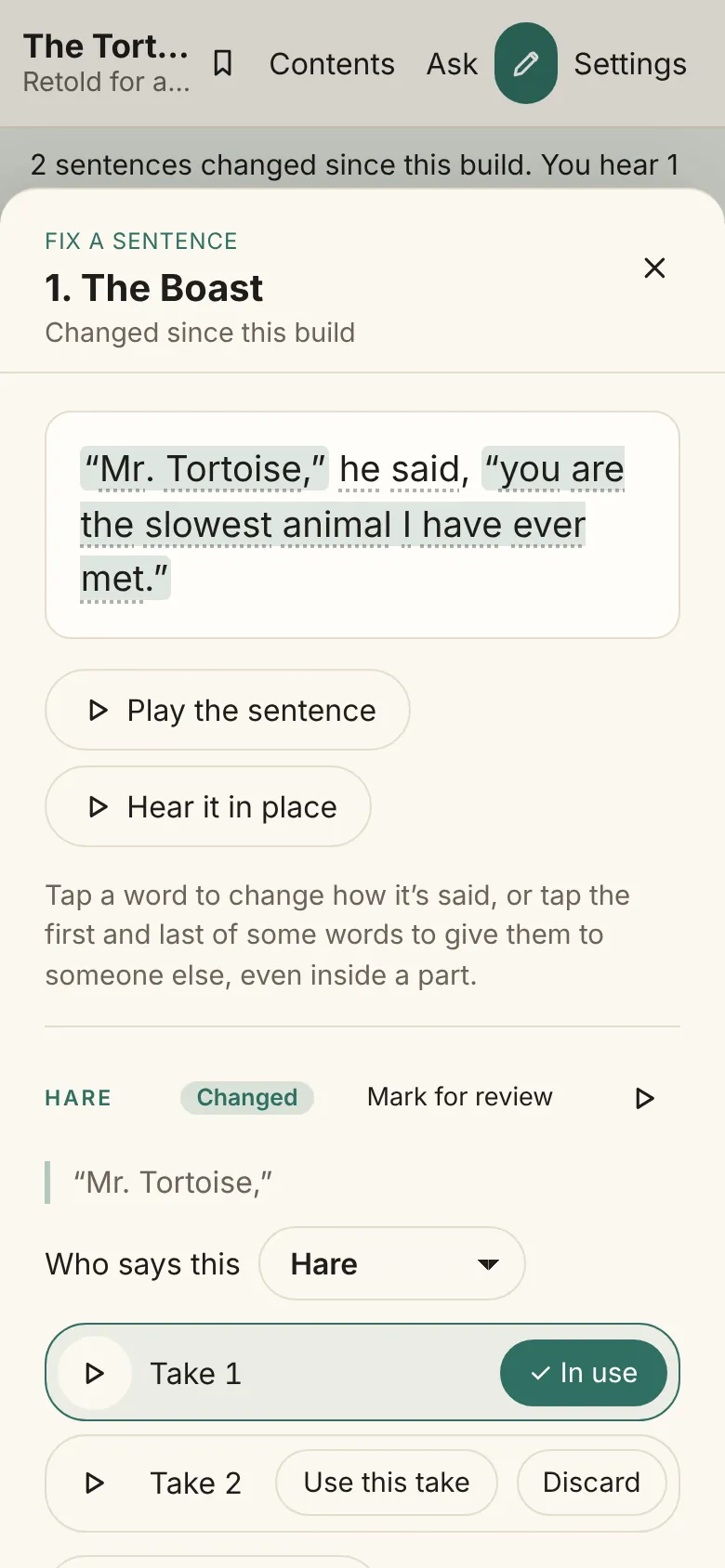
Hear it in place
In the Fix sheet, Hear it in place under a sentence plays the sentence before, this one as it is now, and the one after, then stops. Tap it again to stop sooner.
A respelling marks out of date every sentence where someone would now say the word another way, for the narrator and every character, including forms like “Dinah’s”. Before reading any of them again, Build the book, the few-minutes steps and Update the book (on Make and in the reader’s Fix bar) ask Read lines again for changed words?. It lists each speaker who says a changed word, the narrator first, with how many sentences and which words, and keeps a total of the sentences that will be read again. Untick a speaker to keep their lines as built. Kept lines don’t count as out of date, and Make says so, as in “Kept as built: the narrator still says Dinah the old way in 14 sentences.”, with Say them the new way to open the same choice with everyone ticked. The respelling still applies to new takes and anything read later, and a take made with it still plays.
Building the book again always works, but a line that hasn’t changed comes back the same, since the same seed gives the same reading. To hear every line read afresh, change the seed in Settings and build again.
Character voices
A book can have a narrator and a voice of its own for each character. Finding the quotation marks is done by rules; deciding who says a line the text doesn’t tag is done by Claude. Every line the model isn’t sure of stays with the narrator, since a line in the wrong voice misleads and a line in the narrator’s voice is only plainer.
The cast file is plain JSON you can read and edit: each character, how they should sound, and who says each line. Each character’s voice is fixed once as a reference clip and every line is cloned from it, and the voice check reads again any line whose voice drifted from its clip. A reading with less than 1.5 seconds of sound, such as “Oh dear!” or “Well!”, is too short to judge, so it stays in the character’s voice as long as its words are heard. A character’s quotation that runs over several sentences of one paragraph is read in one go and cut at the end of each sentence, so it sounds like one speech; a quotation over 300 characters is split into readings of about even length. Both are heard once the book is built again in full, since Update the book keeps the readings already made. The easiest way to review a cast is the studio.
A line can also be given a way to say it. On the studio’s Lines screen, Fix this line has a How it’s said box: type a direction, or pick a ready one like Shout it angrily or Whisper it, then make takes. Each take remembers the direction it was made with, and using a take brings its direction back. Lines without a direction keep the takes they already have. Suggest with Claude offers a way to say each line the book describes (“he shouted”); lines the book gives no manner for are said as written, a suggestion is marked as one, and a way you set yourself is never replaced. Sentences read in one go get one suggestion for the whole reading, not one each.
Lines said together
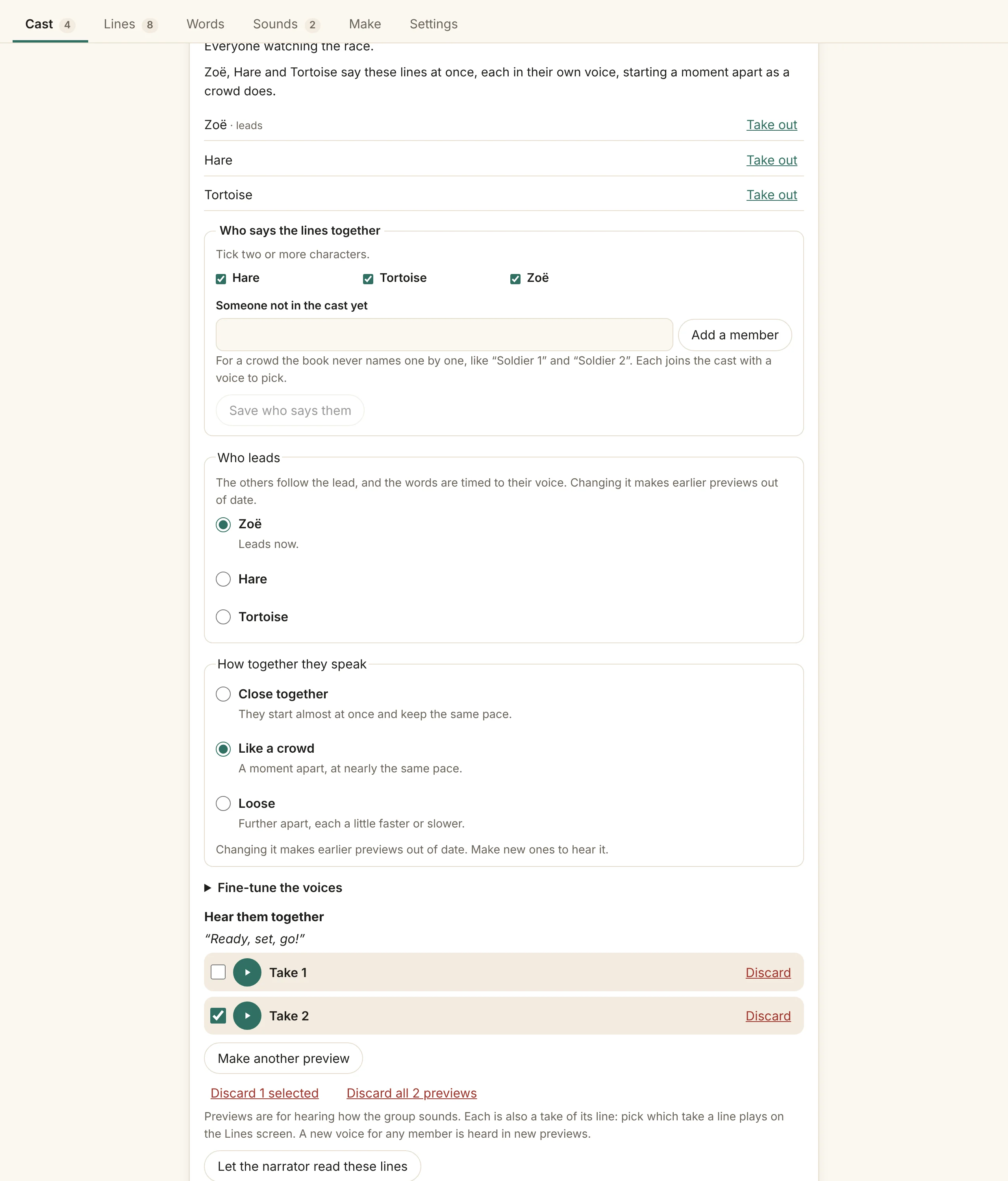
Some lines are said by several characters at once, like a crowd calling out the same words. A group is part of the cast: its members are characters who already have voices, and it has no voice of its own. Each member reads the line, and the readings are mixed, the first member leading and the others coming in a little later and a little softer, so it sounds like several people and the words stay clear. The words are timed against the lead’s voice, so the highlight works as on any other line, and a group line that fails the voice check is read by the narrator.
In the studio, tick two or more characters on the Cast screen and choose Make it a group; a group can change its members or become one character again. Add a member brings in people the cast doesn’t have yet, such as “Soldier 1” and “Soldier 2” for a crowd the book never names one by one, and each joins the cast with a voice to pick. The group’s card is where you set how it sounds: its members, Who leads right under them, and How together they speak, since each voice is lined up with the lead’s at every word. Under Fine-tune the voices you can keep in step over the whole line instead of word by word, and set when each of the others starts and how loud it is. Its previews, takes of its first few lines read by all its members at once, are for hearing the group; which take each line plays is picked on the Lines screen, as for any line. A group stays under No voice picked until every member has a voice picked or the narrator reads its lines.
The card lists the members, the one who leads marked leads, each with Take out. Taking someone out asks first: previews and takes made with them are marked Made with earlier members or voices, and the next build reads the group’s lines again. If the lead goes, the next member leads. When only one member would be left, the studio asks instead whether to Give the lines to that member or make the group one character. Whoever is taken out stays in the cast as a character, including someone made with Add a member; remove them from their own card if they aren’t needed. If a crowd still sounds wrong, choose Let the narrator read these lines. When Claude drafts a cast, a group the book names with its members comes back as a group. Reading several voices at once sits behind one interface, so an engine that can do it natively can be plugged in without changing anything else.
Sound effects and background sounds
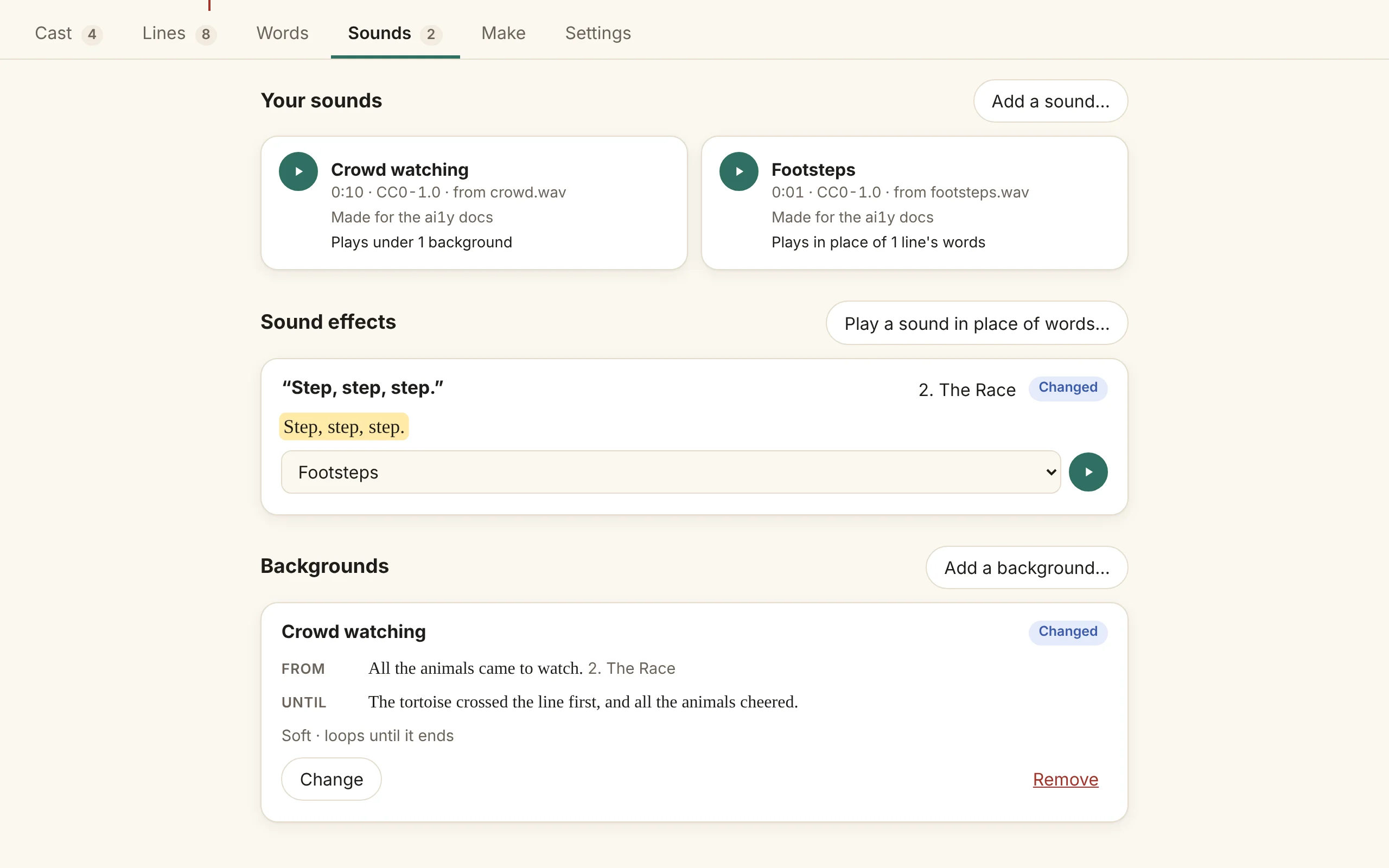
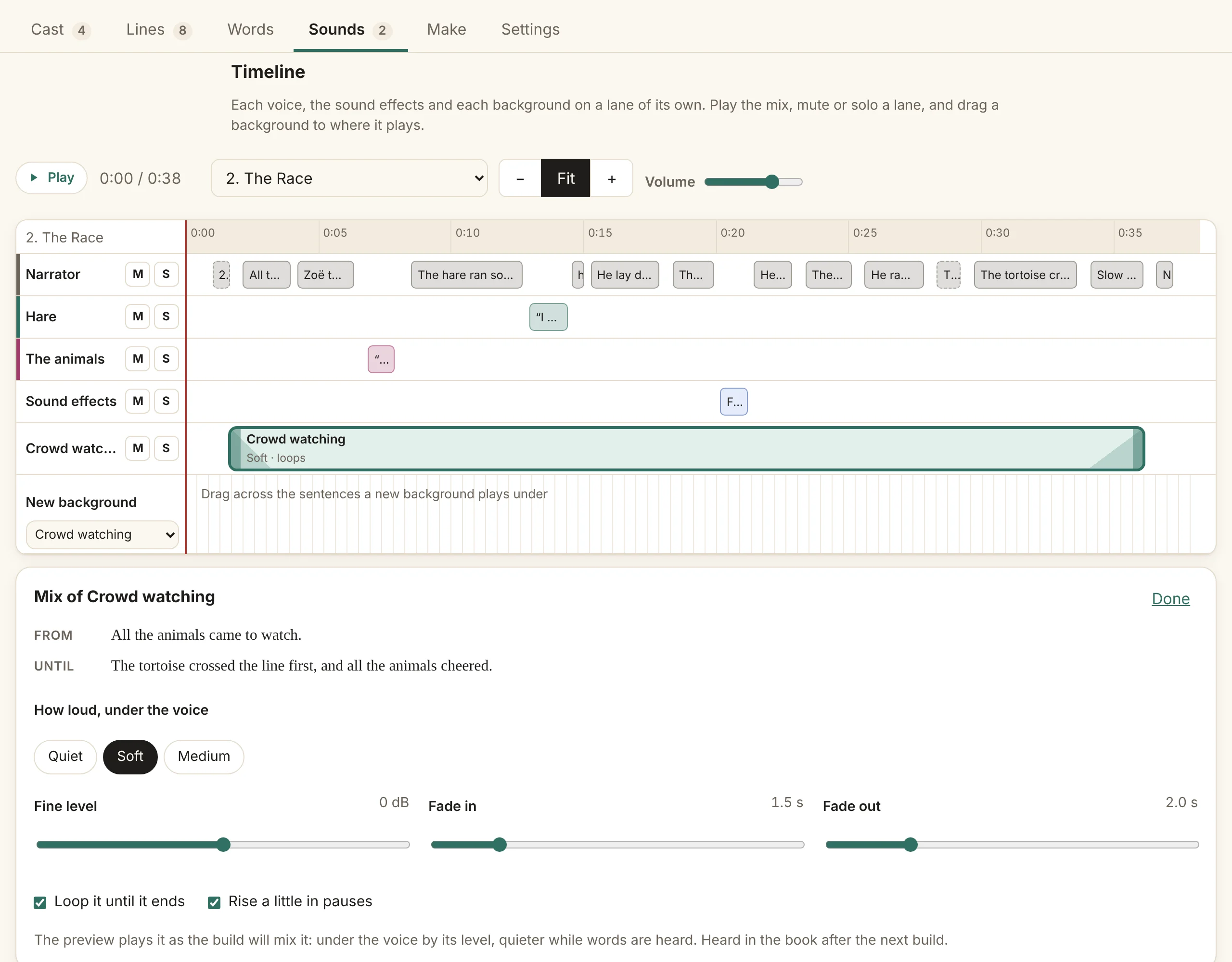
The studio’s Sounds screen holds the sounds you add beside the cast file, in any format your browser can play (MP3, M4A, WAV, FLAC, Ogg and others, up to 10 minutes), each with where it came from and its license. A sound effect plays in place of words: pick a sentence, tap its first and last word, and choose the sound, such as a real sneeze for “Kertyschoo!”. The sound is trimmed of silence and made as loud as the voices around it, and the reader still highlights the book’s words while it plays. A background sound, like rain or quiet music, plays from one sentence to a later one, looped or once, at a quiet, soft or medium level. It fades in and out, sits well under the voice while words are heard and rises a little in pauses.
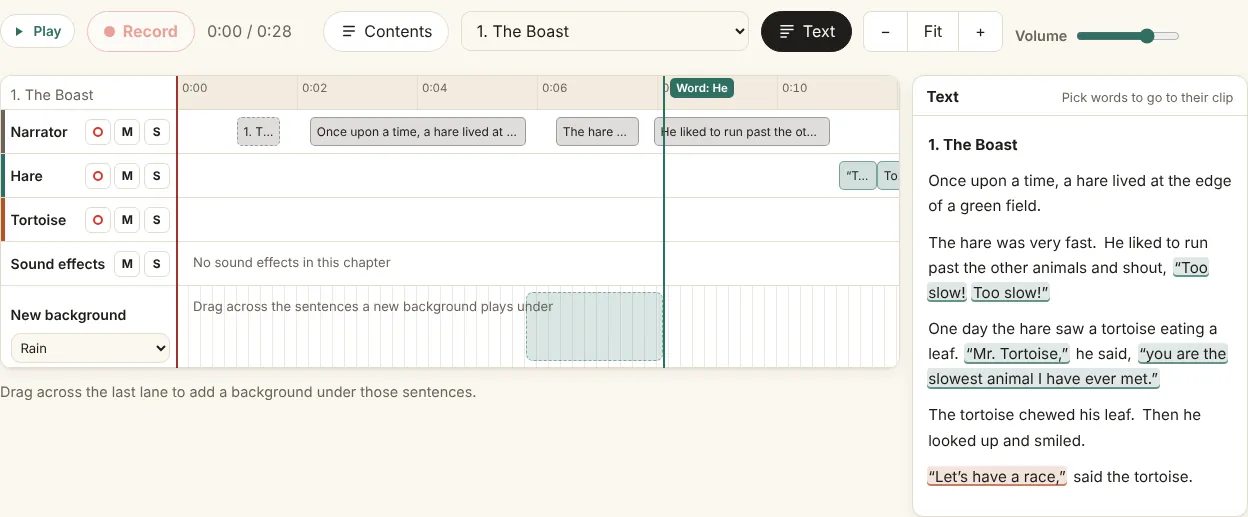
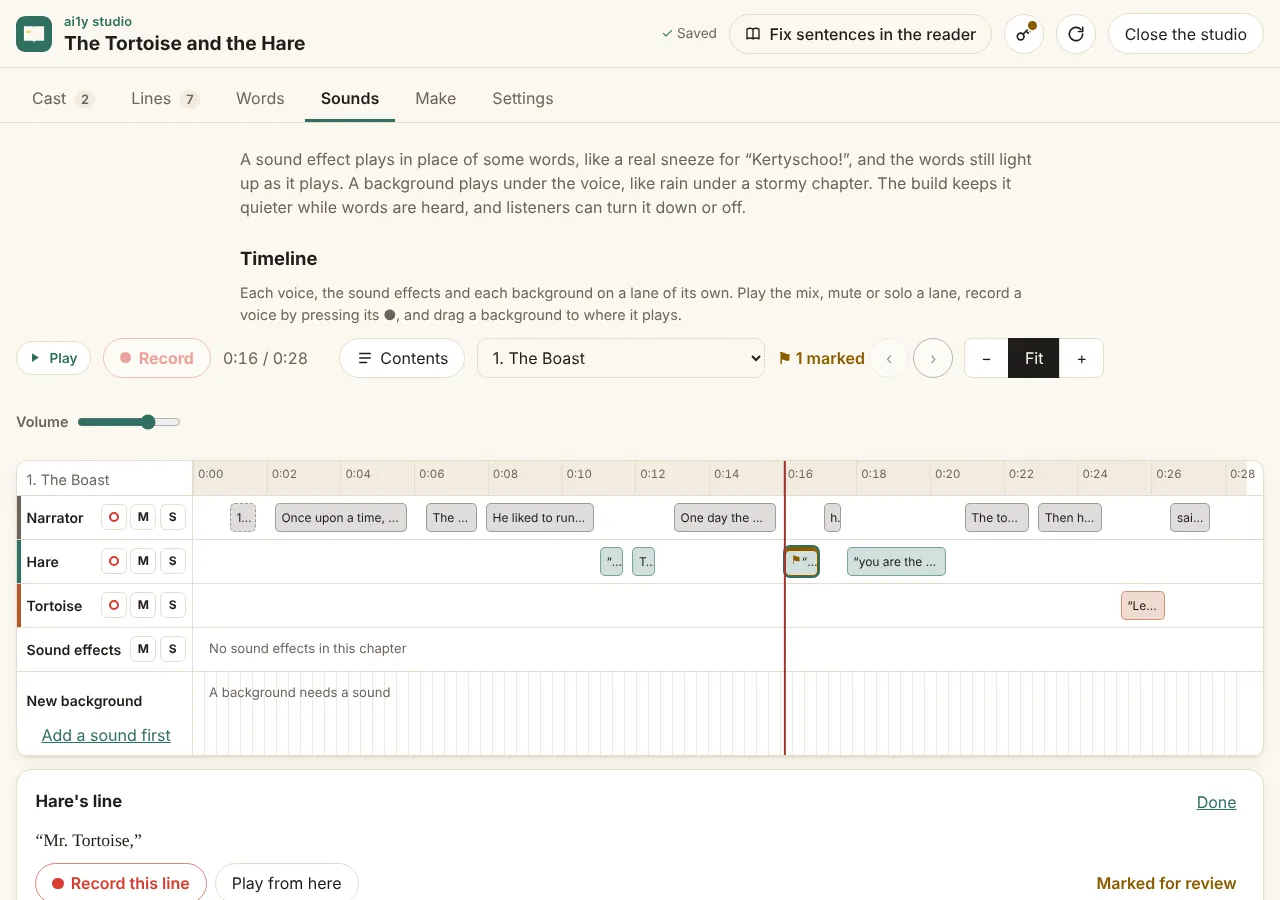
Above them, the Timeline lays out one chapter at a time, like a multitrack editor: a lane for each voice that reads in it, one for the sound effects and one for each background, each stretch placed where it plays. Drag across the last lane to add a background under those sentences, with the sound picked beside it; drag a background’s ends to start or end it somewhere else, or its middle to move it whole, or tab to an end and move it a sentence at a time with the left and right arrow keys (snapping below). Choosing a background opens its mix: how loud it is under the voice, a fine level of up to 12 dB either way, how long it fades in and out, whether it loops and whether it rises a little in pauses. Play plays the chapter as the build will mix it, from the playhead, and each lane can be muted (M) or soloed (S) to hear one voice or the background alone. Mute and solo change only what you hear, not the book. On an iPhone, the Timeline plays even with the ringer switch on silent. Click a line on a voice’s lane to open its panel, with Record this line, Play from here and, when it can be read in one go with a clip beside it, Read in one go. Before the book is built, the Timeline places each sentence by an estimate from its length and says Timing estimated.
When you drag a background, its edge snaps to the nearest useful place once it gets close: the start or end of a sentence, the start or end of a word, the middle of a pause between words, the edge of another background, or the playhead. A line across the lanes shows where it will land and names the place, such as “Word: liked” or “Sentence: Too slow!”. Anywhere else, it stays where you drop it, so a background can start in the middle of a pause or partway through a sentence. This works for a background’s start or end, for the whole background (it snaps by whichever edge is nearer a place), and when you drag across the New background lane to add one. Hold Option (Alt on Windows) while dragging to turn snapping off. From the keyboard, Option with the arrow keys moves an edge to the next word, pause or sentence instead of a whole sentence, and a screen reader says where it landed. A background placed between sentences remembers the sentence it belongs to, so if the book is built again and the words move, the background moves with them.
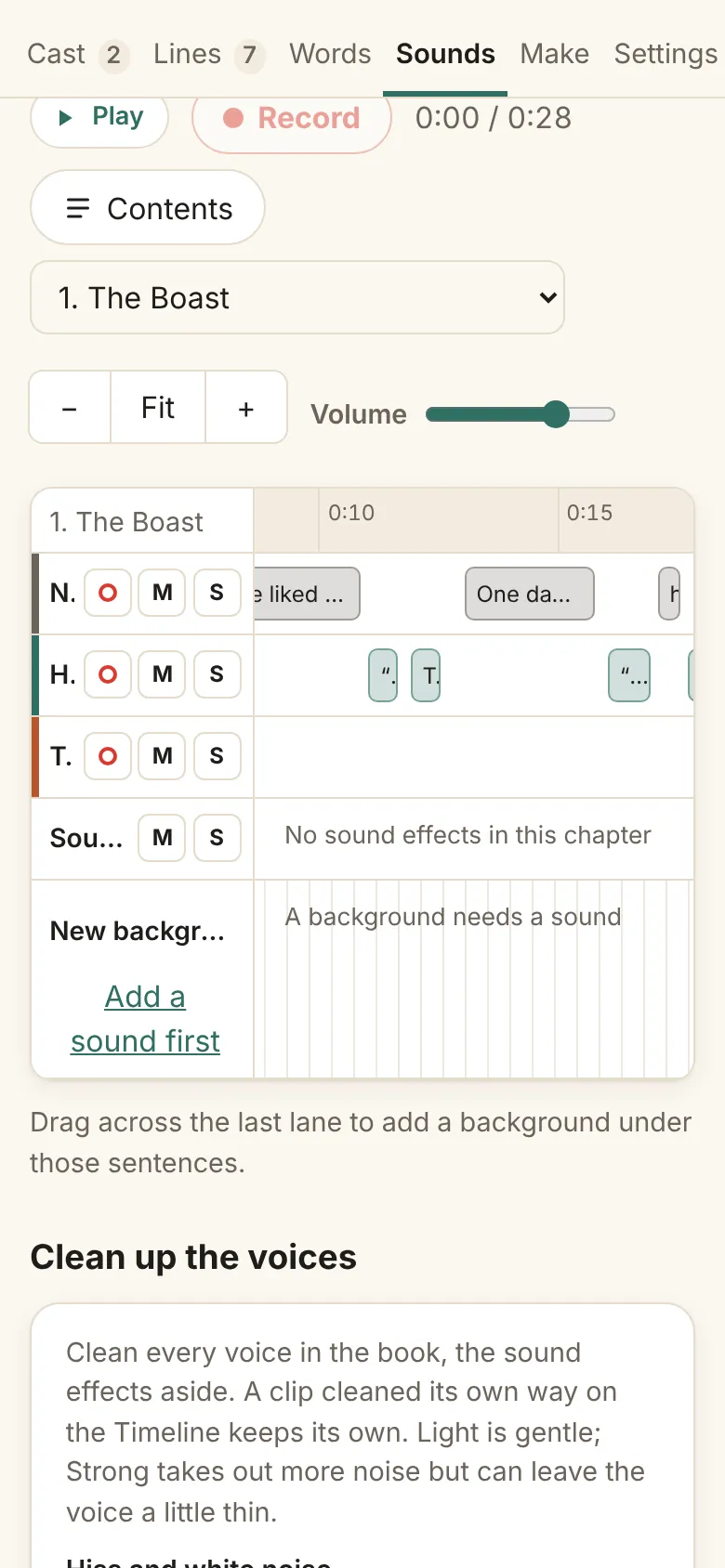
Pinch the Timeline
To zoom the Timeline, pinch its lanes with two fingers, or with a pinch on a trackpad: spread to zoom in on a stretch of the chapter, or pinch together to see more of it. The spot between your fingers stays put, and the tabs, the bar above the lanes and the lane names don’t move. The −, Fit and + buttons carry on from wherever the pinch left off. A pinch anywhere else zooms the whole screen as usual.
The Timeline plays the book the studio is showing, as it was last built. It doesn’t play takes; those play on the Lines screen. If the book the studio is showing was built before you had a cast, every lane is the narrator’s voice, and the Timeline says Narrator only. Build the book on the Make screen, or just its first few minutes, to hear the characters. While a build runs, the studio shows each chapter as soon as it is finished.
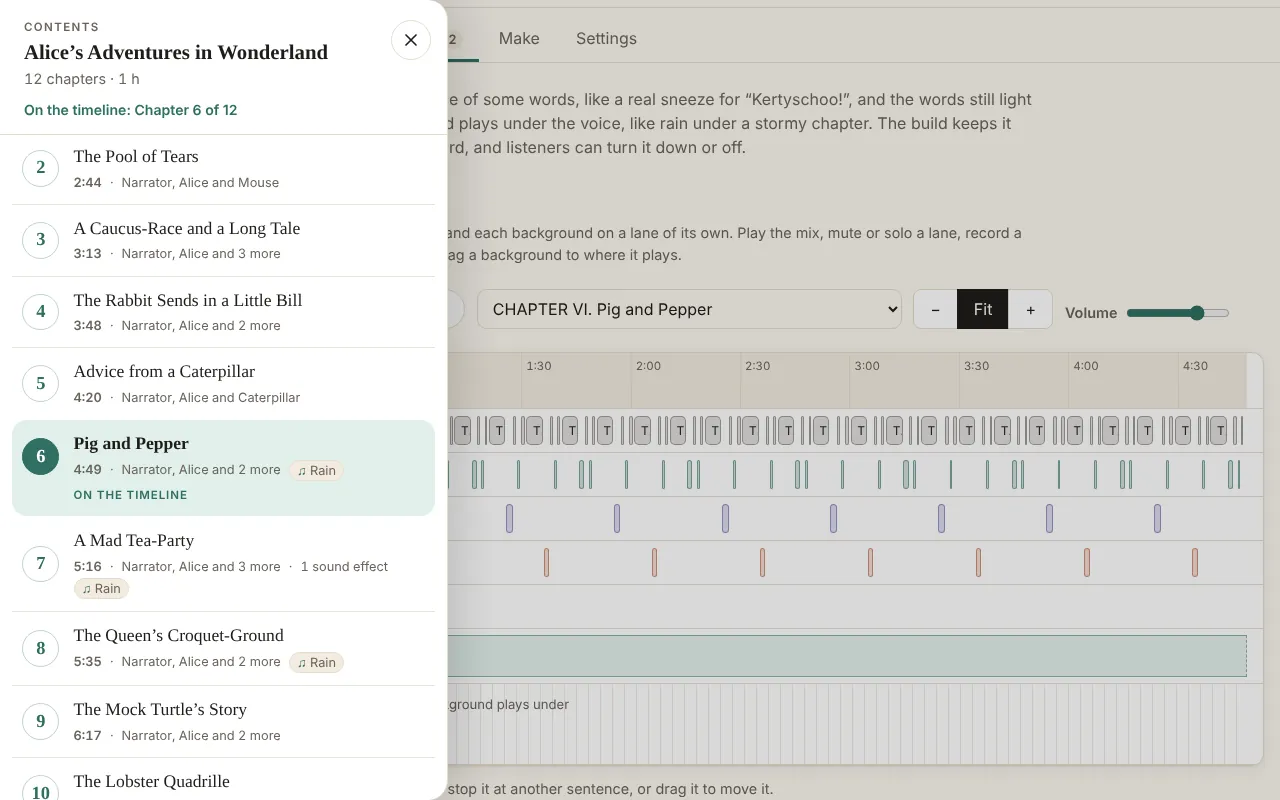
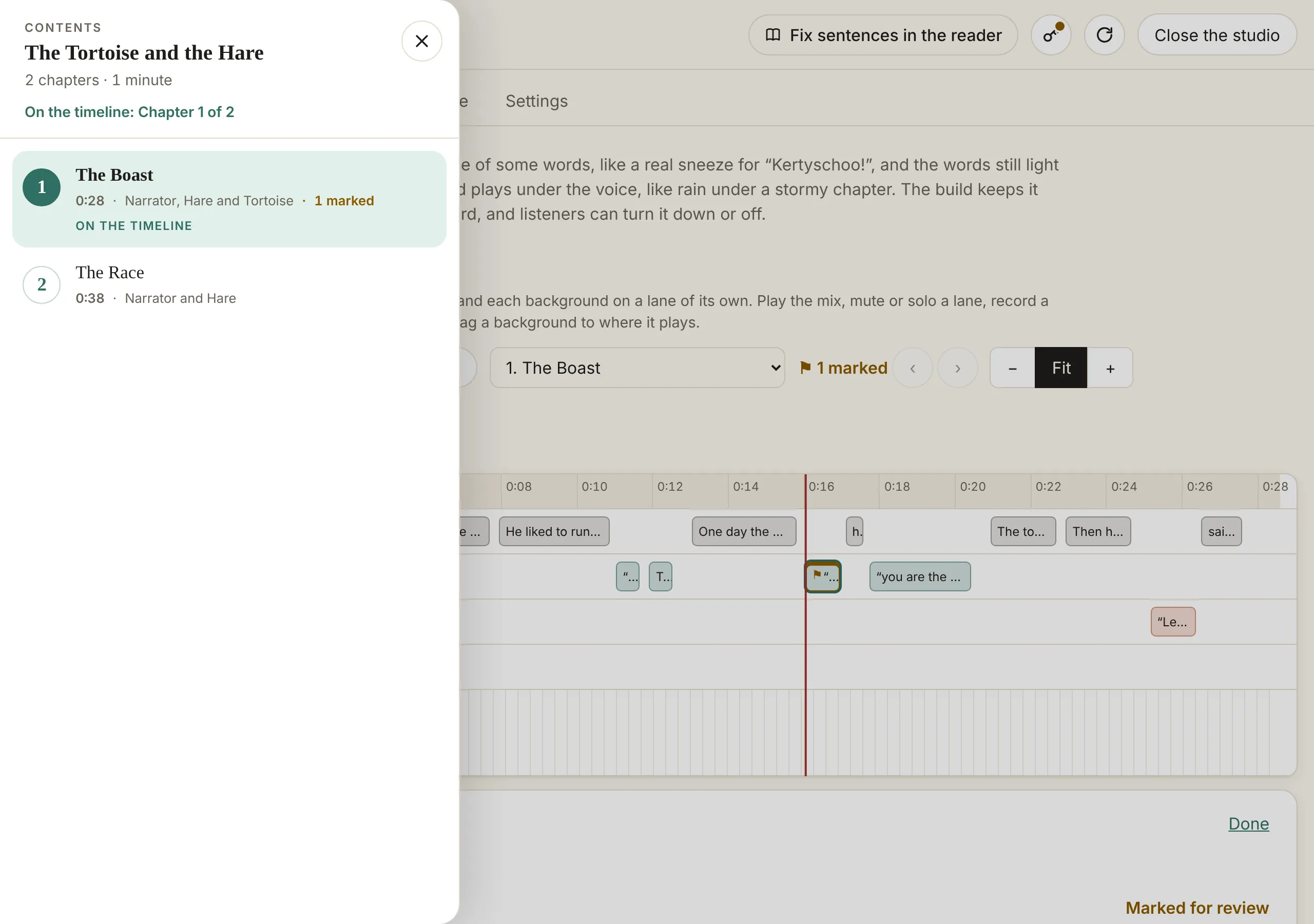
Contents, beside the chapter menu above the Timeline, opens the book’s chapters in a sheet like the reader’s Contents, from the left, or from the bottom on a phone. Each chapter has its number and name, written so anyone can read them (12, not XII, and not in capitals), with the title page and other opening pages listed apart at the top. Under each name: how long the chapter runs on the Timeline (“about” before it is narrated), who reads in it, such as “Narrator, Alice and 2 more”, how many sound effects it has, and a ♫ tag for each background that plays under it. The top of the sheet gives the book’s title, how many chapters it has, how long it plays in all and which chapter is on the Timeline, and that chapter is marked On the timeline. Pick any chapter to lay it out on the Timeline. ↑ and ↓, Home and End move through the list and Esc closes it; a book with 24 or more chapters gets a Find a chapter box.
The lanes run on past the chapter you’re editing: the chapters before and after it are drawn beside it, lighter, with each chapter’s name on the ruler where it starts, so you can scroll, or play, straight into the next one. Pick a clip in a chapter beside to edit that chapter, or click its name on the ruler; the lanes stay where they are. Only the chapters near what’s on screen are loaded, so a long book stays quick.
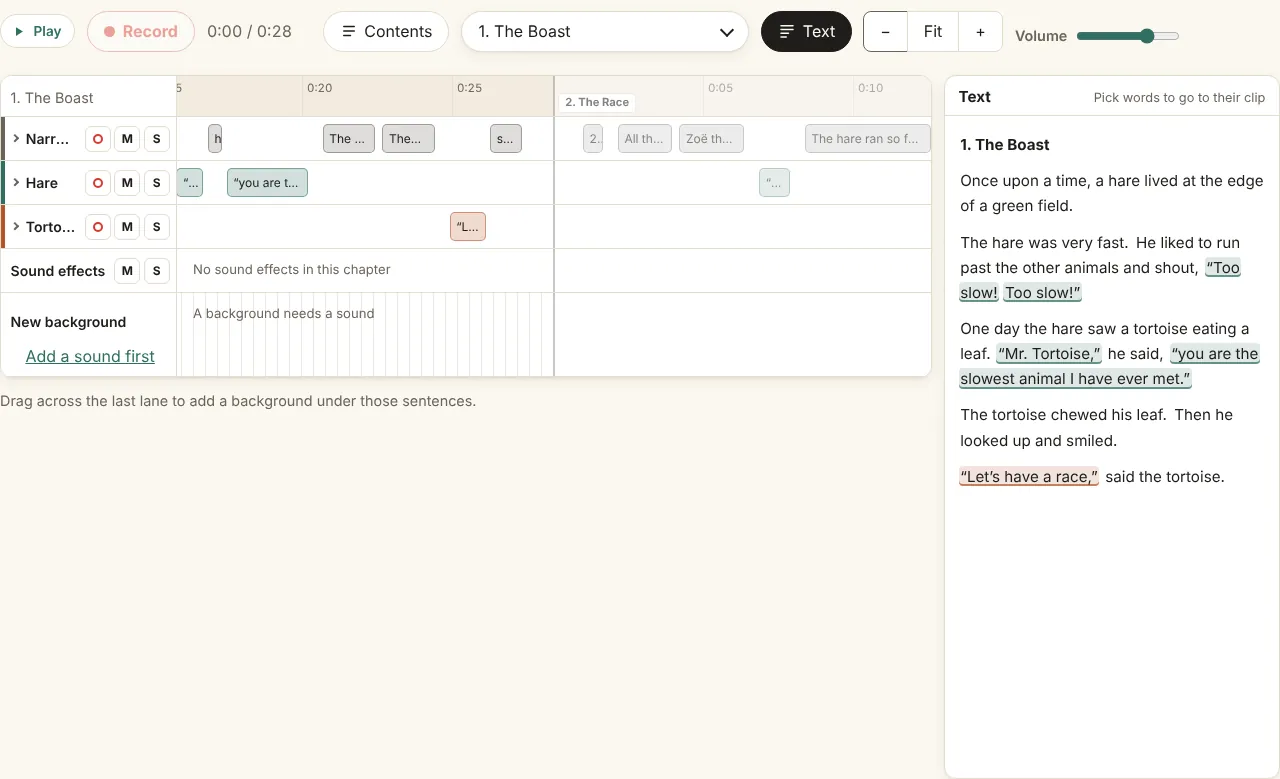
The Timeline shows the chapter’s text beside the lanes, or under them on a phone, at the same time as the clip or background panel, so you can read the chapter while you edit it and nothing covers the lanes. The text is split into the same stretches as the clips: a character’s words are tinted in their voice’s color, sound effects in the effects’ color, and a marked line keeps its flag. On a wide screen the lanes are never taller than the text beside them: more lanes scroll inside their box, with the ruler and lane names staying put, and picking words in the text scrolls their clip’s lane into view.
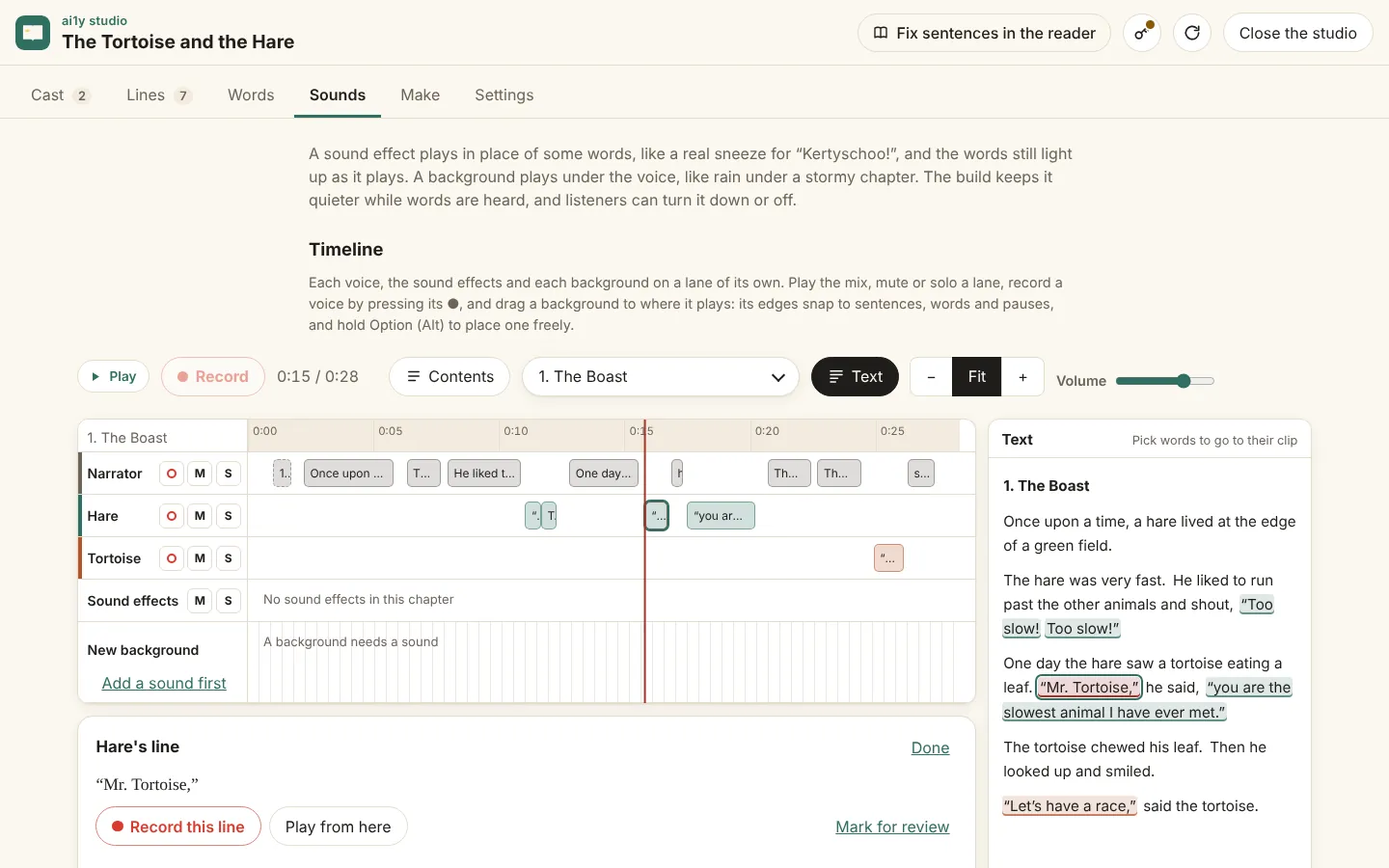
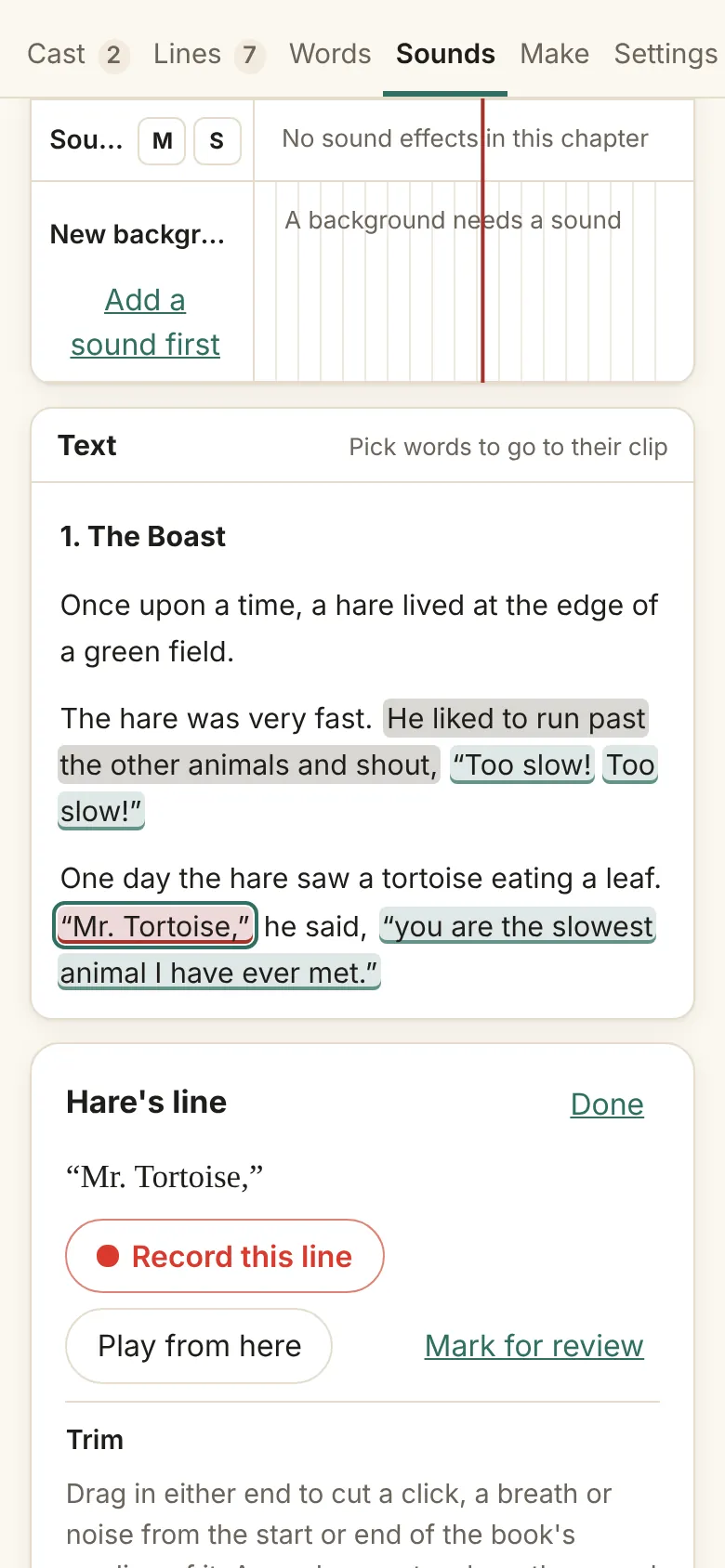
As the chapter plays, the stretch under the playhead lights up, and the text scrolls by itself to keep it in view. Click or tap any words to move the playhead to their clip and open it, and open a clip on the lanes to see its words picked in the text. From the keyboard, the arrow keys, Home and End move between stretches, and Enter or Space picks one. Text in the Timeline’s bar hides the text and shows it again, and the browser remembers the choice.
The reader’s links are on the Timeline too: on a voice’s lane between two clips that read on into each other, and in the Text panel between their words. Filled means read in one go, and the two clips are drawn joined, with a bracket under the reading; dashed and broken means read apart; amber means the last build read them apart; a dotted ring means they would be long together, over 300 characters; and faded means too long to link, over 600. Tap a link, on a lane or in the Text panel, to read the two apart, or in one go again. It is kept at once, and a note under the lanes says what changed, with Undo; if the tap set picked takes aside, the note says so, and Undo picks them again. Update the book on the Make screen reads them again.
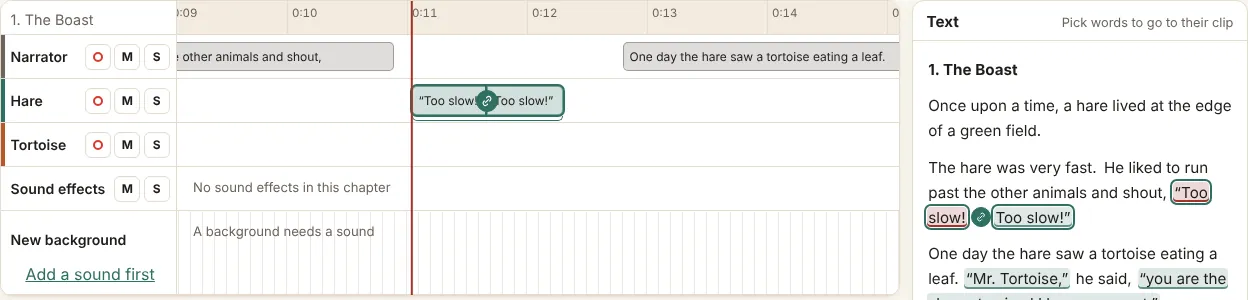
The narrator’s clips show a link on the lanes only where you have linked or unlinked them yourself, so the lane stays easy to read. Zoomed out, a lane hides a link where the clips are too narrow to tap beside it: zoom in with +, or use the link in the Text panel. Clicking either clip of a reading in one go picks the whole reading, on the lanes and in the Text panel. In its panel, Volume and Clean up say for both lines (or for all 3 lines), since they set every piece, and Trim says this clip.
The clip’s panel starts with Read in one go, under its words and buttons. For each clip this one is read with, or could be, it shows the two side by side with this one ringed, says what you hear, and has one button: Unlink, or Link with and the other clip’s words. It says who chose, such as Linked by the studio, Linked by you or Read apart by you, and offers Let the studio choose once you have chosen. A narrator’s clip offers this too. A clip with nothing to read on into has no such section.
A line marked for review shows on the Timeline too: its clip has a ⚑ flag and an amber edge, and a screen reader hears “marked for review”. It is the same mark wherever it was set, on the Lines screen, in the reader’s Fix sheet, or by a build that couldn’t hear a line’s words. The bar above the lanes says how many clips in the chapter are marked, such as “⚑ 1 marked”, and the ‹ and › beside it go to the previous or next marked clip and open its panel. In a clip’s panel, Mark for review marks it; on a marked clip it reads Marked for review, and clicking it takes the mark away, on the Lines screen too. Contents says how many lines are marked in each chapter. A mark never changes what is heard and never makes the book out of date.
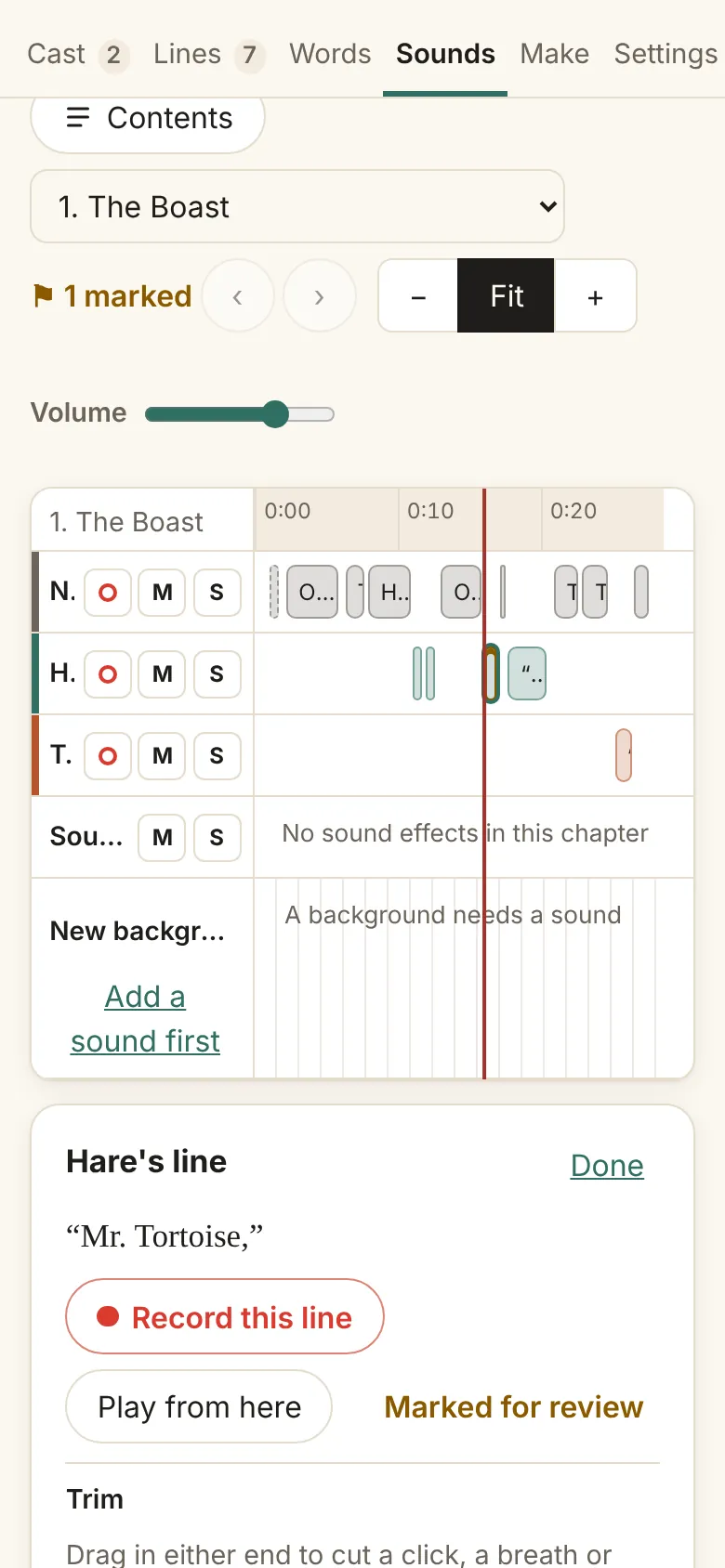
To make a clip louder or quieter, click it on the Timeline, a voice’s line or a sound effect, and move Louder or quieter under Volume in its panel, from 12 dB quieter to 12 dB louder. It saves when you let go, or when you stop pressing the arrow keys. The clip’s lane shows its new level, such as “−6 dB”, and Play plays it at that volume straight away. Hear it plays what the clip plays now, at the volume you set: the take in use if there is one, and the whole reading when the line is read in one go with lines in other sentences. Back to as read sets it back to 0 dB. On a reading in one go, a volume set on either piece is set on the whole reading, as in the Fix sheet. A reading in one go plays as loud and as clean as its first line, so if you set a line’s volume while it was read apart and then link it with the next, the next plays at the first one’s volume too, in the book and on the Timeline. Its own setting isn’t lost: its panel says what it plays at once read apart again, such as “Read apart, it plays at its own volume again: as read.”, and reading them apart brings it back. The same Volume is in the reader’s Fix sheet.
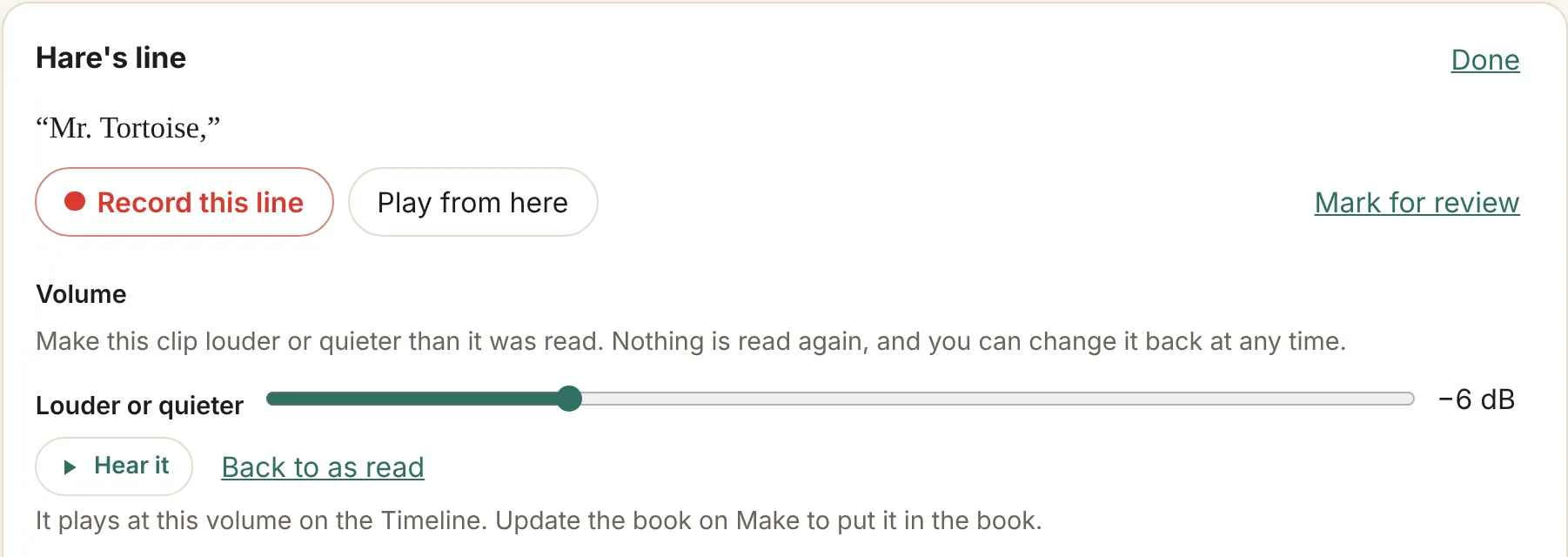
- Nothing is read again. Update the book puts the new volume in the book, making again only the chapters with a changed clip, and the panel then says “The book has this volume.”
- No distortion. A clip is never turned up past the point where it would distort.
- Trim after an update. A changed volume makes the line sound different once the book is updated, so Trim waits until you Update the book.
- Backgrounds keep their own Fine level in their mix panel.
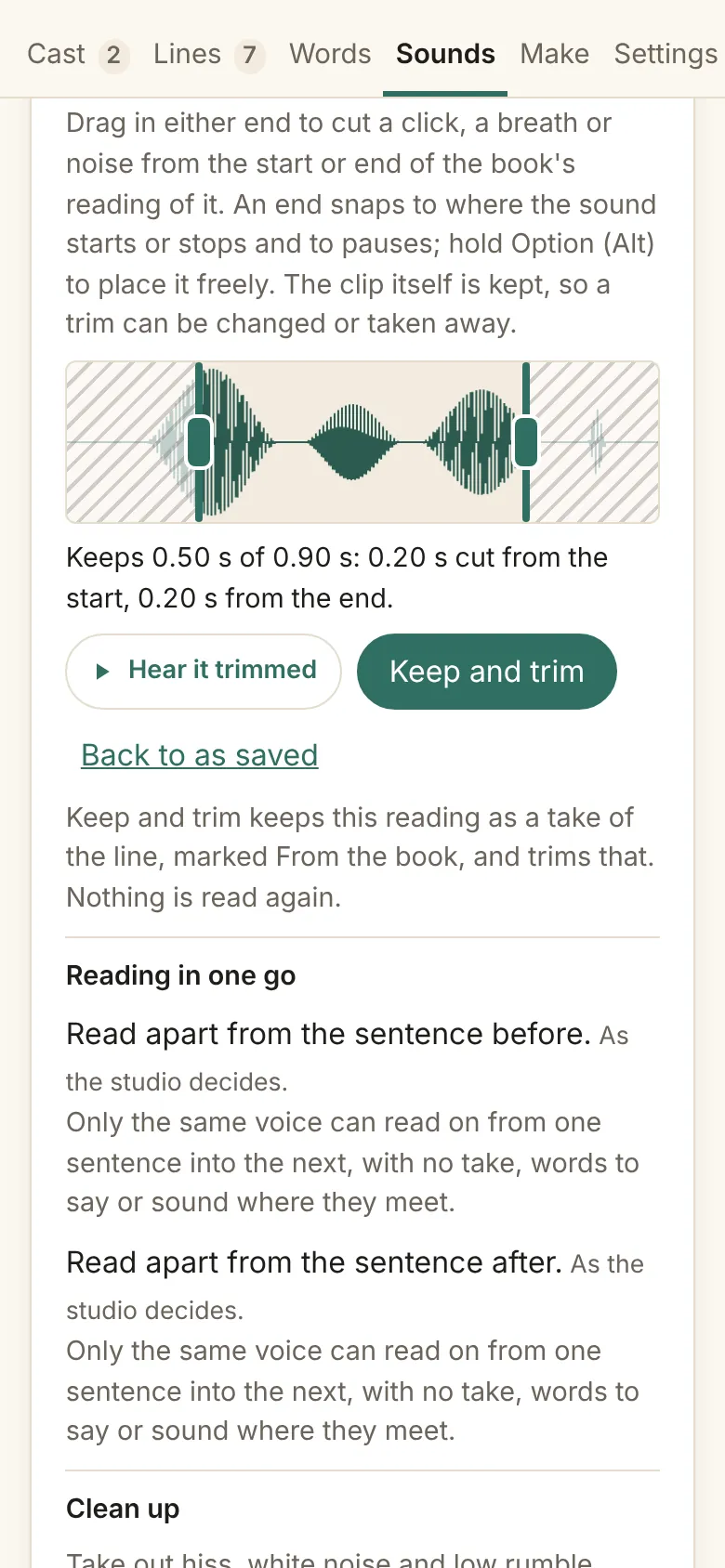
To cut a click, a breath or a noise from the start or end of a clip, click the clip on the Timeline, a voice’s line or a sound effect, and use Trim in its panel. It shows the clip’s waveform with an end to drag in from each side; the parts cut are hatched, and the panel says how much is kept, such as “Keeps 1.18 s of 1.60 s: 0.22 s cut from the start, 0.20 s from the end.” From the keyboard, focus an end and use the arrow keys to move it 10 ms, Shift with an arrow or Page Up and Page Down for 100 ms, and Home or End to go all the way. Hear it trimmed plays only what is kept, Save the trim keeps it, Back to as saved undoes moves you haven’t saved, and Take the trim away removes a saved trim. While you drag, each end snaps to where the clip’s sound starts or stops and to pauses inside it, with a label on the waveform (“Sound starts”, “Pause”, “Sound ends”); hold Option to place an end freely, and Option with the arrow keys jumps an end from one of those places to the next. The same Trim, snapping included, is in the reader’s Fix sheet.
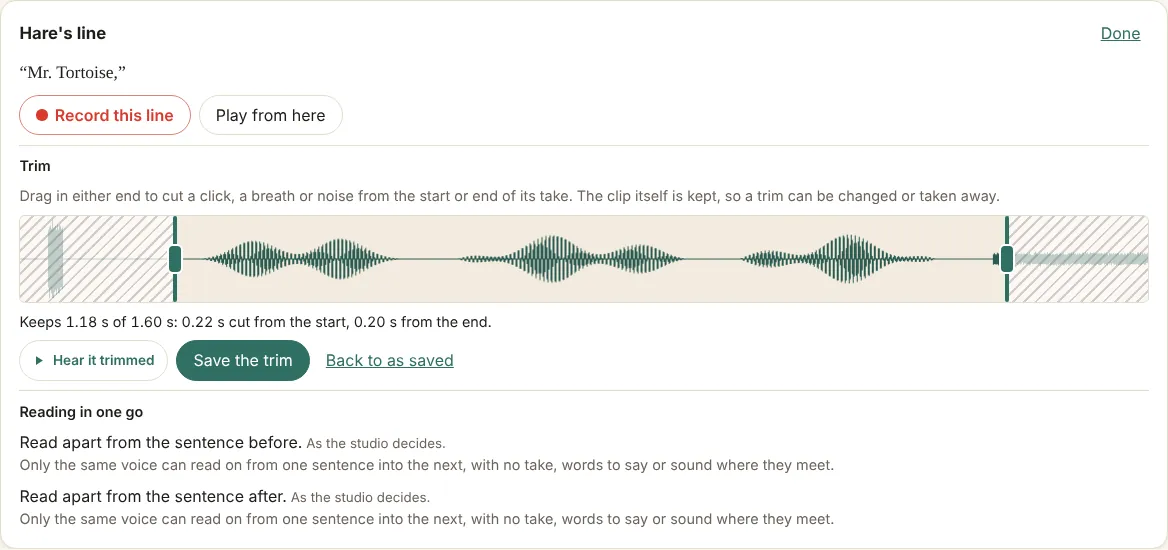
- Nothing is lost. A trim never changes the audio file; it is kept in the cast file, so it can be moved or taken away at any time.
- Takes, sounds and the book’s own reading. A trim works on a line’s take, made or recorded, and on a sound that plays in place of words. For a line with no take the button says Keep and trim: the book’s reading is kept as a take of the line, shown From the book on the Lines screen, and trimmed, with nothing read again.
- A trim belongs to its take. Pick another take of the line and the trim stops applying; pick the first one back and it applies again.
- Into the book. A trimmed clip is marked ✂ on the Timeline, and Play there already plays it trimmed. Update the book on the Make screen puts the trim in the book and makes only that chapter again.
- When a reading can’t be trimmed, the panel says why: the book was built before the cast, the line has changed since the build (update the book first), or the narrator read it in place of its speaker.
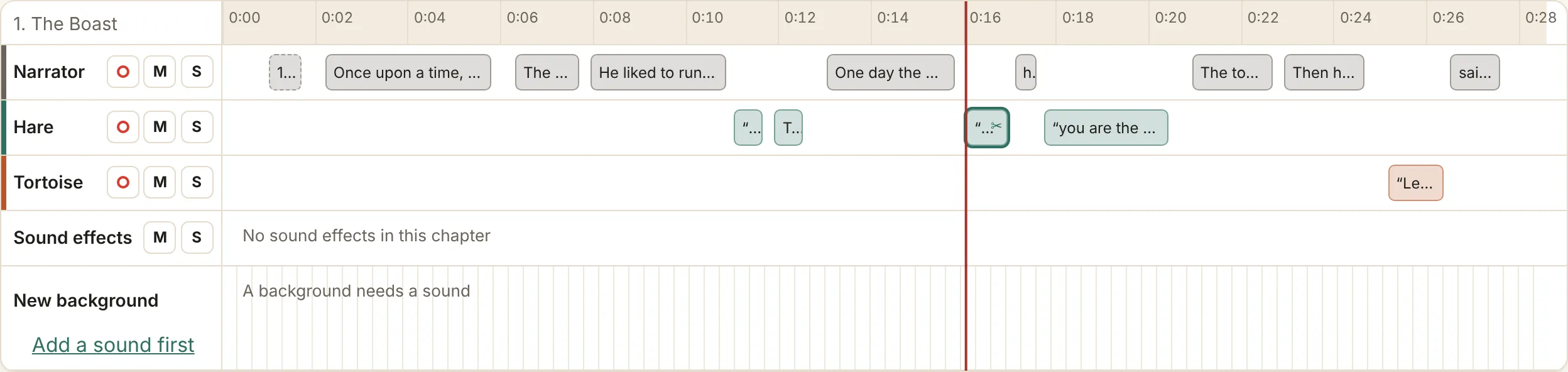
You can also trim right on the Timeline. Click a lane’s name, a voice or Sound effects, to open it, and click it again to close it; open as many as you like. An open lane shows each clip’s waveform under it. Drag either end in to trim: it snaps to where the sound starts and stops and to pauses, and Option (Alt) places it freely. The trim is saved at once, and dragging the end back out undoes it.
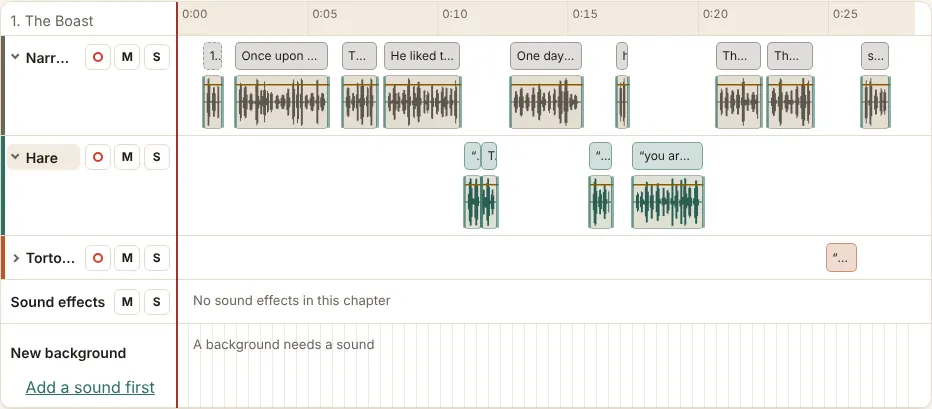
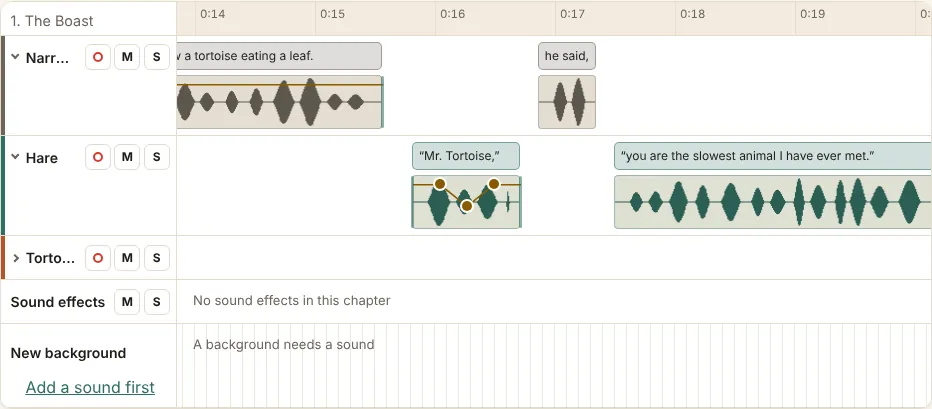
The orange line over a waveform is the clip’s volume, for quieting a hiss or a click at a clip’s start or end without moving its timing. Click the line to add a point, and drag a point up to make it louder, down to make it quieter, or left and right. The arrow keys move a focused point, with Shift for bigger steps, and a double-click or Delete removes it. The points belong to the take they were drawn on: pick another take and they stop applying, and pick it back and they apply again. Play on the Timeline plays the clip shaped right away, and Update the book on the Make screen puts it in the book.
To cut a clip in two, press Cut above the lanes, open a lane, and move over a clip’s waveform: a line shows where it would cut, snapping between words and to pauses, and Option (Alt) places it anywhere. Click to cut. The line becomes two lines for the same speaker, each playing its half of the audio, and the book plays the halves straight on with no gap. Nothing is read again, and the original clip is kept. The trim’s start stays with the first half and its end with the second, and the volume line is cut at the same place.
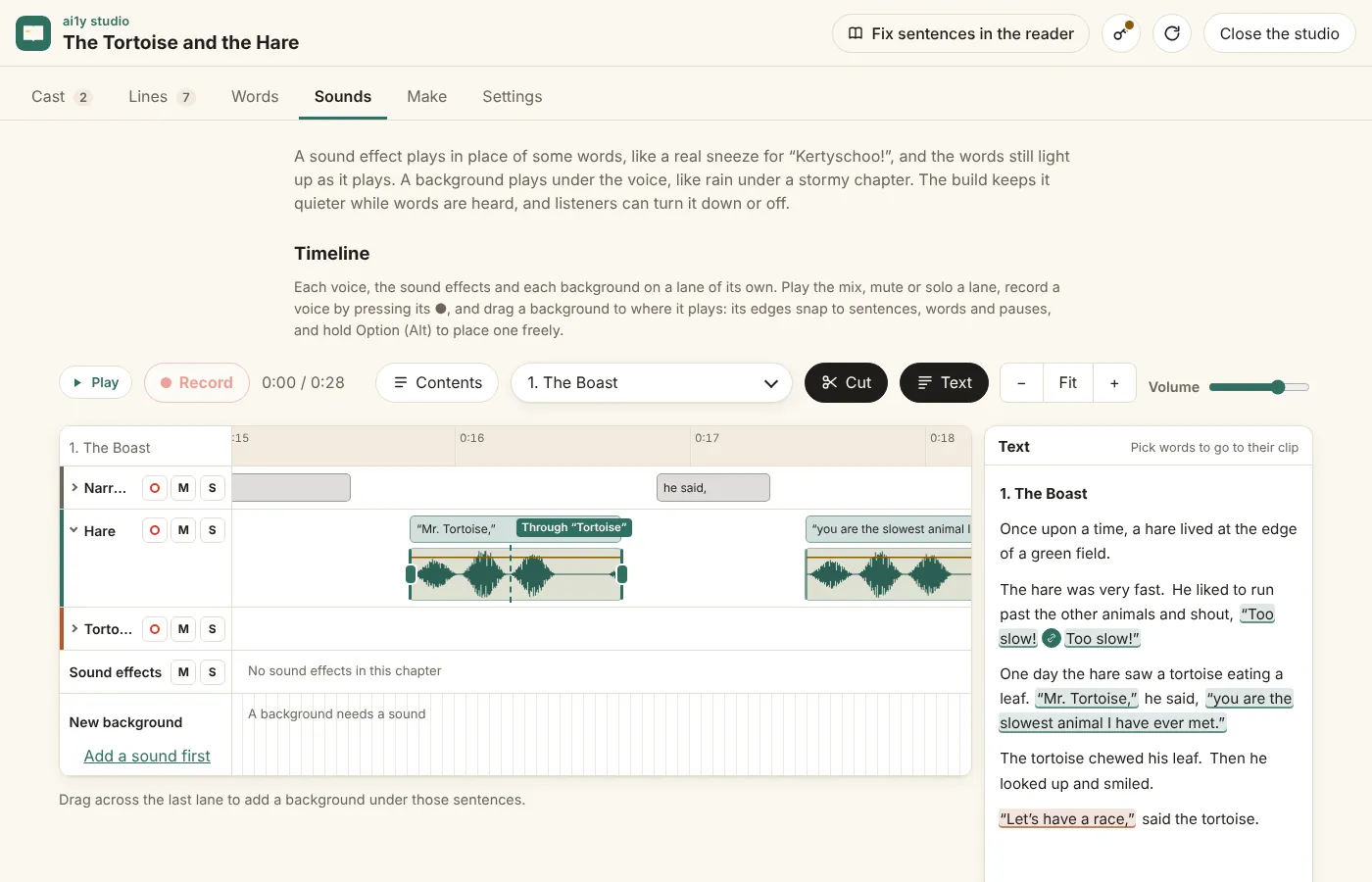
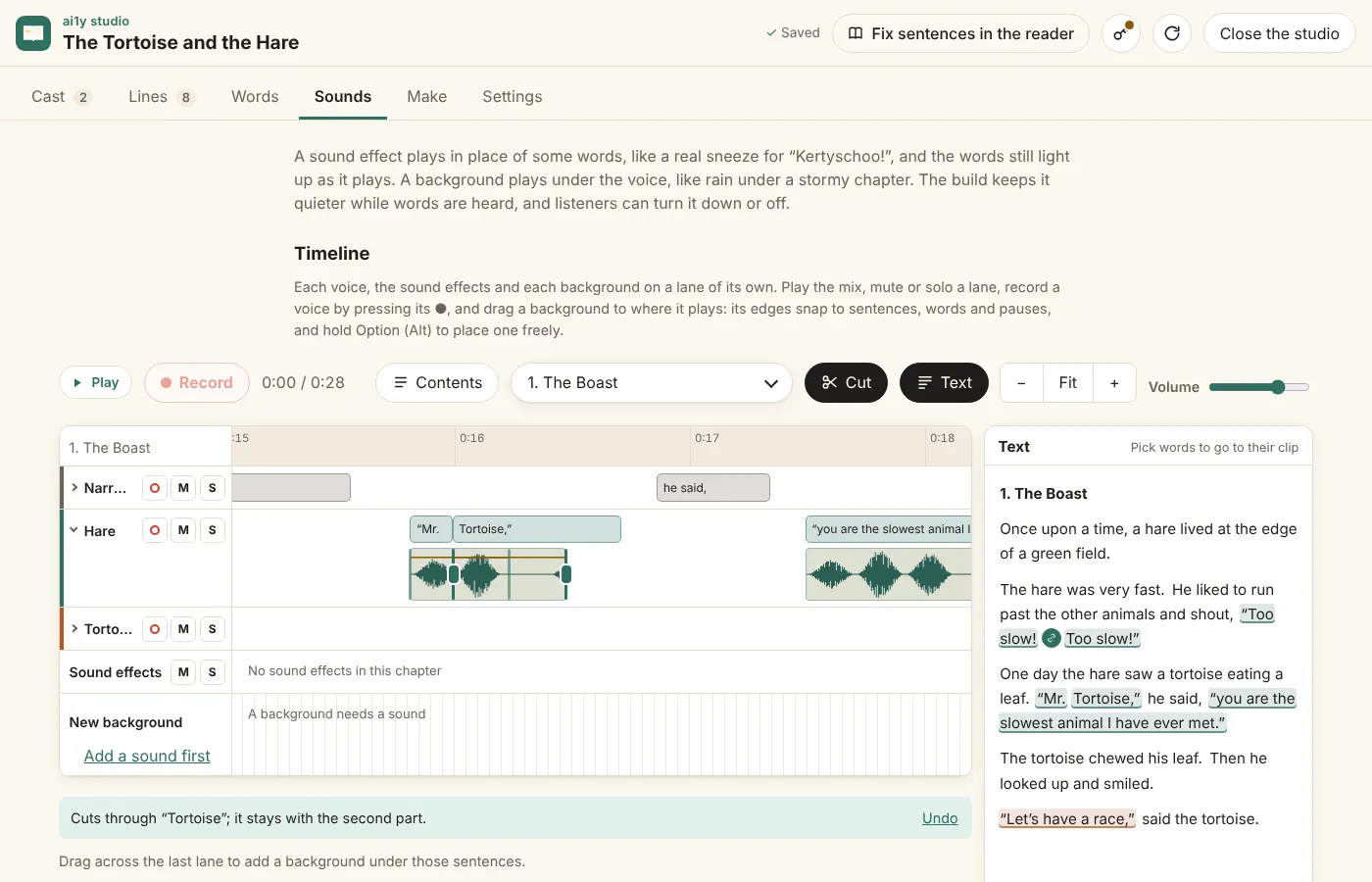
If you cut inside a word, the audio is cut where you clicked and the word stays whole on the side holding most of it. The note under the lanes says which side, with Move it to the first part or Move it to the second part when that leaves words on both sides, and Undo puts the line back as it was. From the keyboard, pick a clip and press Cut at the playhead in the clip panel. Sounds can’t be cut yet, and neither can a clip read in one go with a line from another sentence: read them apart in the Fix sheet first.
You can change the pause between spoken parts on the Timeline too. Open a lane: after each clip there’s a small grip in the gap before the next part, and the hatched stretch is the silence you hear there now. Drag the grip right to make the pause longer, or left to make it shorter, down to none. You can also focus it and use the arrow keys, 0.05 s a step or 0.25 s with Shift, and Delete puts the book’s own pause back. Hovering over it or focusing it shows its length.
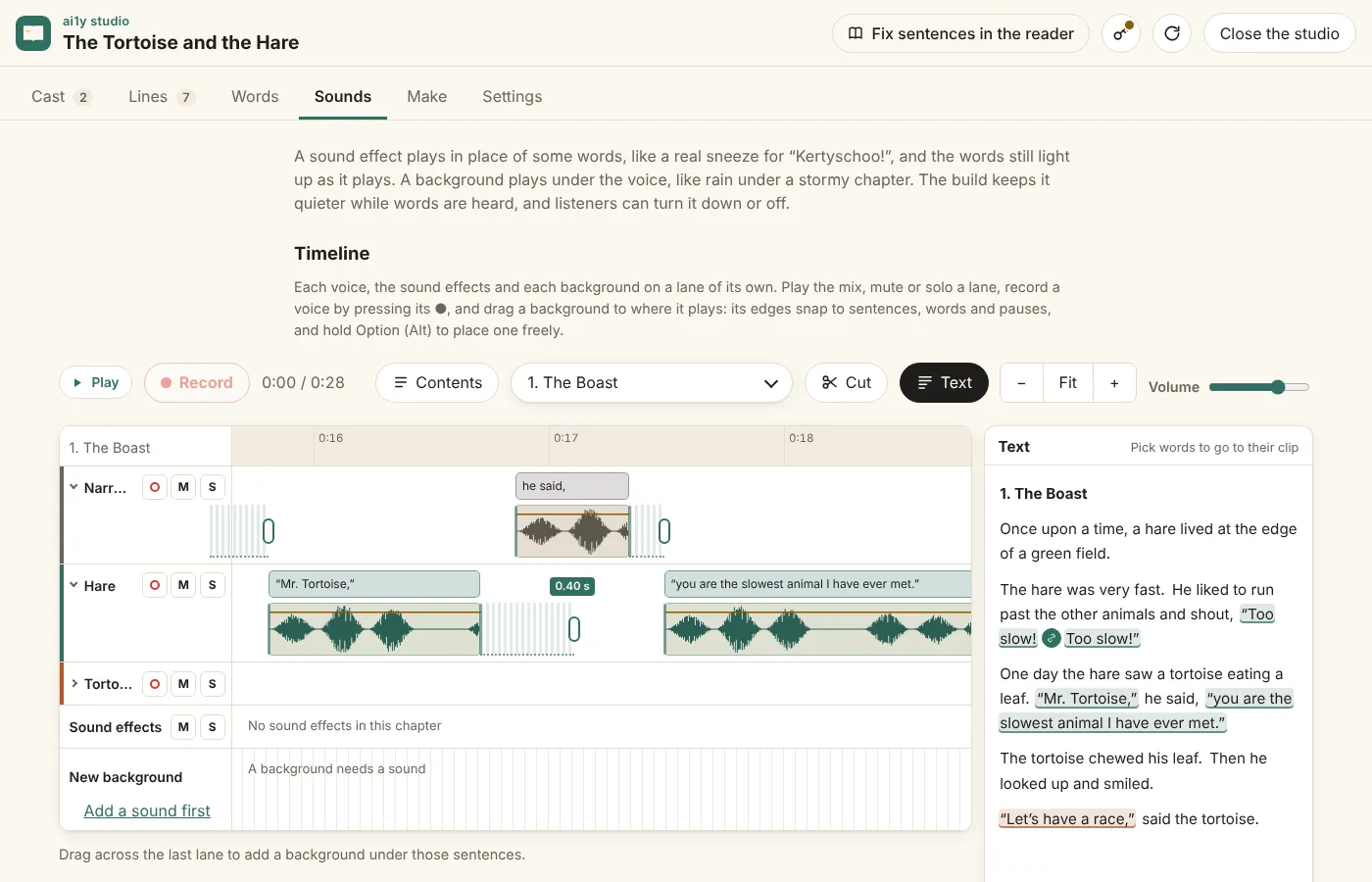
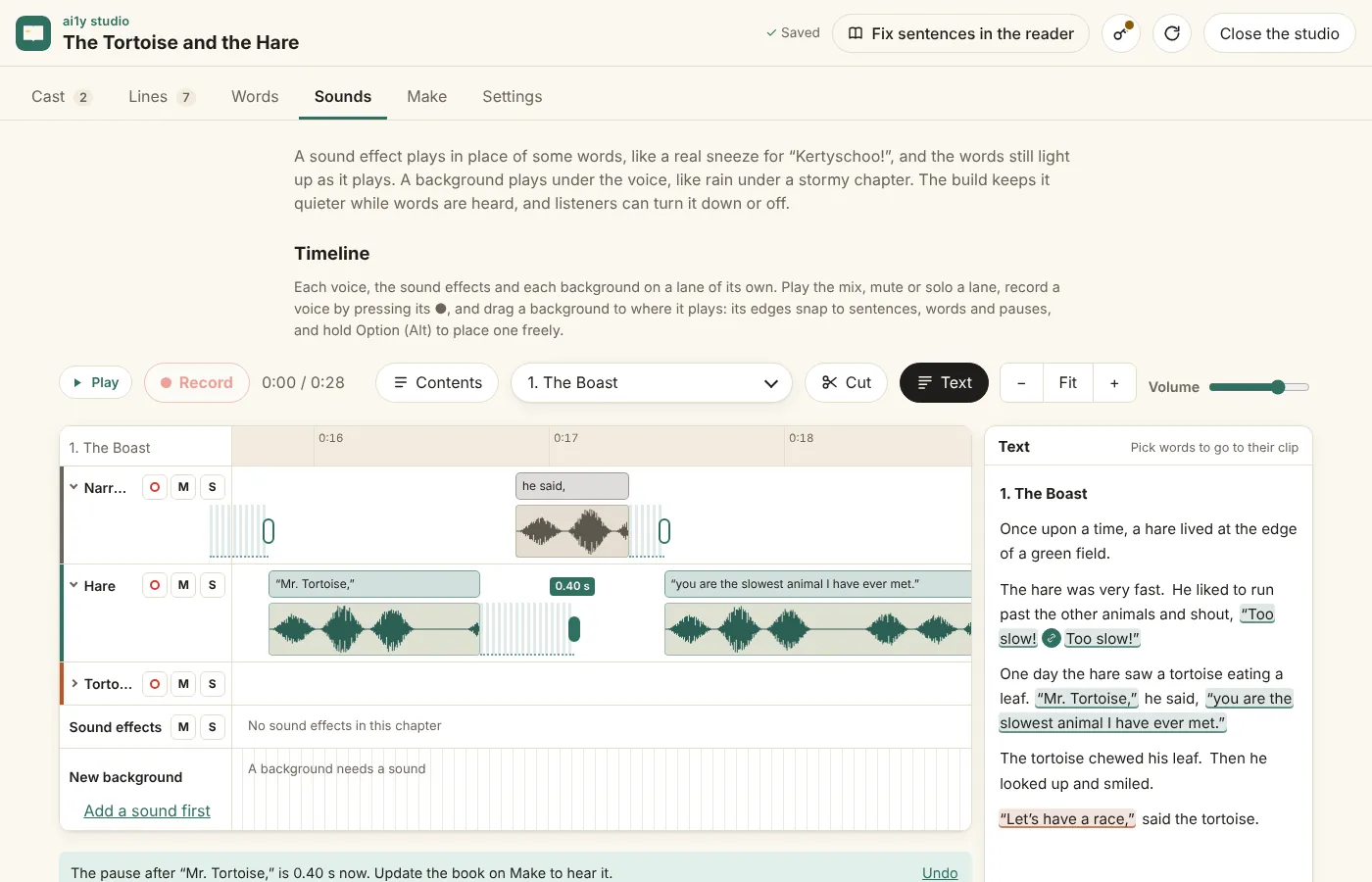
It’s saved when you let go, with Undo under the lanes, and Update the book on the Make screen puts it in the book. The pause is kept as a setting, not as silence added to a take, so picking another take keeps it, and you can always change it back. It stays with the words it follows when lines are split, cut or given to someone else. If a pause is too long because of silence at the end of a take, trimming that end fixes it too.
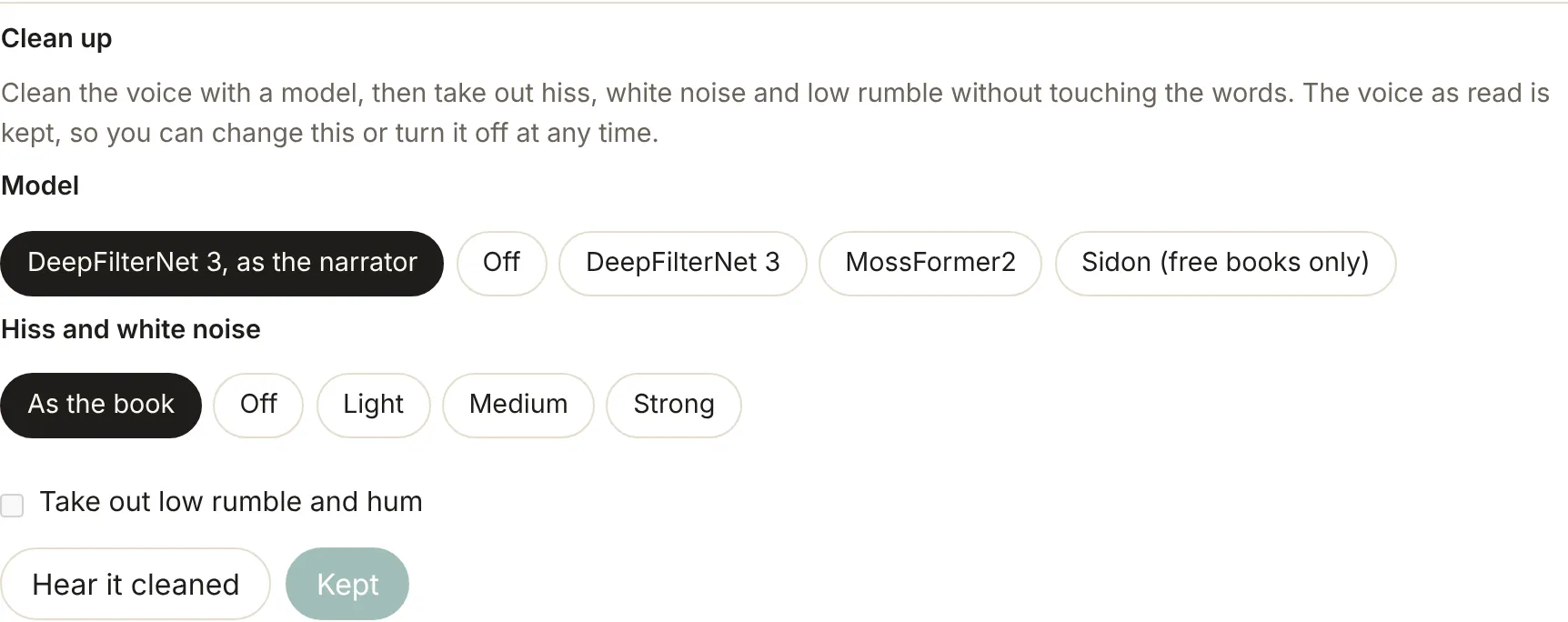
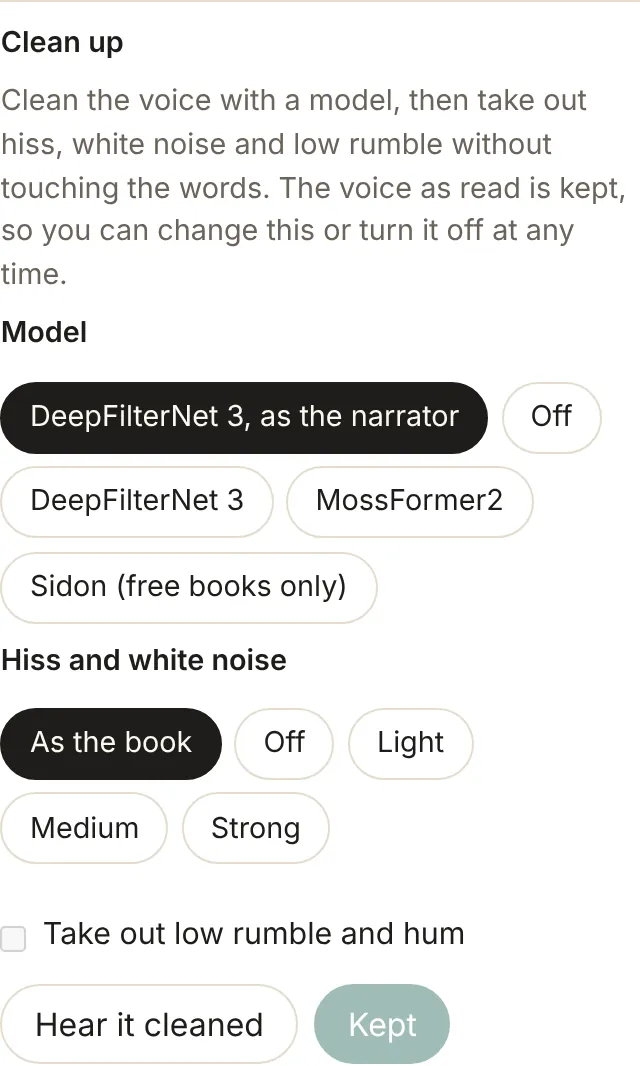
To take hiss, white noise or a low rumble out of a voice, click its clip on the Timeline and use Clean up in its panel. Pick Light, Medium or Strong for hiss and white noise, and tick Take out low rumble and hum if you need it. Hear it cleaned gives you the clip two ways, As read and Cleaned, and says how loud the noise is in its pauses each way. Nothing is kept until you press Keep for this clip. On a line read in one go with lines in other sentences, a clean-up kept on either piece is kept for the whole reading, and Hear it cleaned plays the whole reading. As with volume, the reading plays with its first line’s clean-up, and each line keeps its own for when they’re read apart again. The same Clean up is in the reader’s Fix sheet.
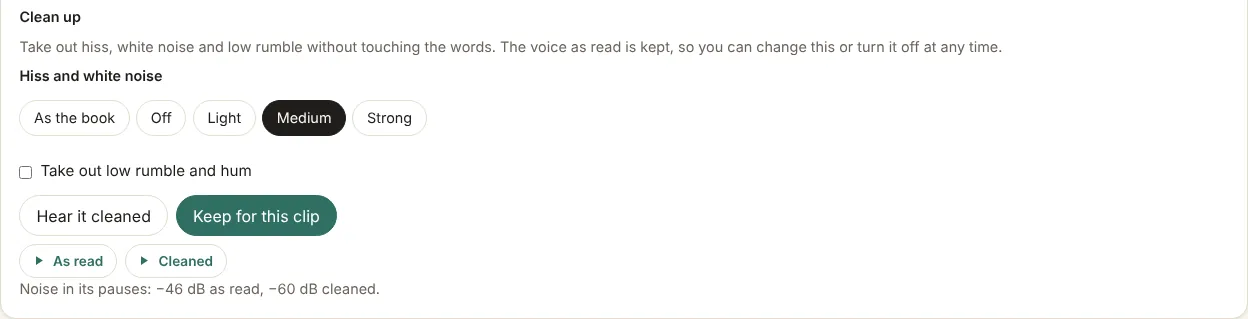
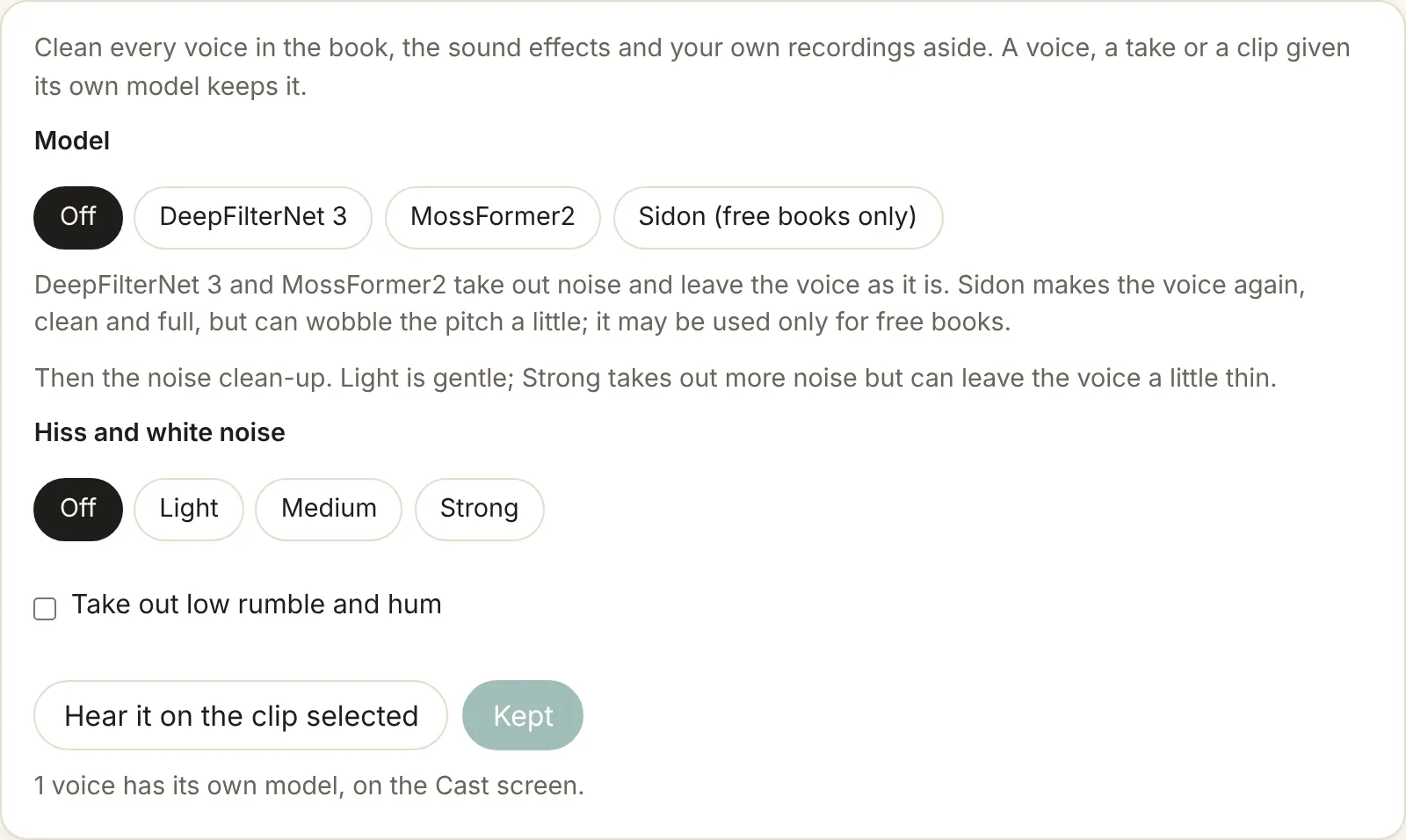
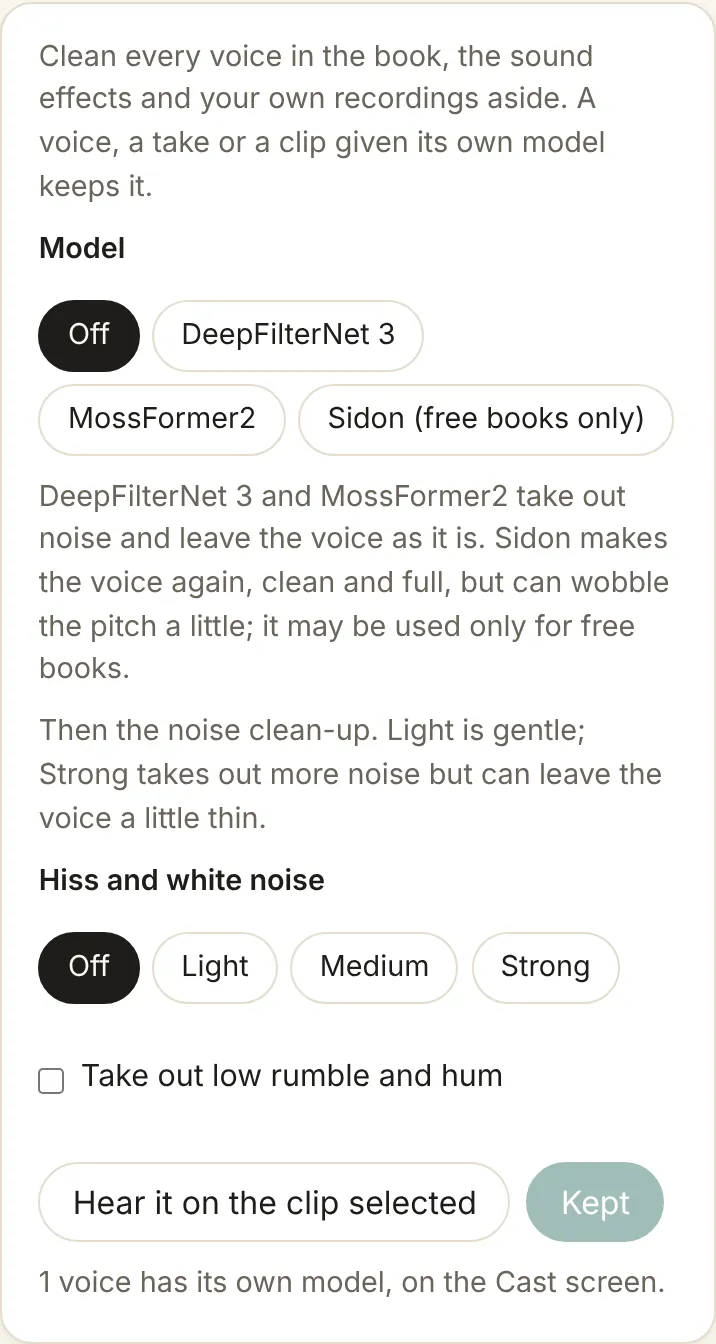
Clean up the voices, under the Timeline, does the same for the whole book: pick a level, Hear it on the clip selected (or on the chapter’s first line when no clip is selected), then Keep for the whole book.
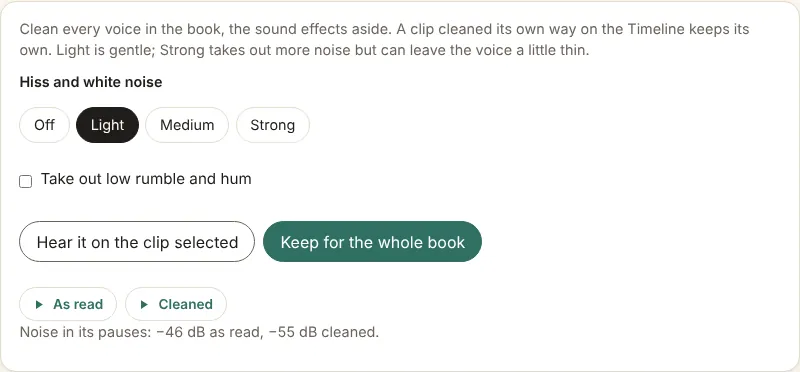
- A clip’s own setting wins over the whole book’s, even Off. Pick As the book to take a clip’s own setting away again.
- Sound effects are left alone by the whole book’s clean-up, since they are your own recordings; a sound effect’s clip can still have its own.
- The words stay. Light, Medium and Strong turn the noise down by at most 10, 15 or 20 dB. The words are never cut to silence, the voice isn’t changed, and the audio stays exactly as long, so the highlighting and every take keep their place.
- Into the book. Once kept, Make shows the book as Out of date, and Update the book makes again only the chapters the clean-up changes, from the readings already kept. Nothing is read again.
- Nothing is lost. Each chapter is kept as read beside the cast file, so a clean-up can be heard, changed or taken off at any time.
- On your computer. Clean-up is ai1y’s own filter: it runs on your computer, needs nothing installed, and can be used in anything, free or paid.
Clean-up models
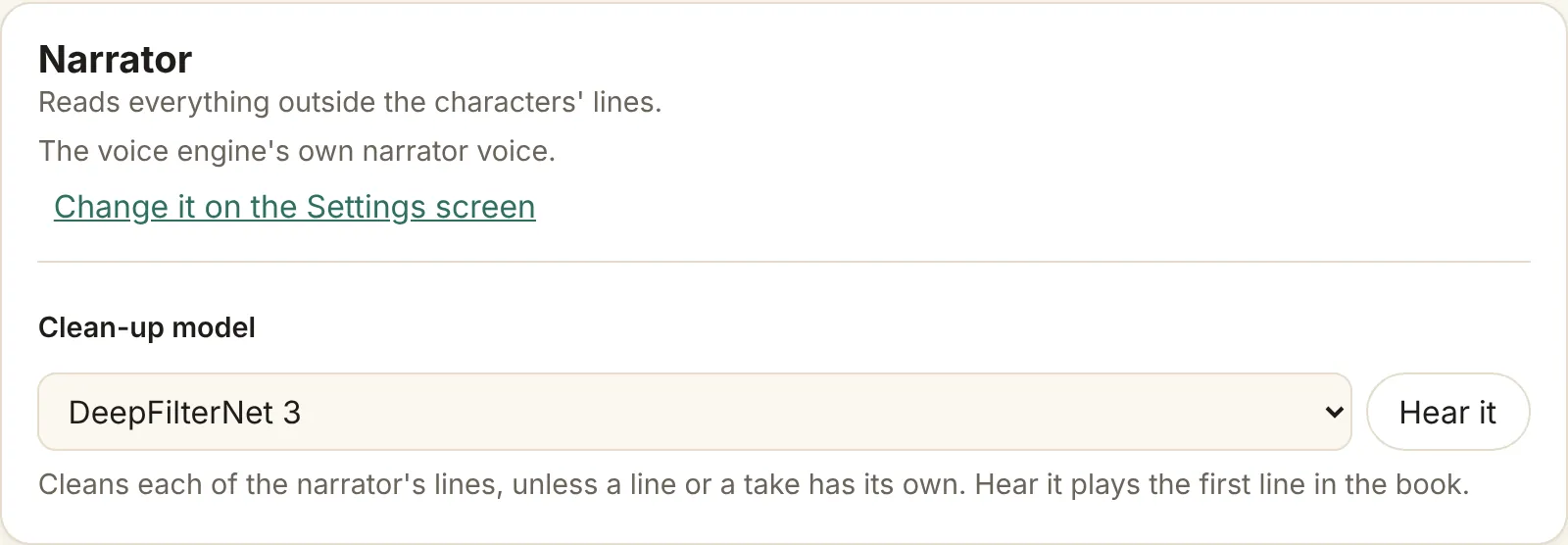
Before the noise clean-up, each voice can be cleaned with a model: Off, DeepFilterNet 3, MossFormer2 or Sidon (free books only). DeepFilterNet 3 and MossFormer2 take out noise and leave the voice as it is. Sidon makes the voice again, clean and full, but can wobble the pitch a little. The model is its own choice, apart from the noise level and rumble, so a clip can have its own noise level and still follow the narrator’s model.
Pick it at four levels, and the most specific wins: a clip’s own model, else its take’s, else its voice’s, else the whole book’s.
- The whole book. Under the Timeline, Clean up the voices has a Model; pick one and press Keep for the whole book. A new book starts with Off.
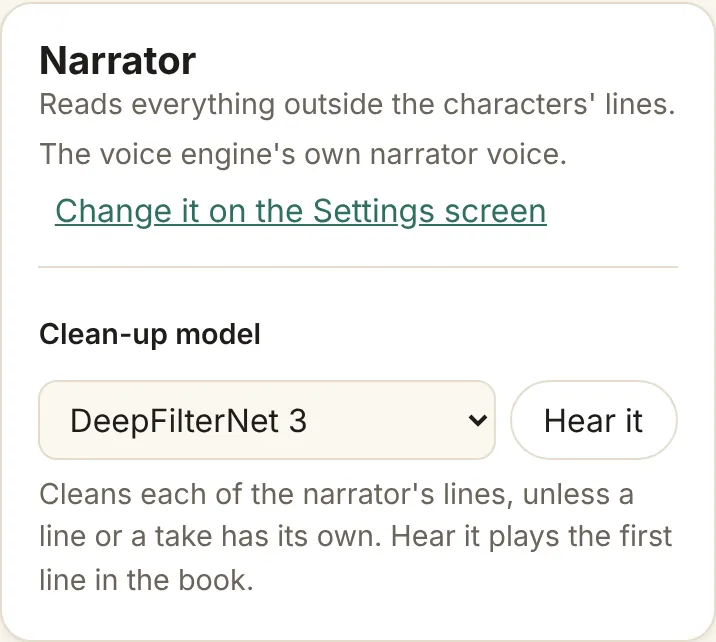
- A voice. On the Cast screen, the narrator’s card and each character’s card have a Clean-up model. As the whole book follows the book, and Hear it plays that voice’s first line in the book, cleaned.
- A take. In the Fix sheet, each take has a Clean-up model, which starts as its voice’s, such as As Hare (Off), and Hear it cleaned. Picking one saves it at once.
- A line. On the Timeline, a clip’s panel has a Model under Clean up. Its first choice says what the clip gets now and where from, such as DeepFilterNet 3, as the narrator. Hear it cleaned plays it, and Keep for this clip keeps it; when the clip plays a take, Keep for this take keeps it for the take instead.
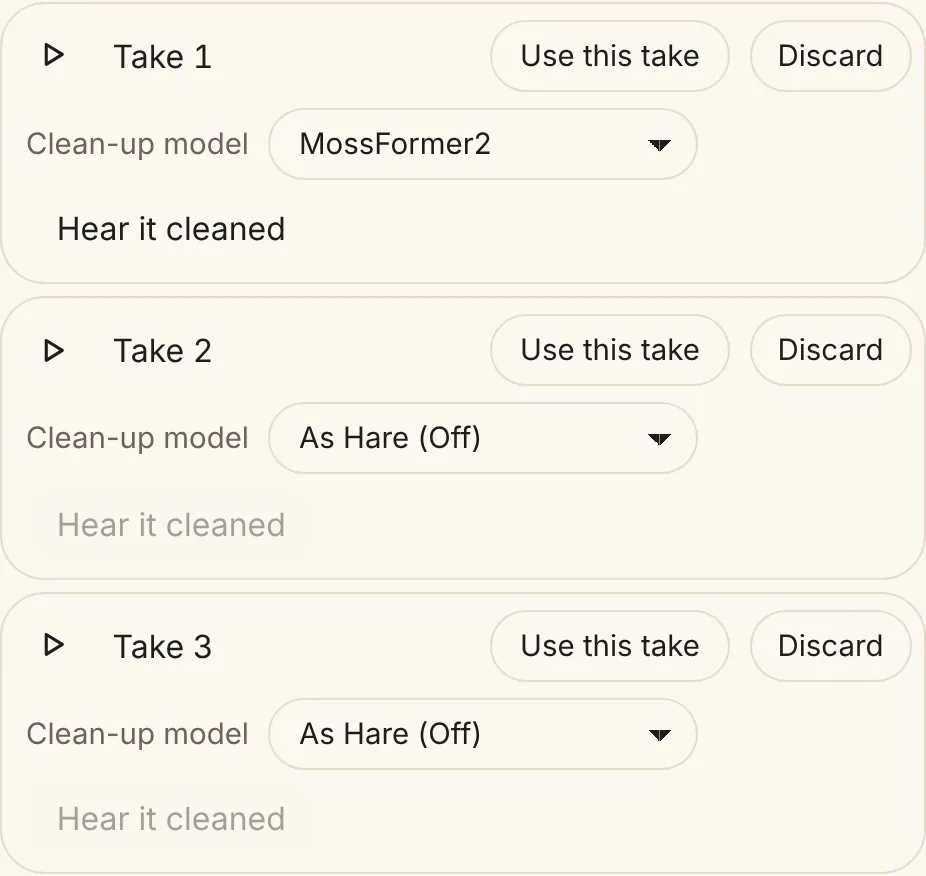
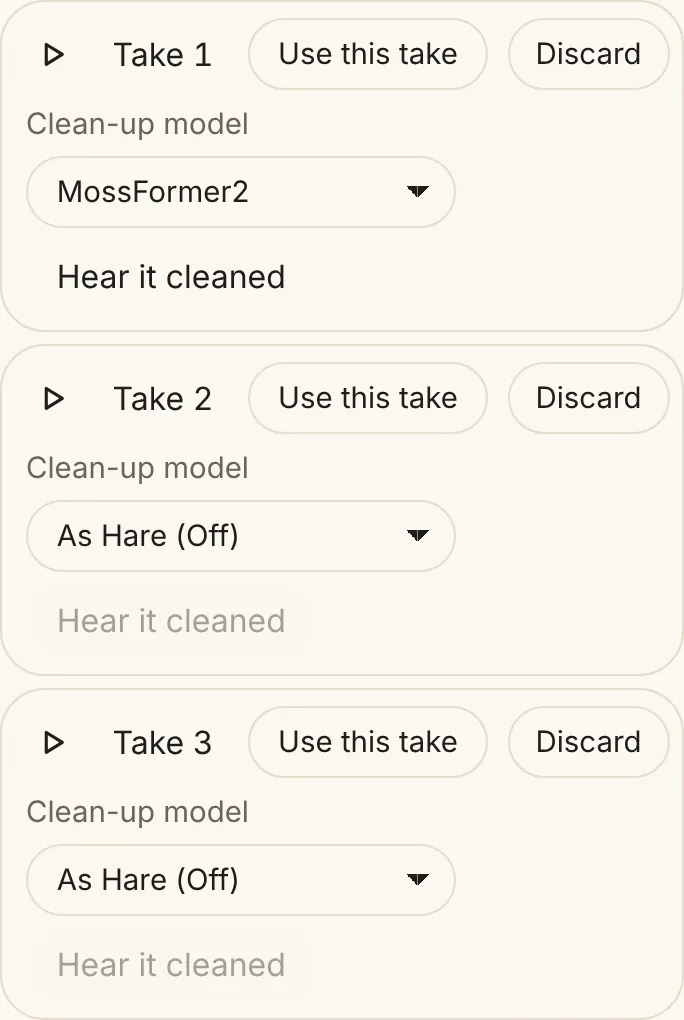
- Undo, then Update the book. Every change shows a note with Undo, and Update the book on Make puts it in the book. It makes again only the sentences whose model changed, from the chapters as read, so moving a voice to another model and back cleans nothing the second time.
- Nothing is read again. A model cleans the chapter as read. Changing a model, or trying another, never asks for a new reading, a line tuned by hand stays exactly as it was, and every word’s timing holds.
- Hear it first. Hearing a model runs as a job, which can take several seconds the first time, so the page carries on meanwhile. A clip heard this way isn’t cleaned again by the next build.
- Left as read. Your own recordings and sound effects are cleaned only when their own take or clip names a model. A line said together by several voices is never given Sidon, and its card and clip say why.
- When Sidon slips. Now and then Sidon drops or adds a short sound. The line is kept as cleaned and listed under Needs a listen; pick another model for that clip, or make a take. The build never reads the line again by itself.
- Free books only. Sidon is marked free books only wherever it’s offered and is never used for a paid product. For now, DeepFilterNet 3 and MossFormer2 aren’t used for a paid product either.
- A little bigger. A cleaned book’s audio is 96 kbit/s instead of 64, so the cleaner top isn’t squeezed back into static.
Background sounds go in a track of their own beside each chapter’s voice, so the voice is never changed and a reader can make them softer or turn them off (Settings → Background sounds). On Yoto, which plays one track, they are mixed in.
Record your own voice
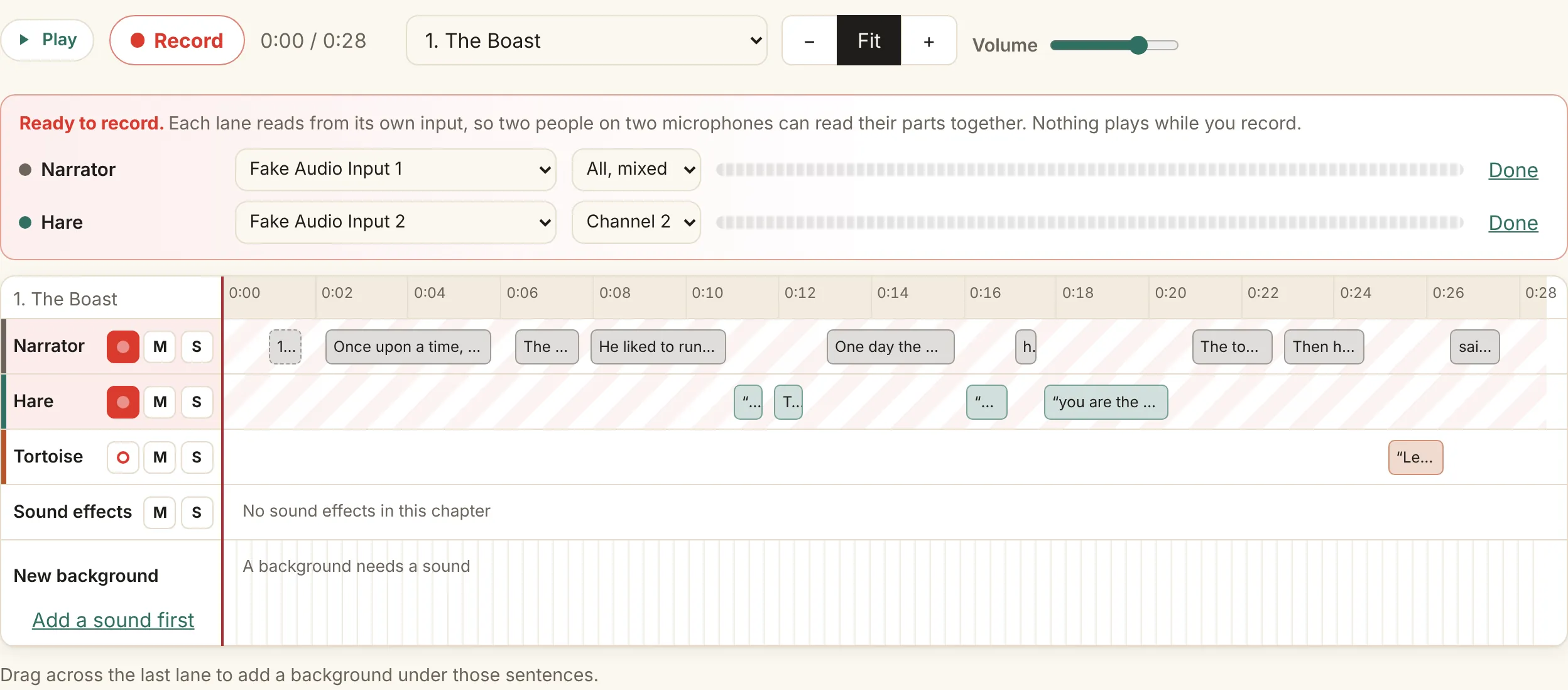
Any voice in the book can be yours. On the Sounds screen’s Timeline, press ● on a voice’s lane, the narrator’s or a character’s, to arm it, and arm several lanes to record them together. Each armed lane picks its microphone and, on an audio interface with several inputs, its channel (Channel 1, Channel 2, or All, mixed), so two people on two microphones can read their own parts in one pass. A meter shows each lane’s level, and the studio remembers each lane’s input on this computer.
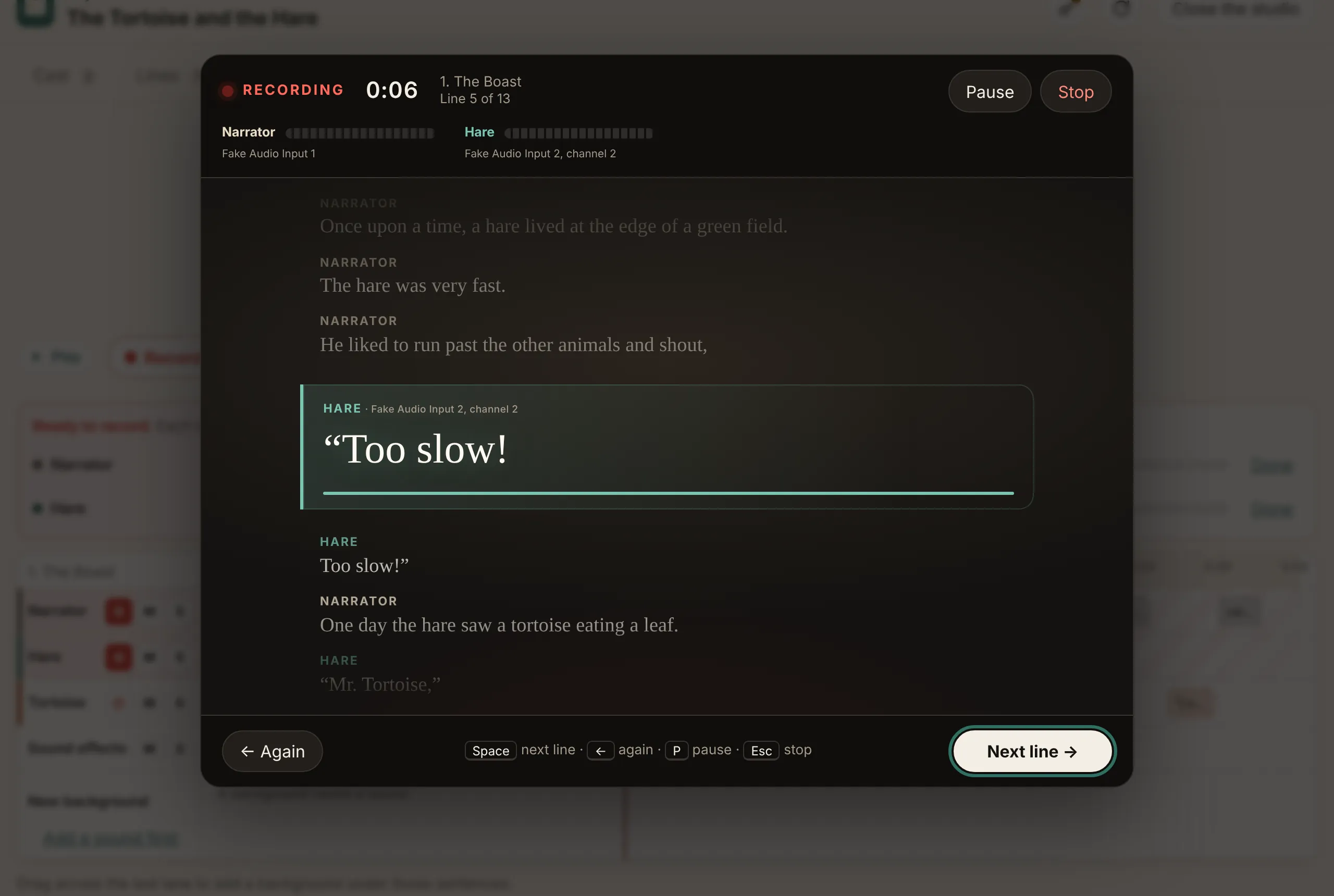
Record counts 3, 2, 1, then shows the chapter as a script from the playhead. The line to read is large and lit, with whose it is and which input records it; the line before fades above, the next ones wait below, and lines nobody armed are shown small, as cues. A thin bar fills at the pace the book’s voice read the line, as a guide, and nothing plays while you record. Press Space (or →, or Next line) when a line is done, ← (Again) to read the line before again, P to pause and Esc to stop.
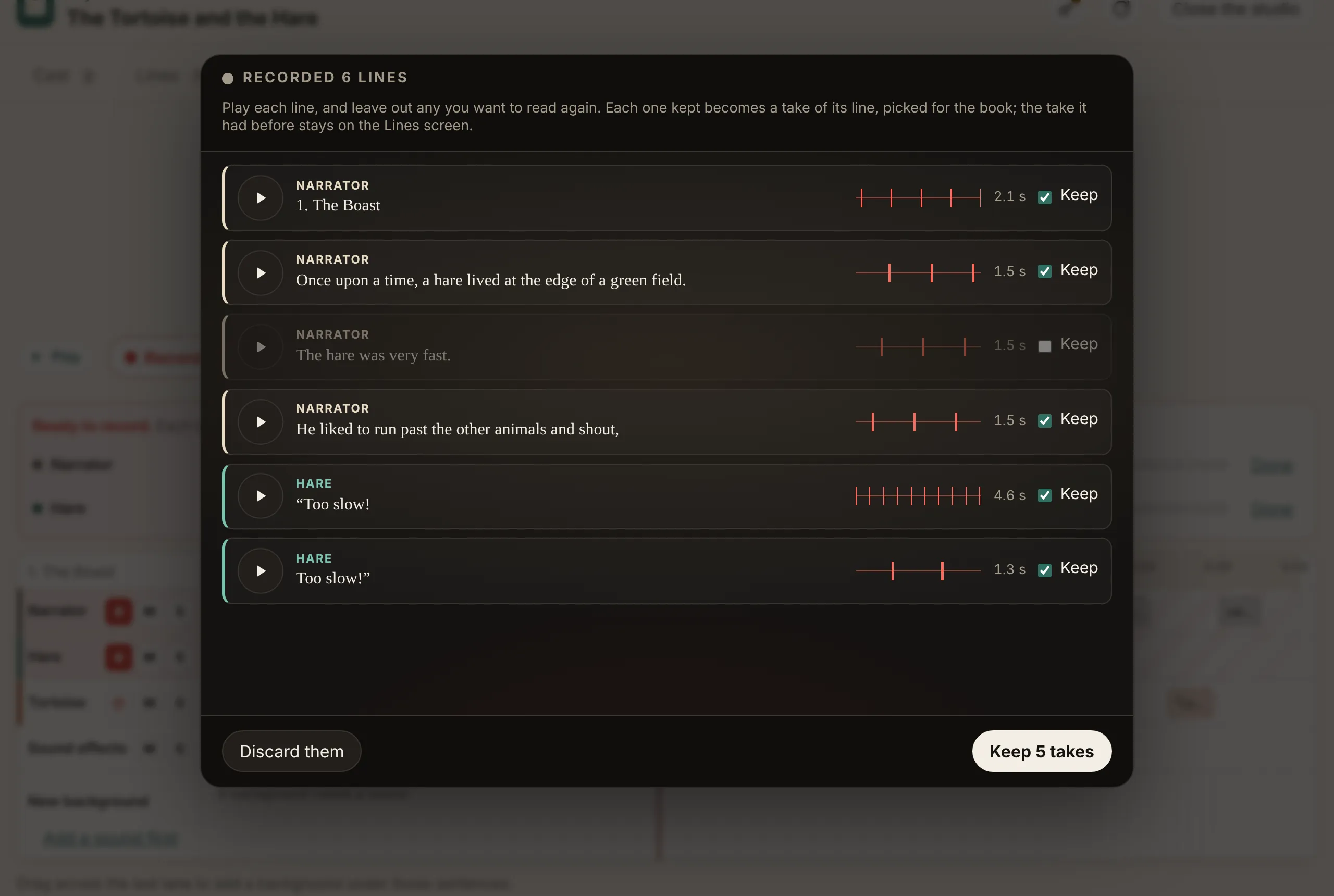
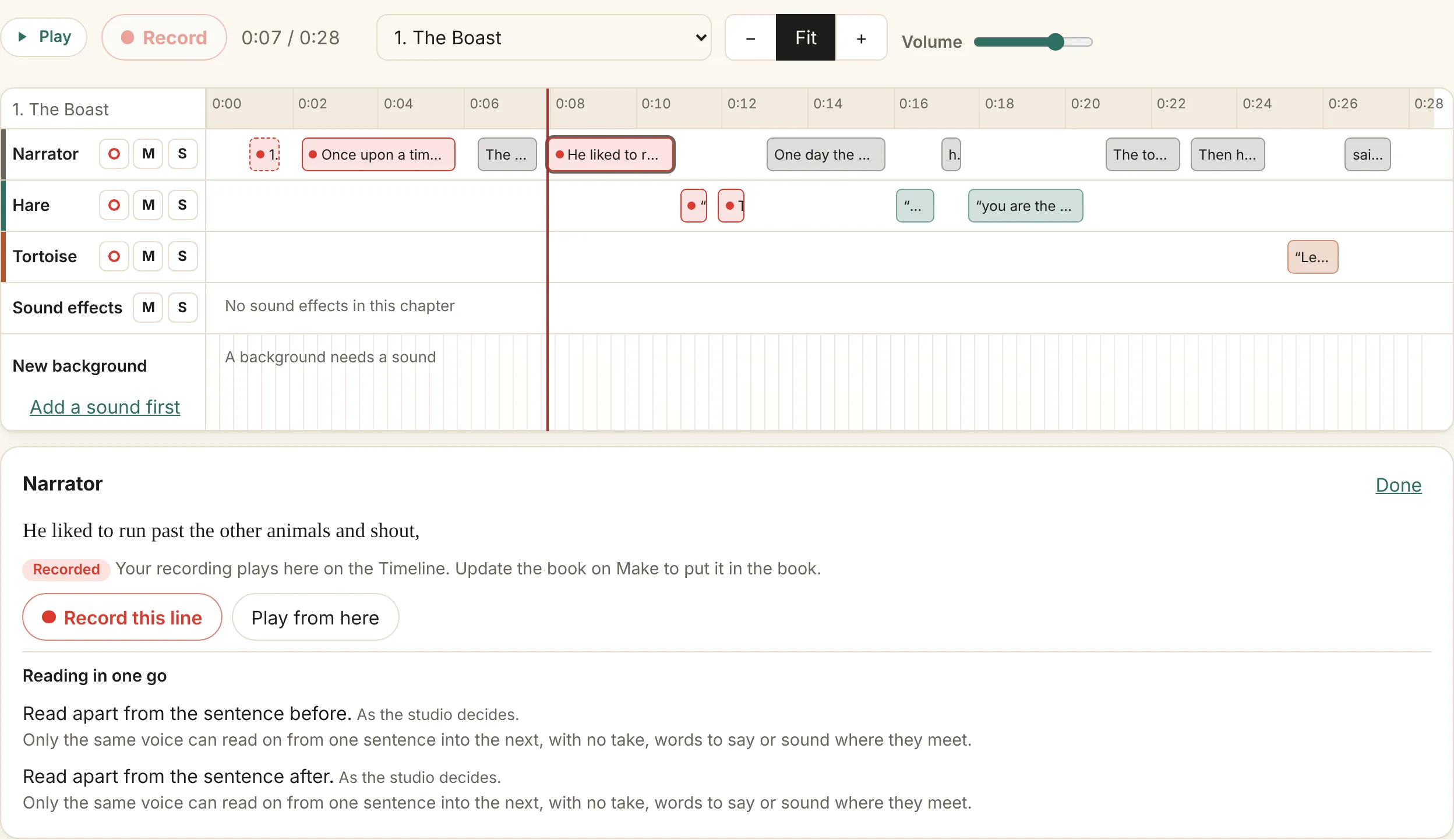
After Stop, play each line and untick any you want to read again, then keep the rest. Each kept line becomes a take of that line, marked Recorded and picked for the book; the take it had before stays on the Lines screen. Recorded lines have a red dot on the Timeline, and Play plays your recording in their place, so you can hear it before a build. Update the book on Make puts them in the book. To redo one line, click it on its lane and choose Record this line.
Browsers allow a microphone only at a secure address; elsewhere, recording is off and the Timeline says so. Recordings stay beside the cast file, in book.cast.takes/lines/, and are never sent anywhere.
Record the sounds for Slowly
The reader’s Sound it out panel has Slowly once it has a set of short clips, one for each sound. No open set of the American phonics sounds exists, so ai1y gives you a page for recording the set yourself: the sound booth. Only the computer it runs on can open it.
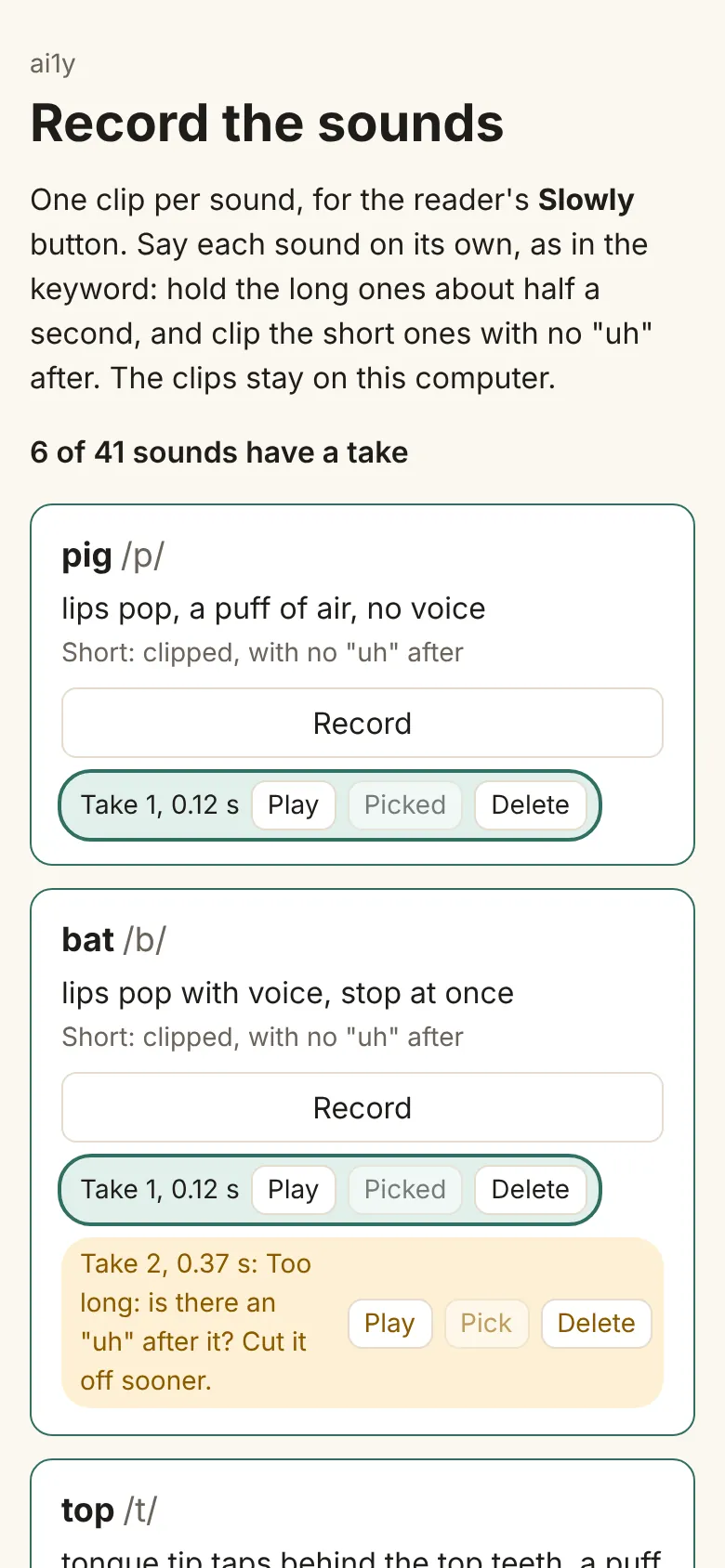
Each of the 41 sounds has a card with its keyword, such as “map”, how to make the sound, and how long it should be: hold long sounds like m, s and the vowels about half a second, and clip short ones like p, t and k with no “uh” after. Press Record, say the sound, then Stop (or press Space). The page trims the silence and checks the length. A long sound held too long keeps its middle; a take that’s too short, or a short sound with an “uh”, is marked with why and can’t be picked; a silent take is refused, so check the microphone.
Each take can be played, picked or deleted. The first good take is picked for you and the page moves on to the next sound. Takes are kept as you go, so you can stop and pick up later. Check your sounds against a phonics reference as you go.
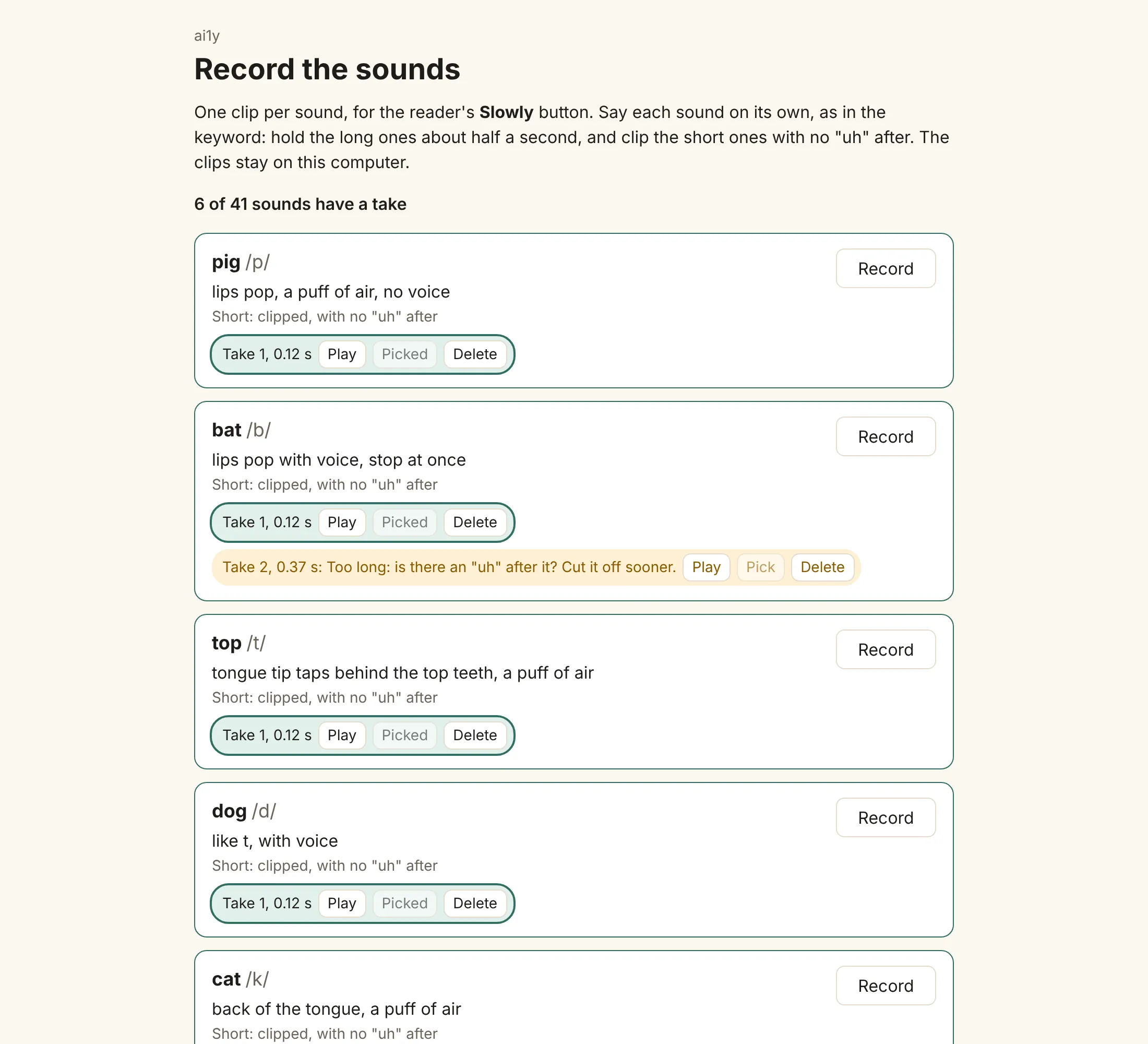
When every sound has a take, type a credit line, such as “Sounds: Jordan’s voice”, which the panel shows, and choose who the sounds are for: Only on this computer (the default), or Free for anyone (CC0) if you want to share them. Then press Save the set. The set and its takes are kept in ~/.local/share/ai1y/sounds, never in a book or the repository, and nothing is sent anywhere. The studio’s reader finds the set by itself: reload the reader and Slowly is there.
If the set was changed in another tab while you worked, the page says so, shows the set as it is now, and leaves your change unmade, so you can make it again if you still want it. Saving puts the new set in place only once it is whole; if a save fails, the reader keeps the set it had. Scripts can record a set too, through the same API the page uses.
Pronunciation
Before anything is narrated, the studio can find the words a voice may say wrong. The Words screen opens with Words the voice may say wrong: Find them with Claude reads the book for names, technical terms and abbreviations, using your Claude key and sending only the book’s text, and Find abbreviations needs no key and sends nothing, spelling out words like “SQL”, or the “DB” in “CockroachDB”, letter by letter. Each word it finds gets a suggested respelling, badged Suggested with the reason, and builds use it straight away. Listen, then Keep it, change it, or choose Not needed, and that word is never suggested again. A respelling of your own is never replaced. Saving a respelling after a build reads nothing again by itself; the next build or update asks whose lines to read again (Listen and fix).
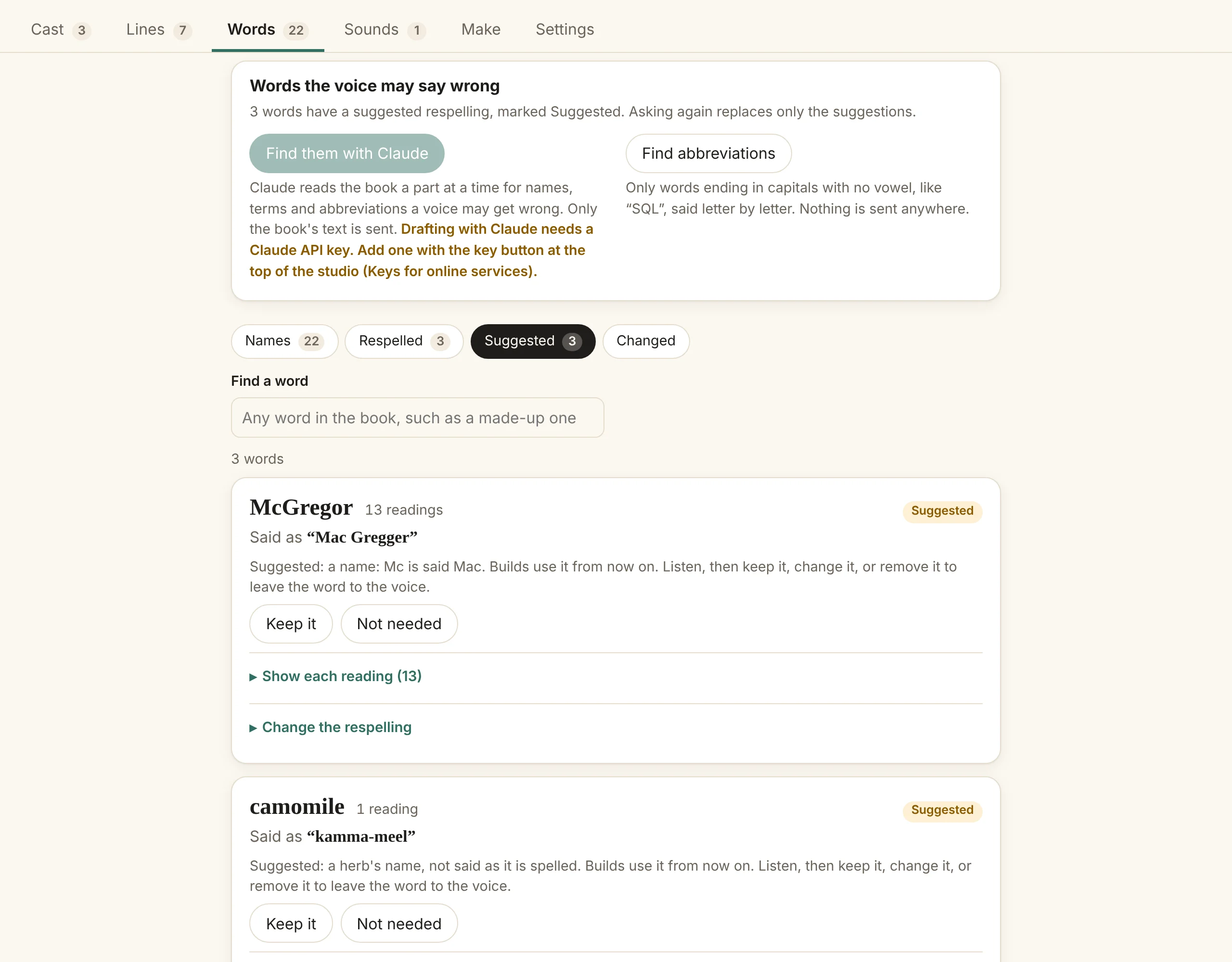
In the creator studio, the Words screen plays every reading of a name one after another, so a name said two ways is easy to hear. A respelling typed there, such as “Dye-nuh” for Dinah, is kept in a lexicon of its own beside the cast file (book.cast.lexicon.pls), and every build gives it to the voice ahead of the book’s lexicon. Hear it makes takes of a respelling before you save it.
When a voice says a name wrong, give the book a pronunciation lexicon: a W3C PLS file, the one EPUB 3 already uses. Each entry gives a word’s IPA and, for voices that take text only, an <alias> to say in its place. The page still shows the book’s own spelling, and the highlight still lands on it; only the voice says the alias.
<lexicon version="1.0" xmlns="http://www.w3.org/2005/01/pronunciation-lexicon"
         alphabet="ipa" xml:lang="en">
  <lexeme>
    <grapheme>Ally</grapheme>
    <phoneme>ˈæli</phoneme>
    <alias>Allie</alias>
  </lexeme>
</lexicon>
Add it to the EPUB and list it in the EPUB’s package file, and ai1y-build picks it up. The introduction on the home page uses exactly this entry.
Summaries
Summaries are written with Claude: Sonnet 5.5 for pictures, Haiku 5.5 for the rest, or with a vision model on a Mac. Each summary is labeled with the model that wrote it, and an author’s own alt text or caption always wins.
Summaries are kept, so a rebuild writes only what’s new.
Yoto cards
ai1y works with Yoto. It turns a narrated book into audio tracks for a Yoto Make Your Own card: one track for each part of the book, named after its chapter, in reading order. The card plays the narration; highlighting, taps and questions stay in the reader. Front matter and anything a model wrote, such as summaries, are left out, because a card can’t show the Summary written by AI label.
The easiest way is Put on Yoto in the studio, on any build. It makes the tracks, signs in to Yoto in your browser the first time and uploads them as a playlist in your Yoto account. Link the playlist to a blank card once, in the Yoto app; putting the book on Yoto again after a rebuild updates the same playlist, so the card keeps working. In the studio’s list of builds, the one last put on Yoto is marked On Yoto; when a newer build is showing, it says which build Yoto still has and offers Update on Yoto, which sends only the chapters that changed. The reader on ai1y.co has no server behind it, so it doesn’t show the button.
- Within Yoto’s limits. A card holds up to 100 tracks and 5 hours, so a chapter over 59 minutes is cut into “(1 of 2)” tracks and a longer book takes more cards. Tracks are mono 96 kbps MP3 made with ffmpeg, or M4A made with the Mac’s own
afconvert. - An icon for each chapter. The icons checkbox asks Claude to draw every chapter’s 16 by 16 pixel icon in one go, so they look like a set, and
icons.pngshows them side by side to check before uploading. - Your own account, no setup. ai1y signs in as its own Yoto app, so there’s nothing to register; each person signs in to their own account and only the login is kept, in the credential store. The card folders are kept beside the book.
- For your family’s players. Cards made from a free book, or from a book you own and narrated on your computer, are yours to play. Nothing is uploaded unless you ask.
The card folders
card-1/01 Chapter One.mp3a track for each part, tagged with its titlecard-1/CARD.txtthe card’s title, the description to paste with the voice credit, and how to upload by handcard-1/card.jsonthe same, as datacard-1/icons/each chapter’s icon, if asked forcard-2/the rest, when a book needs more than one card
The tracks can also be added by hand in the Yoto app, as CARD.txt explains.
ai1y works with Yoto, but is not an official Yoto product.